Audit SSO activity with the access log
AI summary
About AI summaries.
The Access log page shows single sign-on login activity and administrative actions, such as creating and managing identity provider (IdP) profiles, in Imply Lumi Enterprise. Use access log data to troubleshoot failed logins and audit profile changes.
Lumi retains access log data for 31 days.
Prerequisites
To view the access log, you need a Lumi user with the Admin role. For information on roles and permissions, see Use roles to control access.
View the log
To view the access log:
- Click Access in the sidebar.
- Click the Access log tab.
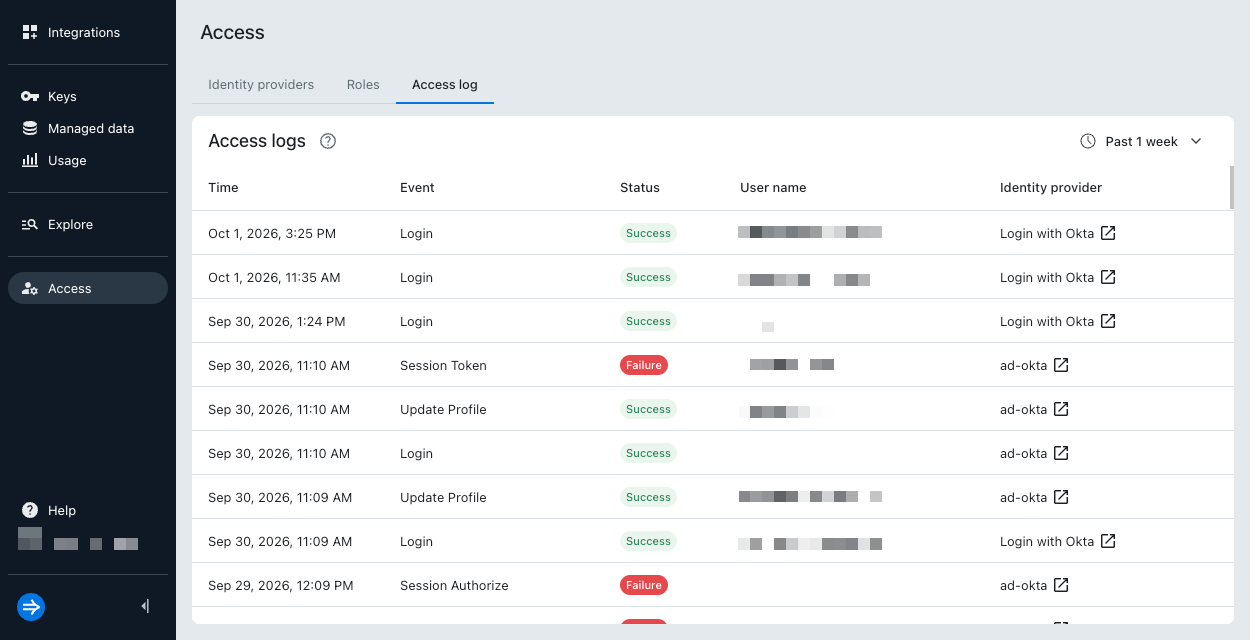
To change the time frame, click the date drop-down and select an option. To specify a custom time frame, click Fixed range, select start and end dates, and click Apply.
The Access log page displays the following information:
- Time: Timestamp when the event occurred, displayed in your local time zone
- Event: Event type
- Status: Event status
- User name: User who triggered the event
- Identity provider profile: Name of the IdP used to authenticate
To view event details, click the event. The event details pane opens.
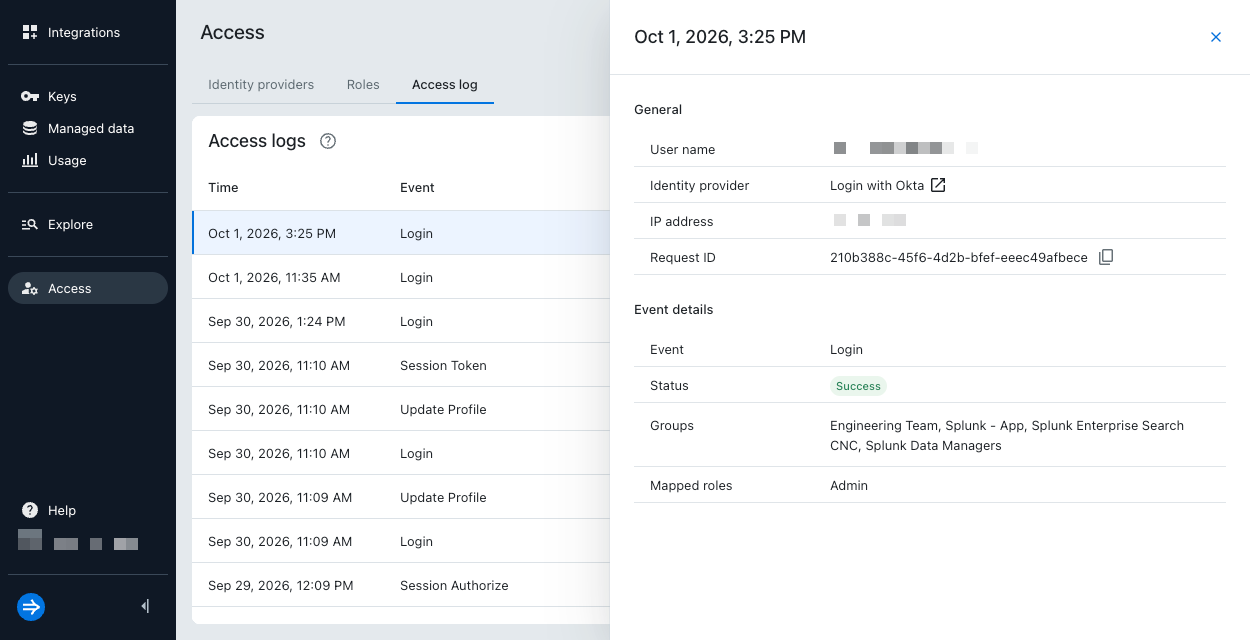
The pane includes the following additional fields:
- IP address: Client IP address
- Request ID: Unique identifier associated with the event
Depending on the event type, the pane may also display:
- Display name: Updated name of the IdP profile
- Groups: Groups from the IdP assertion
- Mapped roles: Lumi roles applied after role mapping
- Enabled: Whether the IdP profile is enabled
- IdP type: Updated IdP type
- Issuer URL: Updated issuer URL
- Certificate: Whether a new IdP certificate was submitted
- Reason: Reason for failure
Learn more
See the following topics for more information:
- Security for an overview of available Lumi security measures.
- Configure SAML SSO for Lumi Enterprise to configure SSO for external mode.