Manage IAM keys
AI summary
About AI summaries.
Imply Lumi uses Identity and Access Management (IAM) keys for authentication and authorization of external systems and applications. You need an IAM key to add and search events in Lumi.
When you create an IAM key, Lumi provides the following details associated with the key:
- ID: A universally unique identifier (UUID) for the IAM key.
For example,7887140b-7707-4845-8aa3-a17095e00000. - Token: Credentials associated with the IAM key.
For example,229a2561-0000-0000-0000-bc433de16f89.
You use one or both values in your forwarding or search agent to authenticate requests to Lumi.
This topic provides details on creating and managing IAM keys in Lumi.
Prerequisites
To create and manage IAM keys, you need access to Lumi with the Manager or higher role. For more information on roles, see Manage roles.
Set up an IAM key
To create and use an IAM key to send or search events, you need to create it and add an integration to it.
Create an IAM key
Lumi doesn't support creating IAM keys for administrative purposes.
You can create an IAM key from the Keys page or while configuring an integration on the Integrations page. You need to add at least one integration to the IAM key before you can use it. When you create an IAM key from a specific integration, the integration is automatically added to the key.
- Keys page
- Integrations page
To create an IAM key from the Keys page:
- From the Lumi navigation menu, click Keys.
- Click + Create key.
- Enter IAM key details:
- Name: Name of the IAM key. Only the Name field is required to create the IAM key.
- Description (optional): Description for the IAM key.
- Global attributes: Environment and Team system attributes associated with the IAM key. See System attributes for more information.
- Click Create. The key is created in an inactive state. To activate it, add an integration to the key.
To create an IAM key while configuring an integration:
- From the Lumi navigation menu, click Integrations.
- Select the integration you want to configure.
- In the Select or create an IAM key pane, click Select or create key > Create key.
- Enter IAM key details:
- Name: Name of the IAM key. Only the Name field is required to create the IAM key.
- Description (optional): Description for the IAM key.
- Global attributes: Environment and Team system attributes associated with the IAM key. See System attributes for more information.
- User attributes: Attributes specific to the selected integration. See IAM key attributes for more information.
- Click Create.
Add an integration
Add an integration to activate an IAM key for use. You can do this from the Keys page or from an integration page.
- Keys page
- Integrations page
From the Keys page:
-
From the Lumi navigation menu, click Keys, then select your key.
-
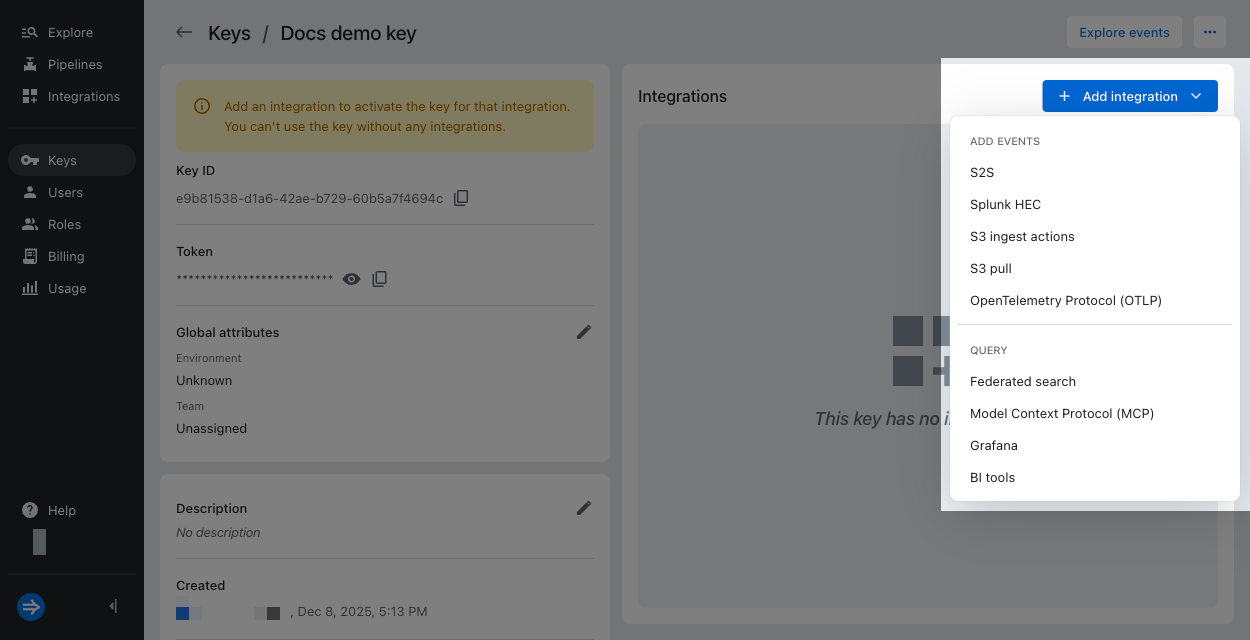
In the Integrations pane, click + Add integration.
-
Select an integration.
-
Configure any IAM key attributes for the integration, then click Save.
From an integration page:
- Select the integration.
- In the Select or create key dialog, select your key.
- Configure any attributes for the integration, then click Add.
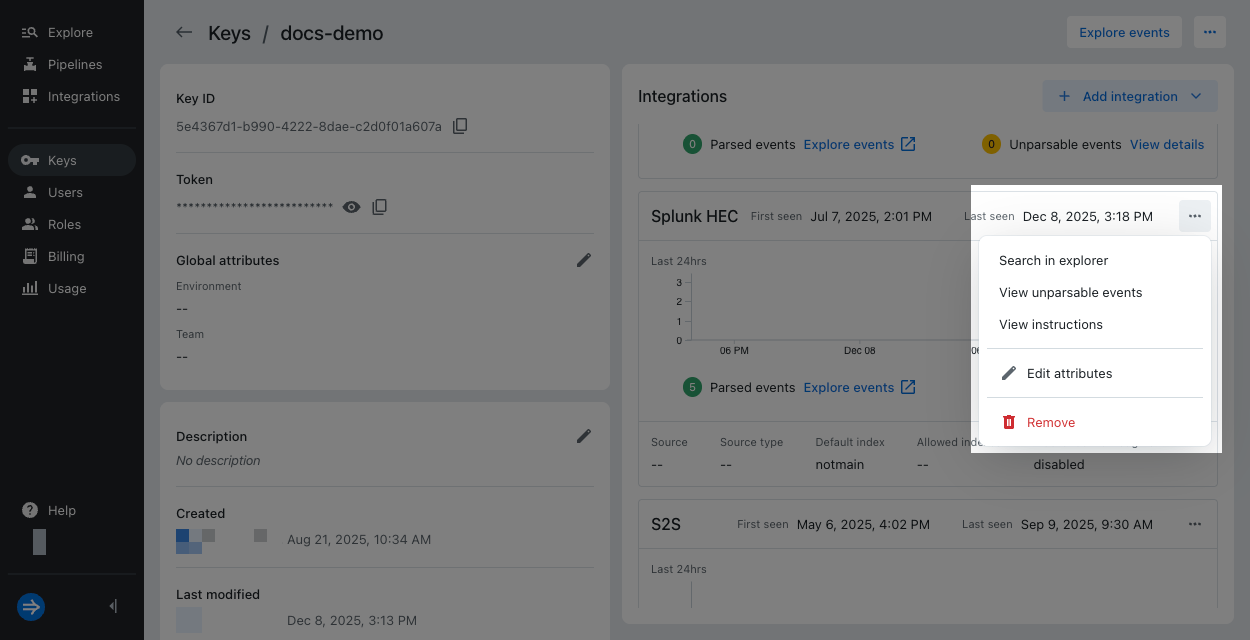
To remove an integration, click the ellipsis for the integration and click Remove.
Reuse an IAM key
You can use a single IAM key for multiple integrations. If you do so, ensure that any shared attributes are compatible across the integrations. For details, see Multiple integrations on one key.
View an IAM key
Access the Keys page from the Lumi navigation menu to view IAM keys.
View all keys
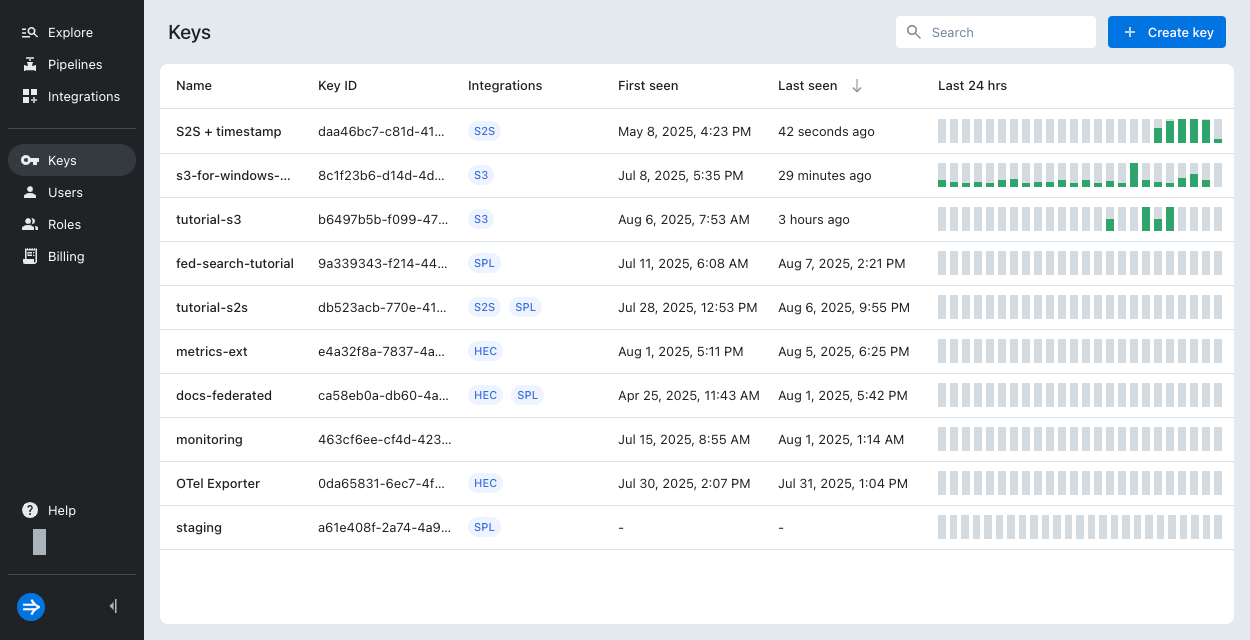
You can use the search bar to filter keys by name, integration type, or IAM key ID.
The Keys page shows the following details for an IAM key:
- Key name and ID
- Integrations added to the key
- When the key was created and last active
- Ingestion metrics for events with timestamps from the past 24 hours
- Unparsable events, if any occurred
Click the information icon next to a key to view its description and token.
View key details and metrics
Select an IAM key to open its details page and update its description, integrations, and attributes.
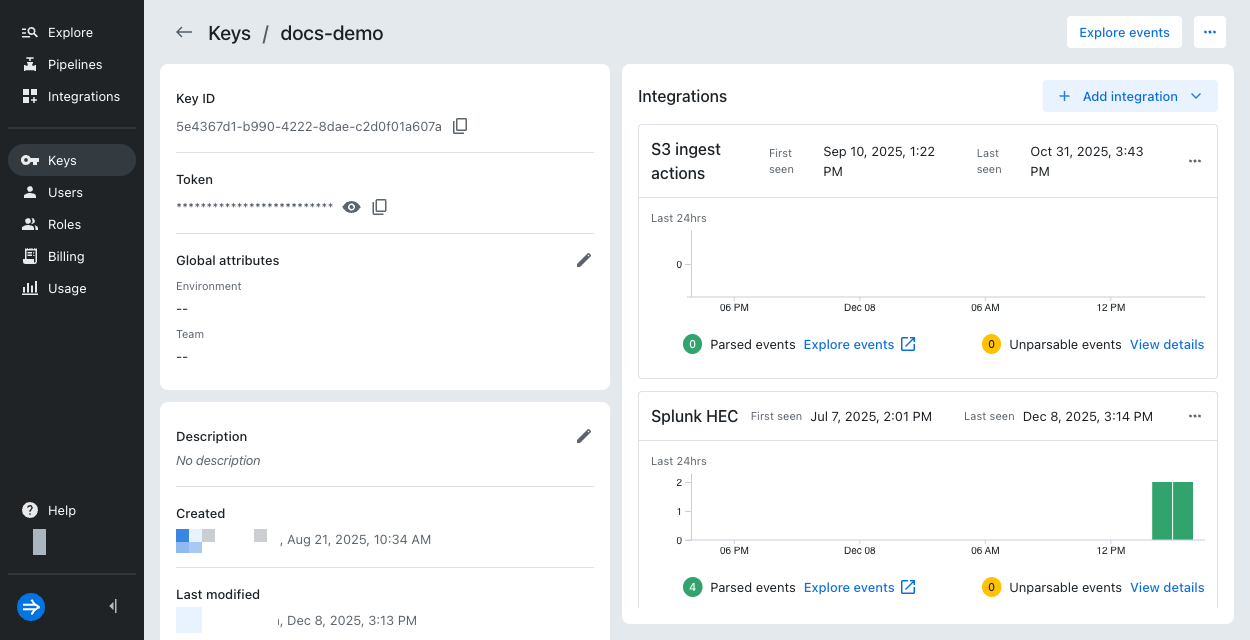
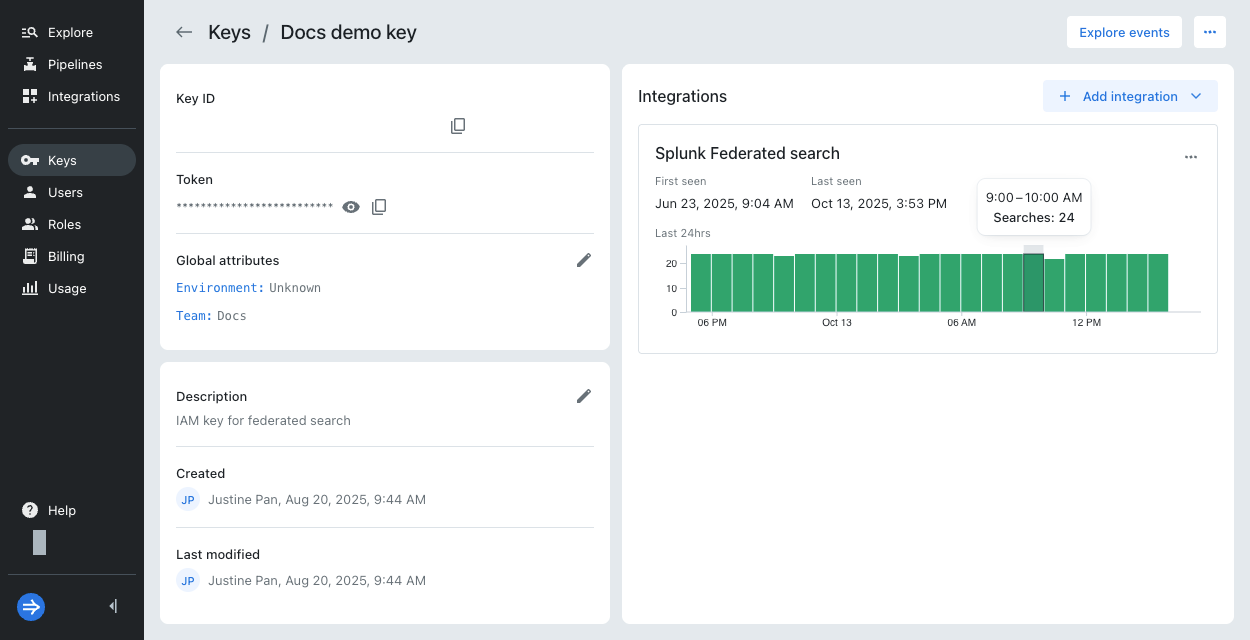
The Integrations pane shows activity from the IAM key for each receiver. Hover over a bar to see usage during that hour. The metrics shown depends on the integration type:
-
For application integrations, a green bar indicates the number of searches run in that hour.
-
For ingestion integrations, the color of the bar indicates the event status, where green sums the number of successful events and yellow sums the number of unparsable events.
To investigate unparsable events, see Troubleshoot data ingestion.
Update an IAM key
The changes you make to the IAM key or its properties can affect your access to add and query events.
You can update an IAM key's description and global attributes, add or remove integrations, and edit attributes for an integration.
To update an IAM key:
- From the Lumi navigation menu, click Keys.
- Select an IAM key to open its details page.
- Make your changes to the key:
-
To update the global attributes, click the edit icon in Global attributes. Enter your values, then click Update.
-
To update the description, click the edit icon in Description. Enter your description, then click Save.
-
To add or remove an integration, see Add an integration.
-
To update the attributes for an integration, find the integration, click the ellipsis, then click Edit attributes.
-
Delete an IAM key
Deleting an IAM key is a permanent action. It affects all integrations relying on that IAM key for authentication. We recommend that before you delete an IAM key, you update any related integrations with a new IAM key first. This allows the integration to function without interruption.
To delete an IAM key:
- From the Lumi navigation menu, click Keys.
- Click the ellipsis next to the IAM key you want to delete.
- Click Delete.
- When prompted, type the name of the IAM key you want to delete; then click Delete.
Learn more
For more information, see the following topics:
- IAM key attributes for details on integration attributes.
- Send events for configuring integrations to add data.
- Search events for configuring integrations to query data.