Use the system admin user to set up SSO
AI summary
About AI summaries.
This information applies to Lumi Enterprise.
The system admin is a built-in user with administrative access to all features of your Imply Lumi Enterprise deployment. The system admin user is enabled by default.
Use the system admin user to set up single sign-on (SSO) for Lumi Enterprise. After you log in as the system admin and connect your external identity provider (IdP), users can log in with their IdP credentials.
Log in as system admin
When you deploy Lumi Enterprise, you specify system admin credentials in main.tf using the admin_email and admin_initial_password properties.
Use these credentials to log in as the system admin user.
Keep your system admin login credentials confidential because the system admin user has full administrative access to the deployment.
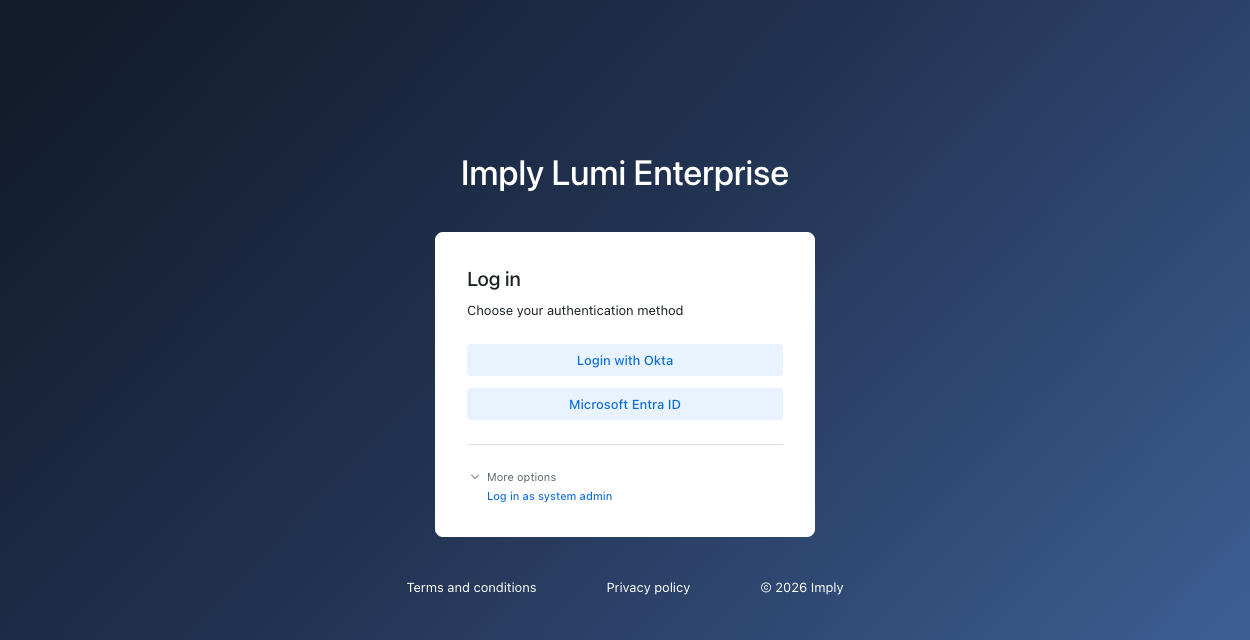
The login page differs between Cognito mode and external mode. The following steps and image apply specifically to the login page in external mode. For more information on external mode, see Authentication modes.
To log in as the system admin user:
- On the Log in page, click More options.
- Click Log in as system admin.
- Enter the email and password you set in
admin_emailandadmin_initial_password. - Click Log in as system admin.
Manage system admin access
You only need to log in as the system admin to add your first IdP. To add more IdPs, you can log in through your existing IdP. The account you use to log in must belong to an IdP group mapped to the Admin role in Lumi. For information on Lumi roles, see Use roles to control access. For information on SSO configuration, see Configure SAML SSO for Lumi Enterprise.
Change the system admin password
You can't change the system admin password in the Lumi UI.
To change it, update the admin_initial_password property in main.tf, then run terraform apply.
Disable the system admin user
Before you disable the system admin user, make sure you can log in to Lumi using an IdP. If SSO stops working after you disable the system admin user, there is no fallback login option until you re-enable it.
Consider keeping the system admin user enabled so you can log in if SSO stops working. You might need the system admin user to do the following:
- Replace the X.509 certificate after your IdP rotates its signing certificate.
- Map new IdP groups to Lumi roles.
- Fix a misconfiguration, such as a wrong SSO URL or Entity ID.
- Finish an incomplete SSO setup.
To disable the system admin user, set the enable_admin_user property to false in main.tf, then run terraform apply.
After you disable the system admin user, you can remove the admin_email and admin_initial_password values from main.tf.
Enable the system admin user
To re-enable a previously disabled system admin user, make sure main.tf includes the admin_email and admin_initial_password properties.
If you removed them after disabling the system admin user, add them again.
Terraform returns an error if you set enable_admin_user to true without these values.
Then set the enable_admin_user property to true and run terraform apply.
The password you set in admin_initial_password replaces any previous system admin password.
Learn more
See the following topics for more information:
- Security for an overview of available Lumi security measures.
- Configure SAML SSO to configure SSO for Lumi Enterprise.
- Use roles to control access for reference on predefined roles in Lumi.