Set up Splunk standard federated search
AI summary
About AI summaries.
You can query Imply Lumi events directly from Splunk® with SPL using federated search. We recommend using transparent federated search as the easiest way to query Lumi events directly from Splunk, without duplication or workflow changes.
Standard federated search mode gives you explicit control over which federated indexes are queried, making it useful when you want to distinguish between local Splunk data and federated Lumi data in your searches.
It requires the federated: prefix to query Lumi indexes from Splunk.
For an overview of standard and transparent modes and guidance on which to choose, see Search events with Splunk.
Prerequisites
To set up standard federated search, you need a Lumi user with the Viewer role or higher. For information on roles and permissions, see Use roles to control access.
Configure a Lumi IAM key
To search Lumi events in Splunk, you need an IAM key to authenticate Lumi as a federated provider. If you add multiple federated providers, you must create a separate key for each one.
To set up the IAM key:
- From the Lumi navigation menu, click Integrations > Federated search.
- Select Standard.
- Select or create an IAM key. See Create an IAM key for details.
- Configure the allowed indexes.
- Configure the query timeout.
- Save your changes.
Configure allowed indexes
The allowed indexes setting on the IAM key controls which Lumi indexes can be queried through the federated search integration.
In the Allowed indexes field on the IAM key, choose one of the following options:
- All: Query all indexes without restrictions. We recommend using Enter specific to control query scope and reduce load.
- None: Block direct queries to indexes.
- Enter specific: Enter the names of specific Lumi indexes to enable for queries.
Configure query timeout
The query timeout setting on the IAM key controls how long a query can run before it's automatically canceled.
In the Query timeout field on the IAM key, choose a timeout value between 5 and 60 minutes.
Add a federated provider
To add Lumi as a standard federated provider:
- In Splunk Web, go to Settings > Federation > Federated Providers > Add federated provider.
- Select Splunk then click Next.
- Complete the following fields:
- Provider mode:
Standard. - Provider name: Name that you'll reference in the federated index. Must be lowercase, for example
lumi-prod. - Remote host: Lumi host address prefixed by your IAM key ID, for example
8ee97d51-97f8-4c51-b44a-4b5bd7175abc.us1.spl.lumi.prod.imply.io:443. Copy the full value from the Lumi UI. - Service account username: IAM key ID from the Lumi UI.
- Service account password: IAM key token from the Lumi UI.
- Provider mode:
- Select the Agree checkbox and test the connection.
- Once the connection is successful, click Save.
Create a federated index
To create a federated index in Splunk that reads from the Lumi standard federated provider:
- In Splunk Web, go to Settings ❯ Federation ❯ Federated Indexes > Add federated index.
- Select For Splunk to Splunk provider.
- Complete the following fields:
- Federated index name: Descriptive name for the federated index.
You use the name of the federated index when searching Lumi within Splunk. - Federated provider: Name of the Lumi federated provider created in Splunk.
- Remote dataset: Select
Indexand enter the name of the Lumi index to search.
If you have multiple indexes in Lumi that you want to search, create a federated index for each one.
- Federated index name: Descriptive name for the federated index.
- Click Save.
For standard mode federated search to work correctly, you must configure both:
- The Lumi IAM key to include that index (for example,
main) in the allowed indexes list. - A Splunk federated index that references the Lumi index (for example,
main).
If the Splunk federated index references a Lumi index that isn't allowed for querying, queries will return no results.
Example
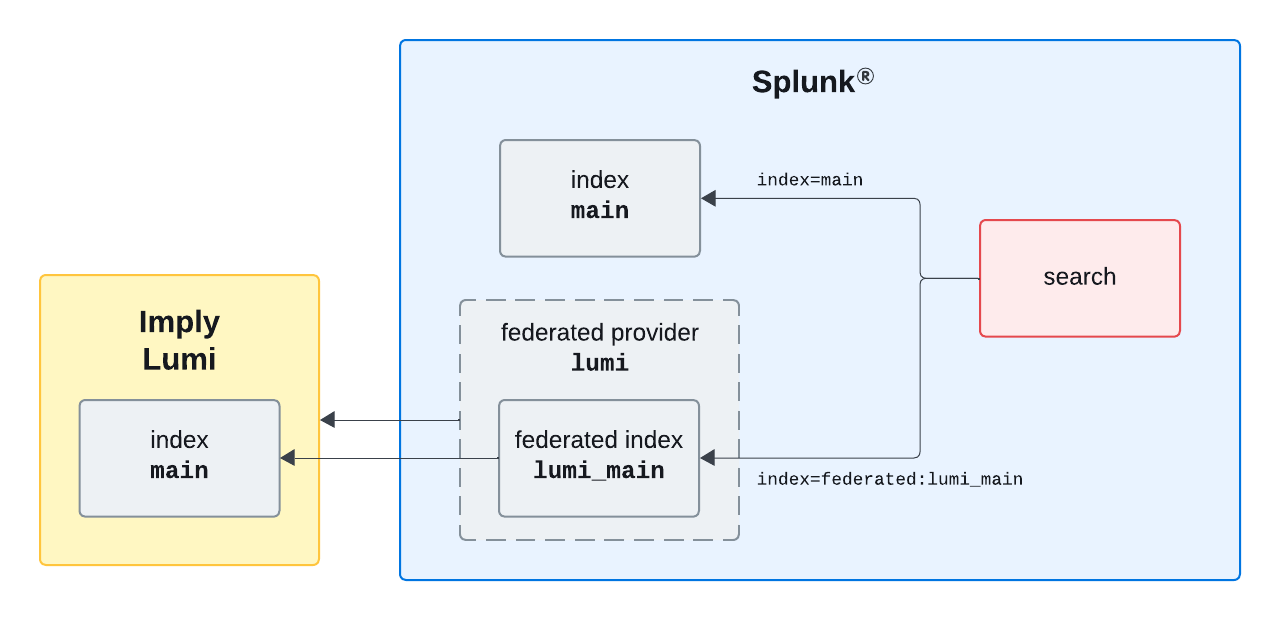
Consider a Splunk environment in which you have a main index storing your logs.
You want to start analyzing events from Lumi alongside these logs.
You send events to Lumi into the default index that's also called main.
To search Lumi in Splunk, you complete the following steps:
- Create a standard federated provider for Lumi called
lumi. - Create a federated index called
lumi_main. - Query Lumi from Splunk using the federated label and index name,
federated:lumi_main.
The following diagram illustrates this scenario:
Learn more
Once you've completed the setup, you can start querying Lumi events from Splunk. See the following topics for more information:
- Federated search reference for supported SPL commands and syntax.
- Federated search examples for sample queries with example output.
- Set up Splunk transparent federated search to set up transparent federated search of Lumi events, required for data models and lookups.