How to build pipelines
AI summary
About AI summaries.
Pipelines transform incoming events by applying a sequence of processors to extract and modify data before it is ingested. When you build a pipelines, you can try out individual processors with sample data to verify that each processor produces the expected output before processing live events. After you've configured your pipeline you can simulate the complete pipeline to verify that all processors work together as intended.
The following diagram shows where this tutorial fits in the end-to-end process of sending, transforming, and querying events. Yellow shaded boxes represent steps taken within Lumi, and blue shaded boxes represent steps taken outside Lumi. Click any box to go to that tutorial.
Although this tutorial follows the tutorial on how to send events, you’ll want to create pipelines before you ingest any production data to make sure Lumi processes the events you care about. In this tutorial, you learn how to build an Imply Lumi pipeline with different processor types and simulate a completed pipeline to test all processors sequentially.
The pipeline that you build in this tutorial processes events that are in Apache Combined Log Format. For details about the data format, see the tutorial data overview.
To learn about the types of processors available in Lumi, check out the processors reference.
The following diagram summarizes the end-to-end process of building a pipeline in Lumi. Click any box in the diagram to jump to that step.
Prerequisites
To complete the tutorial, you need access to Lumi with the Data manager role or higher. For information on roles and permissions, see Use roles to control access.
1. Create a pipeline
In this section, you create a pipeline that you use to test and simulate processors.
-
From the Lumi navigation menu, click Managed data > Pipelines.
-
Click + Create pipeline.
-
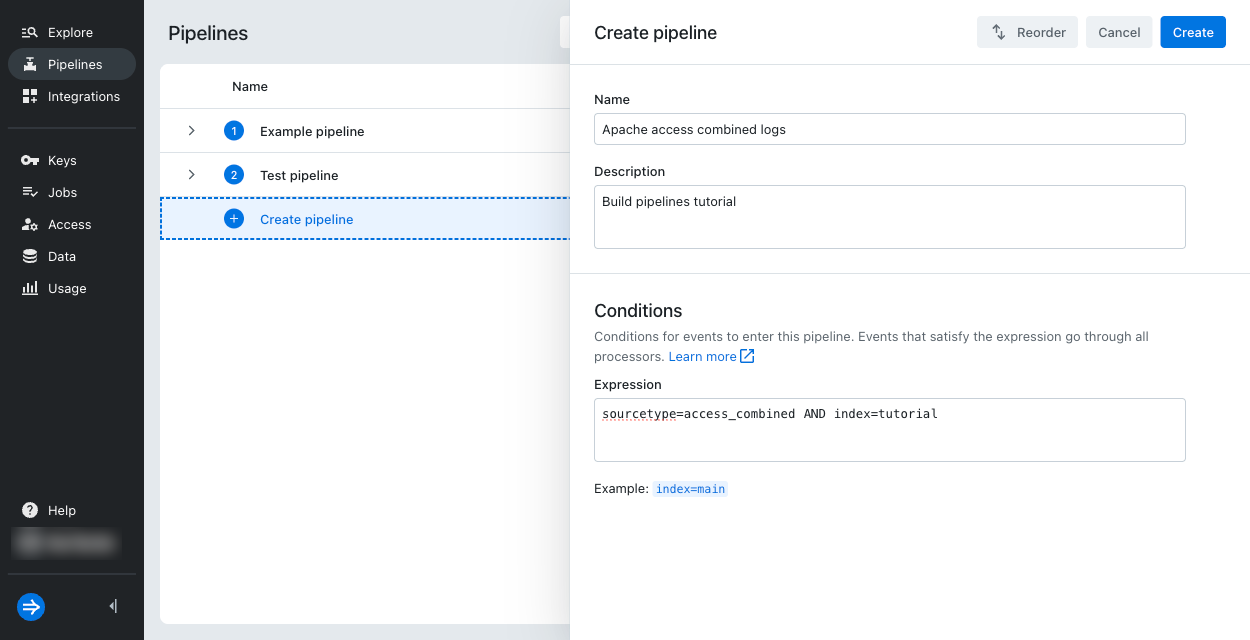
Enter pipeline details:
- Name:
Apache access combined logs - Description:
Build pipelines tutorial - Expression:
sourcetype=access_combined AND index=tutorial
- Name:
-
Click Create.
2. Parse the log with regex
Some processors enrich events by parsing details from an event message or other existing attributes. You can parse text using regular expressions (regex), grok patterns, or key-value patterns. In this section, you learn how to create and test a regex parser to verify parsing using a regular expression.
- From the Lumi navigation menu, click Pipelines, then select the pipeline you created in the previous section.
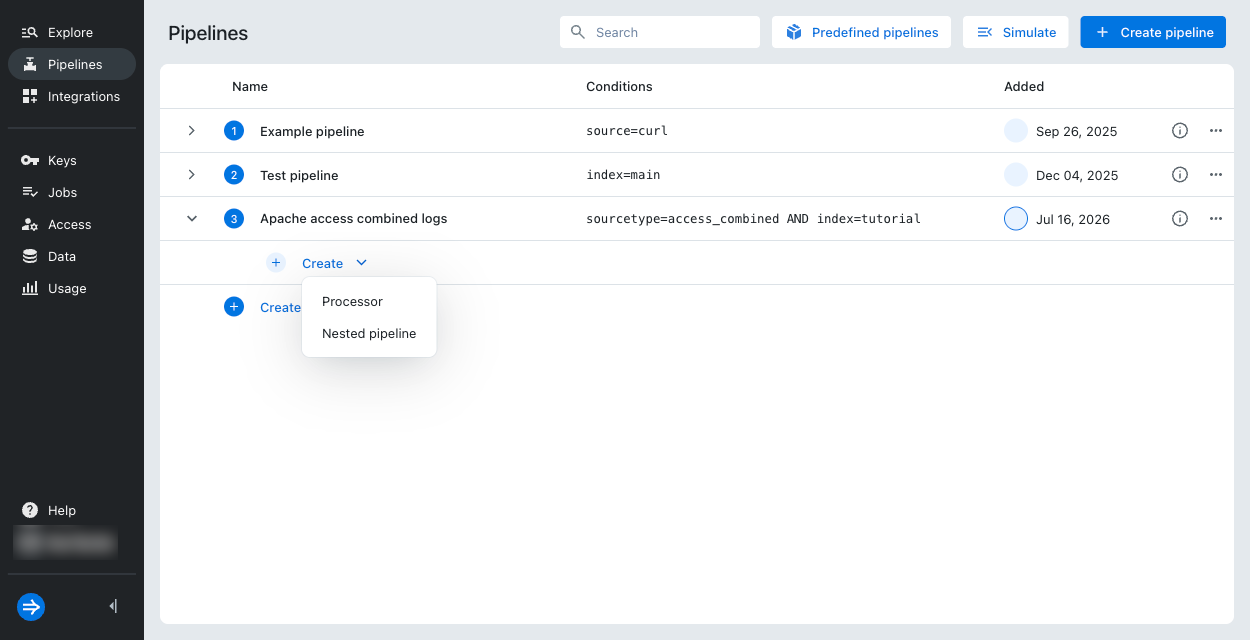
- Click Create > Processor.
- For Type, select Regex parser.
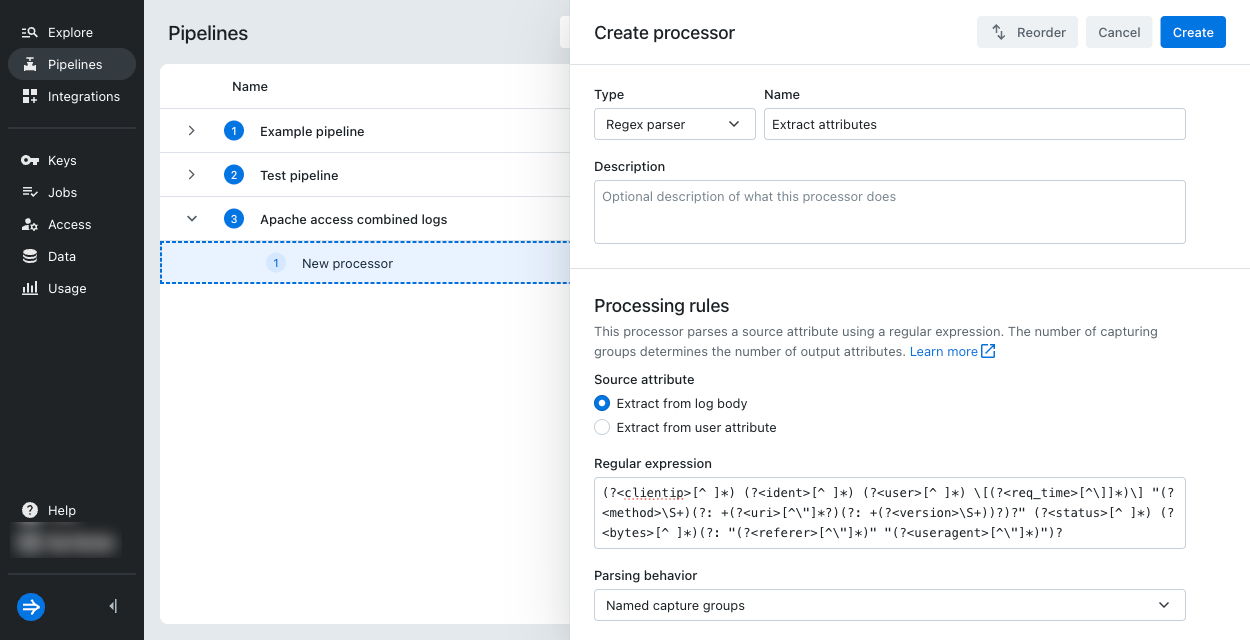
- Enter the processor configuration:
-
In Name, type
Extract attributes. -
In Source attribute, select Extract from log body.
-
In Regular expression, copy and paste the following regular expression:
(?<clientip>[^ ]*) (?<ident>[^ ]*) (?<user>[^ ]*) \[(?<req_time>[^\]]*)\] "(?<method>\S+)(?: +(?<uri>[^\"]*?)(?: +(?<version>\S+))?)?" (?<status>[^ ]*) (?<bytes>[^ ]*)(?: "(?<referer>[^\"]*)" "(?<useragent>[^\"]*)")? -
In Parsing behavior, select Named capture groups.
-
- Now, try out the processor to view the expected results. In the Try it out section, copy and paste the example event message into Sample:
830:1e0e:525:e6a0:6479:cd69:c364:23c3 - - [24/Mar/2025:16:25:29 -0500] "POST /products/23394 HTTP/1.1" 200 1027 "https://techcrunch.com/" "Mozilla/5.0 (Windows NT 10.0; Win64; x64; rv:110.0) Gecko/20100101 Firefox/110.0"
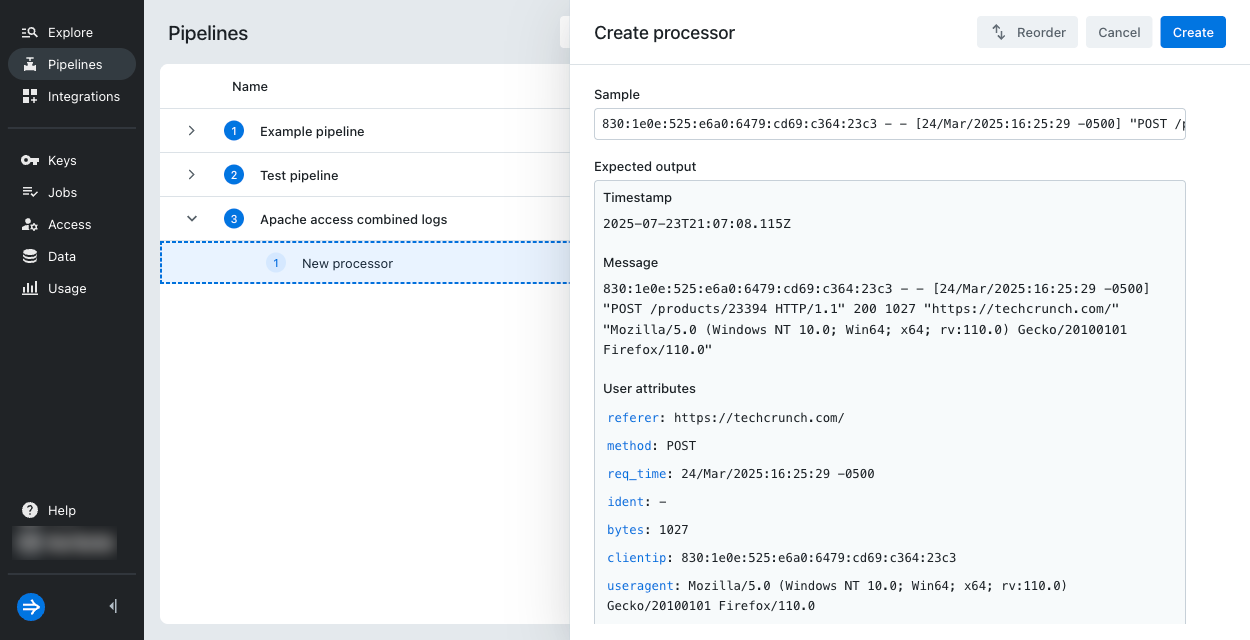
- Review the parsed results in Expected output. It should resemble the following output:
bytes: 1027clientip: 830:1e0e:525:e6a0:6479:cd69:c364:23c3ident: -method: POSTversion: HTTP/1.1referer: https://techcrunch.com/status: 200req_time: 24/Mar/2025:16:25:29 -0500uri: /products/23394user: -useragent: Mozilla/5.0 (Windows NT 10.0; Win64; x64; rv:110.0) Gecko/20100101 Firefox/110.0
- Click Create.
3. Assign the event timestamp
Some processors let you assign or overwrite the event timestamp, message, or user attributes. In this section, you learn how to create and test a timestamp mapper. You reassign the event timestamp from a user attribute extracted by the regex parser.
-
In the same pipeline, click Create > Processor.
-
For Type, select Timestamp mapper.
-
Enter the processor configuration:
-
In Name, type
Assign timestamp. -
In Source attribute, enter
req_time. Note the regex parser extracts several attributes, but the timestamp mapper only usesreq_time. The other attributes persist unchanged. -
In Time format, select CLF.
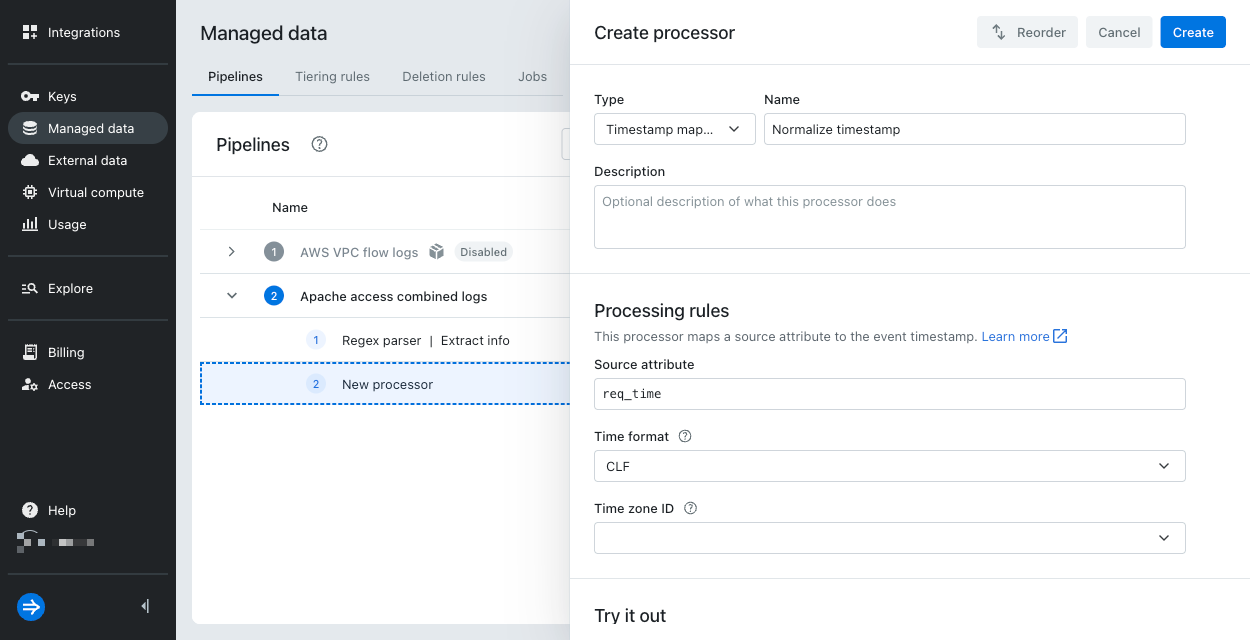
-
-
In the Try it out section, enter the following JSON into Sample attributes:
{"req_time": "24/Mar/2025:16:25:29 -0500"}The
req_timeattribute comes directly from the output of the regex parser. This processor samples a JSON object containing the source attribute, whereas the regex parser samples the event message directly. -
Review the results in Expected output. The event timestamp should be
Mar 24, 02:25:29.000 PM. Notice in the previous section that the original event timestamp was when Lumi received the event.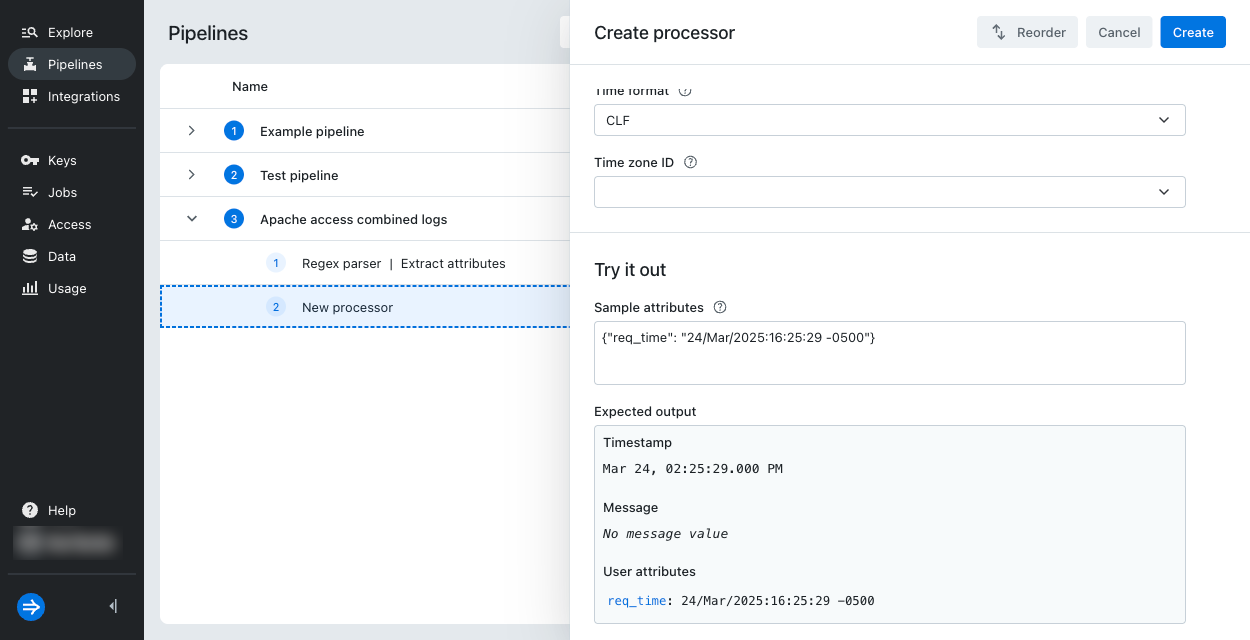
-
Click Create.
4. Simulate the pipeline
In this section, you simulate your pipeline to observe how the regex parser and the timestamp mapper work together to transform events.
-
On the Pipelines page, click the ellipsis next to the tutorial pipeline.
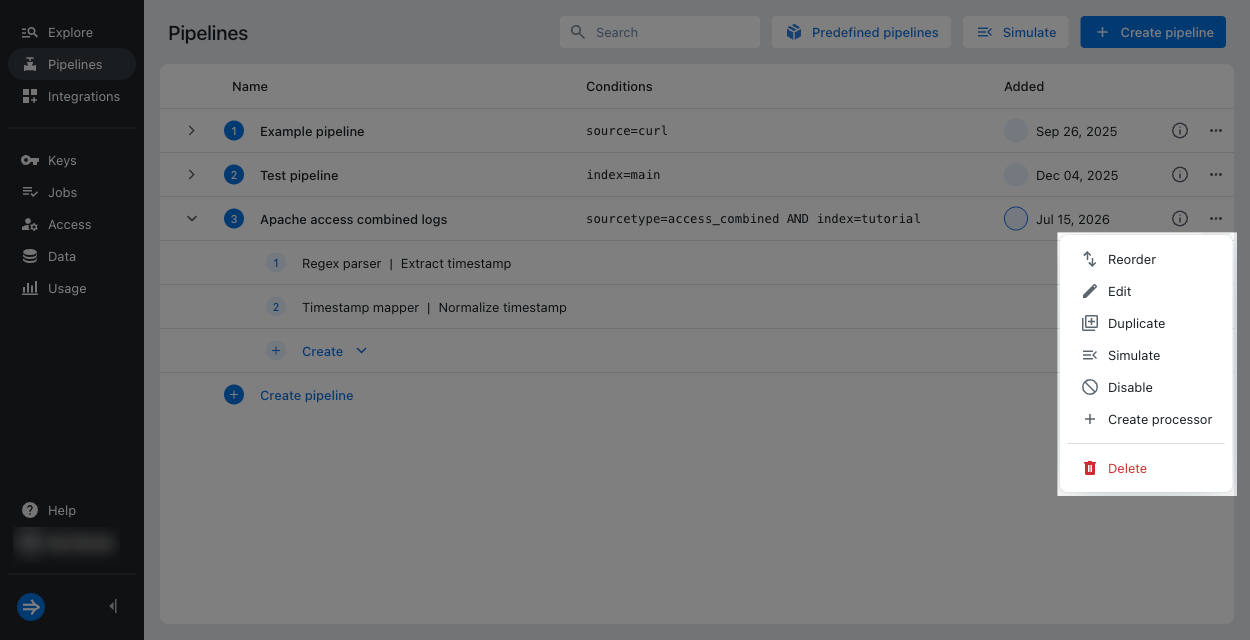
-
Click Simulate.
-
In Input events, copy and paste the following example event messages:
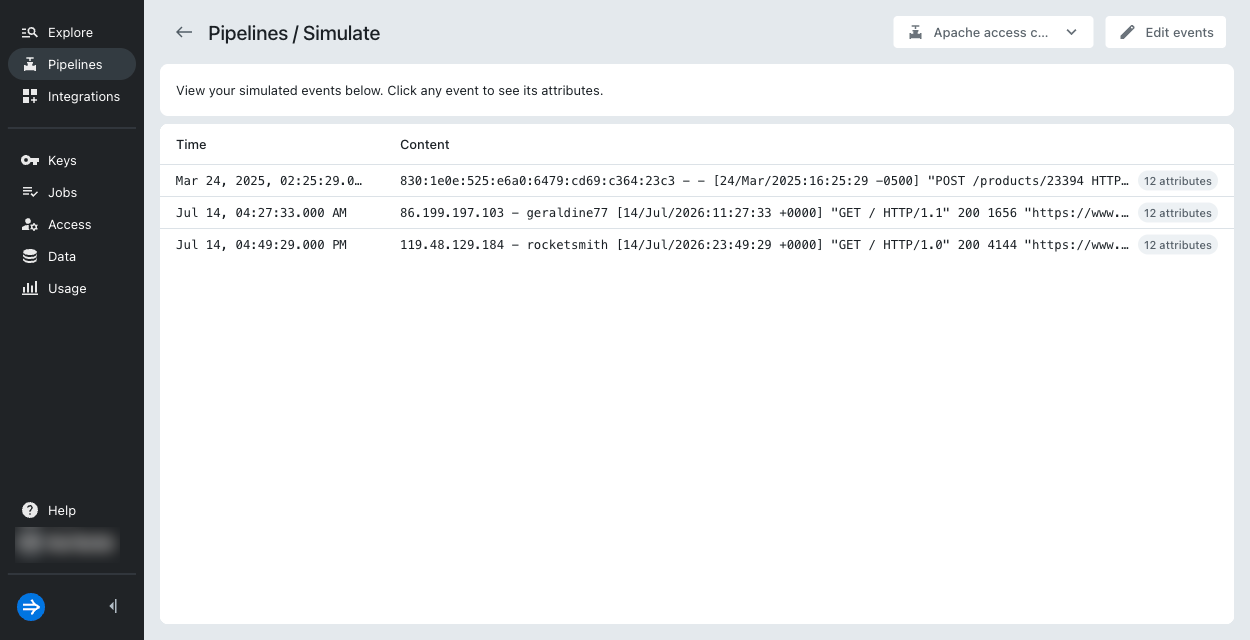
830:1e0e:525:e6a0:6479:cd69:c364:23c3 - - [24/Mar/2025:16:25:29 -0500] "POST /products/23394 HTTP/1.1" 200 1027 "https://techcrunch.com/" "Mozilla/5.0 (Windows NT 10.0; Win64; x64; rv:110.0) Gecko/20100101 Firefox/110.0"86.199.197.103 - geraldine77 [14/Jul/2026:11:27:33 +0000] "GET / HTTP/1.1" 200 1656 "https://www.baidu.com/" "Mozilla/5.0 (iPhone; CPU iPhone OS 14_6 like Mac OS X) AppleWebKit/605.1.15 (KHTML, like Gecko) Version/14.1.1 Mobile/15E148 Safari/604.1"119.48.129.184 - rocketsmith [14/Jul/2026:23:49:29 +0000] "GET / HTTP/1.0" 200 4144 "https://www.tiktok.com/" "Mozilla/5.0 (Windows NT 10.0; Win64; x64) AppleWebKit/537.36 (KHTML, like Gecko) Opera/77.0.4054.172 Chrome/91.0.4472.124 Safari/537.36"You can simulate multiple events at once. This example includes the same event you tested in the previous sections and adds two more events. The first event contains an IP address in IPv6 format, whereas the other events have IP addresses in IPv4 format. If there's variability in the format of your events, verify that the pipeline transforms them correctly through simulation.
-
In the Additional attributes section, enter the pipeline conditions:
- In Index, enter
tutorial. - In Source type, enter
access_combined.
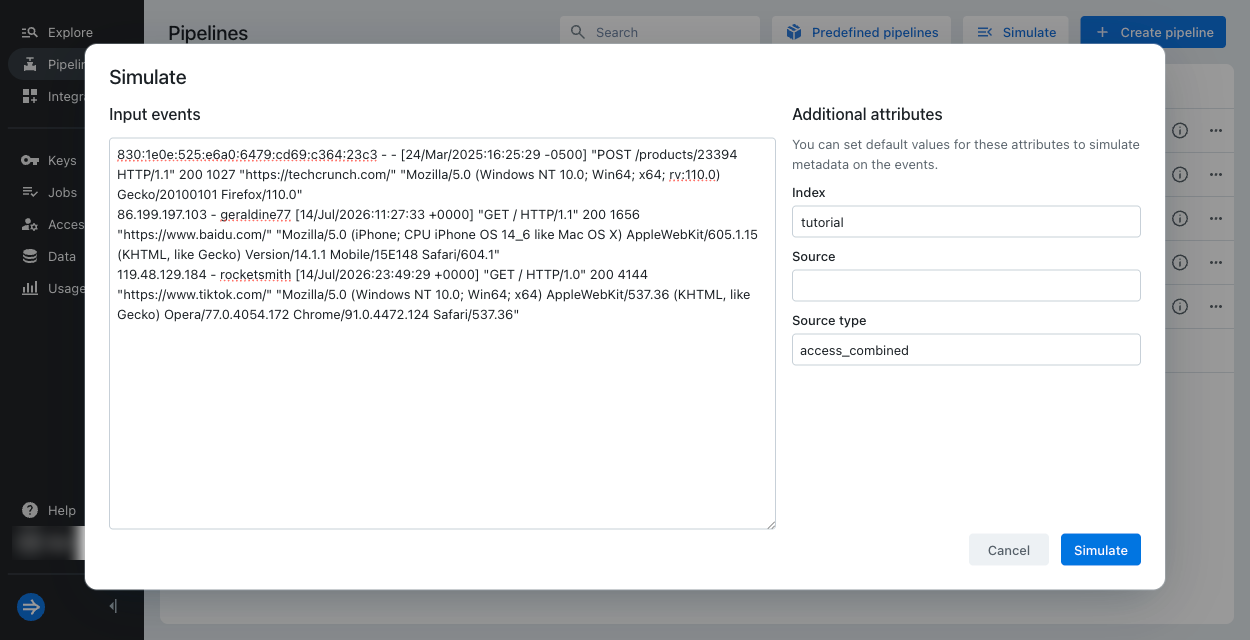
- In Index, enter
-
Click Simulate.
-
On the Simulate page, select a simulated event.
-
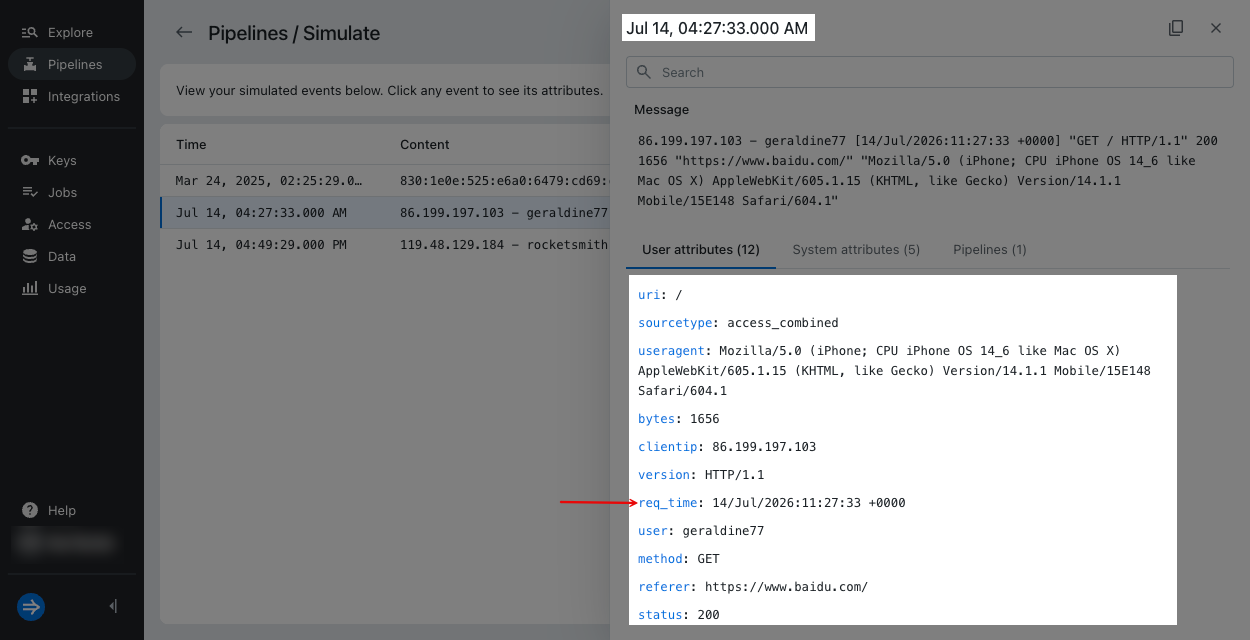
Under User attributes, observe the following:
- All of the attributes that were extracted by the regex parser are listed.
- The regular expression correctly matched both formats of IP addresses for
clientip. - At the top of the event pane, the event timestamp matches the timestamp extracted from the log message.
 In many cases, Lumi can parse the timestamp automatically or with a predefined pipeline, so you won't always need a timestamp mapper in your pipeline.
Try out more processors
You can use the techniques you learned in this tutorial to try out more processors:
- Go to the processors reference and select a processor.
- Open the example for the processor. Use Processor configuration to create the processor in Lumi.
- Copy the sample Event input in the processor's Try it out section.
- Verify that you get the expected results from Event output.
Experiment with different processor types to deepen your understanding of how each processor transforms events and how you can apply them to various use cases within your pipelines.
Learn more
See the following topics for more information:
- Processors reference for the types of processors available in Lumi.
- Manage pipelines and processors for how to create and manage pipelines and processors.
- Work with predefined pipelines for how to add and customize predefined pipelines for your specific requirements.