How to query Lumi using a Splunk data model
AI summary
About AI summaries.
Once you can query Imply Lumi with transparent federated search, you can add a data model attribute to your IAM key and query Lumi events using standardized Splunk® data model field names.
This tutorial uses the Common Information Model (CIM) Web data model.
You map the data model fields to your Lumi event fields on the IAM key, then run tstats queries that reference the data model instead of the Lumi-native field names.
Because the mapping lives on the key, the same query returns results from both Splunk and Lumi with consistent field names.
For an overview of how Lumi resolves data model queries, see Query Lumi events with data models.
The following diagram shows where this tutorial fits in the end-to-end process of sending, transforming, and querying events. Yellow shaded boxes represent steps taken within Lumi, and blue shaded boxes represent steps taken outside Lumi. Click any box to go to that tutorial.
This tutorial builds on How to query Lumi using transparent federated search. Complete that tutorial first.
The steps assume that you've already:
- Uploaded sample web logs to Lumi.
- Configured a transparent federated provider in Splunk that points to a Lumi IAM key.
- Confirmed that transparent federated search returns events from Lumi.
This tutorial doesn't repeat the transparent federated search setup. It reuses the same IAM key and federated provider and adds a data model attribute to the key.
To complete the steps, you use the same sample web traffic data from a fictional online store. For background on the dataset and its format, see the tutorial data overview.
The following diagram summarizes the process of querying Lumi with a data model. Click any box in the diagram to jump to that step.
Prerequisites
Before you begin, download an up-to-date version of the sample log file and upload it to Lumi. Make sure you've completed How to query Lumi using transparent federated search.
To complete the tutorial, you need the following:
- Access to Lumi with a role that can edit IAM keys. For information on roles and permissions, see Use roles to control access.
- The IAM key and transparent federated provider you configured in the transparent federated search tutorial.
- The Splunk CIM Web data model available in your Splunk deployment. This ships with the Splunk Common Information Model add-on. See Query Lumi events with data models for more on how Lumi integrates with data models.
- A Splunk user with permission to run data model searches.
1. Confirm the Web data model in Splunk
In this step, you confirm the Web data model is available and note the field names you'll map to your Lumi IAM key.
- In Splunk Web, go to Settings > Data models.
- Confirm that the Web data model appears in the list, navigating through the pages if necessary. If it isn't listed, install the Splunk Common Information Model add-on.
- Open the Web data model and note the field names on the Web dataset. This tutorial maps the following fields:
src,dest,url,http_method,http_user_agent,status,source, anduseron the Web dataset.http_referreron the Proxy child dataset.
You'll use these field names in the next step.
The special data model fields _time, source, sourcetype, and host are inherited by all Splunk data models, so Lumi maps them automatically.
This tutorial still lists source in the mapping to make the parent dataset filter explicit, but you don't have to.
2. Add the data model attribute to your IAM key
In this step, you add a data model attribute to the IAM key you configured for transparent federated search.
The data model attribute is a JSON object that maps Splunk Web data model fields to your Lumi event fields.
In each mapping, the key on the left is the Splunk data model field name and the value on the right is the Lumi event field name.
For example, "dest": "host" maps the data model dest field to the Lumi host field.
Use the Field name from the Splunk data model editor, not the Display name, because the IAM key mapping matches on the field name.
For a full reference of the JSON format, see Configure Lumi for data model queries.
-
In Lumi, go to Integrations > Federated search.
-
Select Transparent SPL mode.
-
Select the IAM key you used for the transparent federated search tutorial.
-
Click Go to key.
-
Click the ellipsis above the IAM key's bar chart and select Edit attributes.
-
In the Data model field, enter the following JSON:
{"Web": {"Web": {"fields": {"src": "clientip","url": "uri_path","dest": "host","user": "user","status": "status","http_method": "method","http_user_agent": "useragent"},"filter": "index=main sourcetype=access_combined","childDatasets": {"Proxy": {"fields": {"http_referrer": "referer"},"filter": "host=proxy-01"}}}}}Example showing the configured data model attribute:
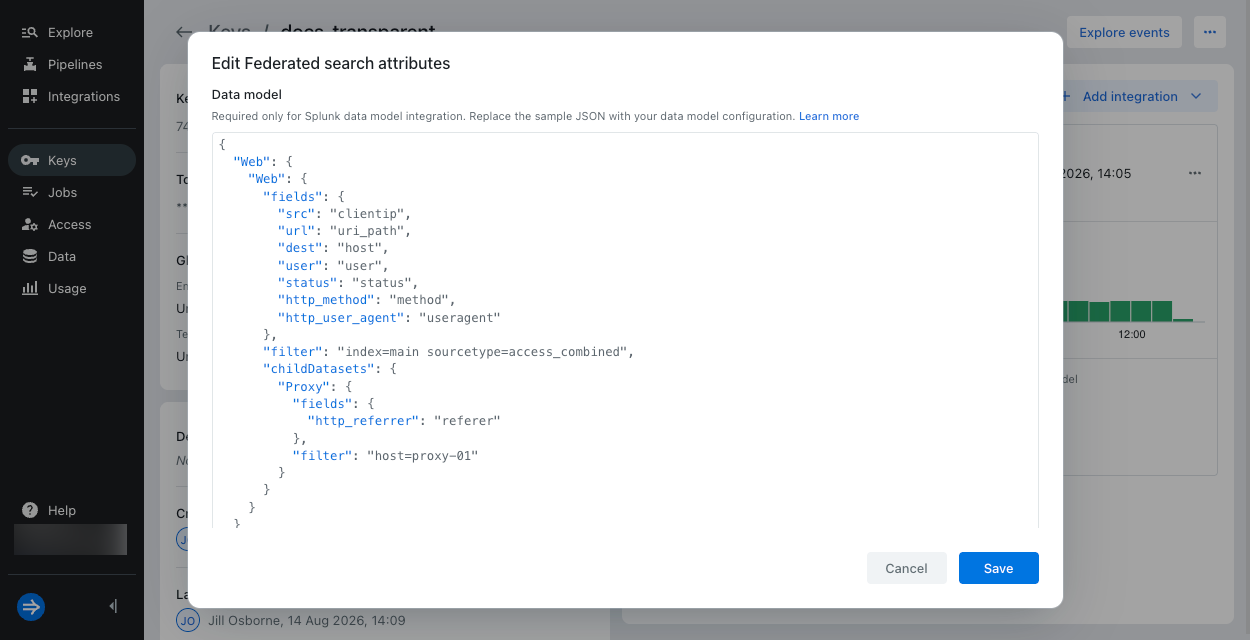
-
Click Save.
This mapping tells Lumi to:
- Map events with
index=mainandsourcetype=access_combinedto the Web data model and Web dataset. - Translate the Web dataset fields to their Lumi equivalents, for example the data model
destfield to Lumi'shostfield andhttp_methodtomethod. - Map the data model
userfield to Lumi'suserfield, so you can group and filter results by user. - Apply the Proxy child dataset to events matching the parent filter and
host=proxy-01, and map the data modelhttp_referrerfield to Lumi'srefererfield.
Note that status uses the same name in both Lumi and the data model.
You still have to include it in the mapping, because Lumi returns empty columns for unmapped fields.
Include a field in the mapping only when it exists on your Lumi events. Lumi returns empty columns for fields that don't exist.
3. Test a data model query
In this step, you confirm that Lumi resolves a data model query using the attribute you just added.
-
In Splunk Web, go to the Search & Reporting app.
-
Set the time range to the last 7 days.
-
Run the following query:
| tstats count FROM datamodel=Web.WebThis counts every event that matches the Web dataset filter. You should see a single count that matches the number of events in the sample data:
count528
If the query returns zero results, see Troubleshoot data model queries.
4. Run data model queries
In this step, you run a series of tstats queries that reference the Web data model to explore traffic patterns in the sample data.
The example output may not exactly match yours. The queries use a relative 7-day time range, and the sample data has fixed timestamps, so results depend on when you downloaded the file.
-
Count events by destination host:
| tstats count FROM datamodel=Web.Web BY Web.destWeb.destmaps to the Lumihostfield.Example output:
Web.destcountproxy-01199web-01329 -
Count requests by host and HTTP method:
| tstats count FROM datamodel=Web.Web BY Web.dest, Web.http_method| sort Web.dest Web.http_methodExample output:
Web.destWeb.http_methodcountproxy-01DELETE42proxy-01GET54proxy-01POST50proxy-01PUT53web-01DELETE83web-01GET67web-01OPTIONS1web-01POST89web-01PUT89 -
Count server errors with status 500 or higher by host:
| tstats count FROM datamodel=Web.Web BY Web.dest, Web.status| where 'Web.status' >= 500| stats sum(count) AS count BY Web.destNote the quoting in this query:
Web.statustakes single quotes in thewherecommand but is bare in theBYclauses. Data model field names contain dots, and quoting them incorrectly returns zero results rather than an error. For details, see Commands that follow a data model clause.Example output:
Web.destcountproxy-0124web-0122 -
Show the top 5 pages by request count:
| tstats count FROM datamodel=Web.Web BY Web.url| sort -count| head 5Web.urlmaps to the Lumiuri_pathfield.Example output:
Web.urlcount/cart72/46/search31/categories/indoor-lighting/aurora-chandelier21/categories/outdoor-lighting/solar-path-light20 -
Show the most active users, excluding anonymous requests:
| tstats count FROM datamodel=Web.Web WHERE Web.user!="-" BY Web.user| sort -count| head 5This query uses the
userfield you added to the mapping.Web.usermaps to the Lumiuserfield.Example output:
Web.usercounttrixie929213alexander912212admin72812dorothy332111sentancefinley11 -
Query the Proxy child dataset to find the top referrers for proxy traffic:
| tstats count FROM datamodel=Web.Web WHERE nodename=Web.Proxy BY Web.Proxy.http_referrer| sort -count| head 5The
nodename=Web.Proxyclause applies the child dataset filter (host=proxy-01) combined with the parent filter.Web.Proxy.http_referrermaps to the Lumirefererfield. Becausehttp_referreris mapped on the Proxy child dataset rather than the parent, you reference it with theWeb.Proxy.prefix.Example output:
Web.http_referrercounthttps://www.amazon.com/8https://search.yahoo.com/8https://www.google.com/7https://techcrunch.com/7https://www.youtube.com/7
Learn more
To build on this tutorial, see:
- Query Lumi events with data models for an overview of how Lumi resolves data model queries.
- Configure Lumi for data model queries for the full IAM key data model attribute reference.
- Troubleshoot data model queries if your queries return zero or inconsistent results.
- Federated search examples for more SPL queries you can run against the sample data.