Configure deletion rules
AI summary
About AI summaries.
Deletion rules control how long Imply Lumi retains your data. Removing unused data can decrease storage costs, increase query performance, and reduce operational overhead.
You can have up to 100 deletion rules per Lumi account.
This topic explains how to configure deletion rules in Lumi.
Prerequisites
To manage deletion rules, you need the Admin role. For information on roles and permissions, see Manage roles.
How deletion rules work
Deletion rules determine how long data is retained in Lumi.
Each rule specifies:
- Retention period: Period of time to retain data, based on the event’s timestamp.
- Conditions: Filters that determine which data gets deleted. Note that Lumi deletion rules don't support interval-based filters, such as
WHERE TIME BETWEEN X and Y. For supported operators and syntax, see Lumi query syntax.
Data that exceeds the retention period and meets the conditions becomes eligible for deletion.
For example, you can create a rule that deletes all data where service = postgresql 30 days after the event's timestamp.
Lumi evaluates data for automatic deletion approximately once per day. Changes may take time to apply, depending on the amount of data and system activity.
Overlapping rules
When data matches multiple deletion rules, Lumi applies the rule with the shortest retention period.
For example:
- Rule A deletes data where
service = postgresql14 days after the event's timestamp. - Rule B deletes data where
service = postgresql OR service = mysql30 days after the event's timestamp.
Both rules target data where service = postgresql, but rule A has a shorter retention period.
Therefore, Lumi deletes PostgreSQL data after 14 days (rule A) and MySQL data after 30 days (rule B).
Deletion rules take precedence over virtual storage rules. For example, if a virtual storage rule says to keep data in hot storage for 30 days but a deletion rule says to delete the data after 14 days, the deletion rule applies. For information on data tiers, see Data tiers overview.
Impact of changing deletion rules
When you modify a deletion rule, the changes apply to all existing data, not just the new data coming in. For example, when you shorten a retention period from 30 to 7 days, any data that's older than 7 days becomes eligible for deletion.
Modifying or deleting a deletion rule may lead to partial data deletion, where some data that was previously eligible for deletion but had not yet been deleted remains stored in Lumi.
Manage rules
You can create, edit, duplicate, and delete rules.
Create a rule
To create a deletion rule:
- In the Lumi navigation menu, click Data > Deletion rules.
- Click + Create rule.
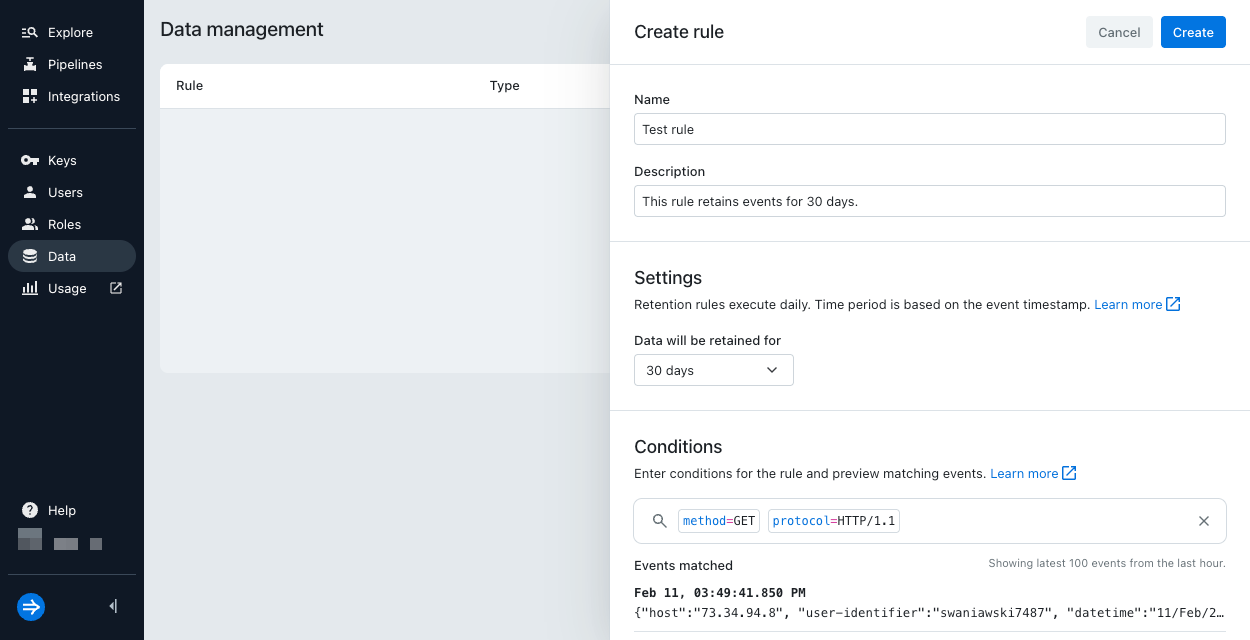
- Enter the following information:
- Name: Name for the rule.
- Description: Optional description of what the rule does.
- Data will be retained for: Period of time that Lumi retains your data. For example, if you set this property to 7 days, Lumi only retains the most recent 7 days of data.
- Conditions: Filters in Lumi query syntax that determine which data gets deleted. For example:
index = main AND service = zookeeper. You can preview most recent events that match the specified condition in the Events matched section.
- Click Create.
Edit a rule
To edit a deletion rule:
- In the Lumi navigation menu, click Data > Deletion rules.
- Click the ellipsis next to the rule you want to modify, then click Edit.
- Make the necessary changes, then click Save.
Duplicate a rule
To duplicate a deletion rule:
- In the Lumi navigation menu, click Data > Deletion rules.
- Click the ellipsis next to the rule you want to duplicate, then click Duplicate.
- Make any necessary changes, then click Save.
Delete a rule
To delete a rule:
- In the Lumi navigation menu, click Data > Deletion rules.
- Click the ellipsis next to the rule you want to delete, then click Delete.
- Confirm your selection, then click Delete.
Learn more
For more information, see the following topics:
- Data tiers overview for details on hot and virtual tiers.