Manage virtual compute pools
AI summary
About AI summaries.
A virtual compute pool is a set of transient compute resources that Lumi provisions to query managed data in the virtual tier and external data. When you query data outside the hot tier, Lumi starts the virtual compute pool if it isn't already running, and loads only the data it needs to serve the query into virtual storage. Lumi shuts down the pool after reaching the maximum idle time you configure.
This topic explains how to create and manage virtual compute pools.
Prerequisites
To create or edit a virtual compute pool, you need a Lumi user with the Admin role. For information on roles and permissions, see Use roles to control access.
Default virtual compute pool
Lumi uses the default virtual compute pool to serve queries that don't specify any pool. You can modify the default pool, but you can't delete it.
Your deployment type determines the way Lumi creates or assigns the default pool as follows:
- New Lumi Cloud accounts: Lumi creates the default pool when you activate your account. The default pool uses the Large size and a 30-minute idle time.
- Lumi Enterprise and existing Lumi Cloud accounts: Lumi doesn't create a default pool. To create one, go to Virtual compute and click Create default pool. After you create the default pool, the Create default pool option is no longer available.
Until your account has a default pool, you can only query data in the hot tier, and you can't assign a pool to an IAM key.
Create a virtual compute pool
If you want to keep queries from different integrations separate, or isolate resources by use case or department, you can create additional virtual compute pools. Lumi supports up to 20 virtual compute pools per company account, including the default pool. Each pool has its own compute resources and processes queries in isolation, so queries in one pool don't compete for resources with queries in another.
To create a virtual compute pool:
- From the Lumi navigation menu, click Virtual compute.
- Click + Create pool.
- In the Create virtual compute pool pane, enter the following:
- Name: Pool name. Name your pools by intended use, so you can tell them apart in the Lumi UI.
- Description: Optional description of the pool.
- Keys: IAM keys with the federated search integration that can route queries to this pool. If the IAM key doesn't exist yet, leave the Keys field blank and assign this pool when you create the key. Use separate keys for separate workloads. For more information, see Virtual tier access.
- Size: Compute resources allocated to queries against virtual storage. For more information, see Size.
- Idle time: Maximum time the virtual compute pool can remain idle before shutting down. Idle time must be between 15 minutes and 3 days.
- Click Create.
To control when data moves out of the hot tier, create a tiering rule. For more information, see Manage tiering rules.
Size
The size of a virtual compute pool is one of the factors that determine how much compute power is available to process queries. Other factors include the volume of data scanned, the shape of the data, and the complexity of the query.
Lumi measures the pool size in t-shirt sizes, such as Small, Medium, and Large. Each t-shirt size provides twice the compute, memory, and local storage of the previous size. Because each size runs on twice the infrastructure, it also costs twice as much.
The following table shows the default t-shirt sizes, their resources and cost relative to Small, and their max concurrency:
| Size | Resources and cost | Max concurrency |
|---|---|---|
| Small | 1x | 4 |
| Medium | 2x | 4 |
| Large | 4x | 8 |
| X-large | 8x | 12 |
| 2X-large | 16x | 12 |
| 3X-large | 32x | 12 |
Max concurrency is the maximum number of queries a pool can run at the same time. It doesn't increase at every size, so two sizes with the same concurrency can still differ significantly in resources. For example, a Medium pool runs the same number of concurrent queries as a Small pool, but has two times the resources to process each one.
Lumi Enterprise customers can define custom t-shirt sizes in Terraform. For more information, see Configure custom t-shirt sizes for Lumi Enterprise.
When selecting a t-shirt size, consider the following general guidelines:
- Data size and composition: Larger and more complex datasets may require more compute resources to query.
- Query latency: If low latency is required, you may need a larger t-shirt size for faster query execution and a longer idle time to avoid cold start delays.
- Number of concurrent queries: If you regularly run more queries at the same time than your pool's max concurrency, choose a size with a higher max concurrency.
Idle time and cold starts
A cold start is the delay before a query can run on the virtual tier. During a cold start, Lumi starts the virtual compute pool and loads the required data into virtual storage. A full cold start can take several minutes.
How much delay a query incurs depends on the status of the pool and the data:
- Pool stopped, data not loaded: Lumi spins up the virtual compute pool and loads the data. This is a full cold start.
- Pool running, data not loaded: Lumi loads the data, which adds some latency.
- Pool running, data loaded: No additional latency. Performance is comparable to the hot tier.
The idle time setting controls how long the virtual compute pool can remain running without processing queries before it shuts down. After the pool shuts down, the next query triggers a new cold start.
When configuring the idle time for your virtual compute pool, consider the following:
- A shorter idle time reduces costs, but leads to more frequent cold starts.
- A longer idle time reduces cold starts, but incurs more charges.
Status
You can see the current status of your virtual compute pool on the Virtual compute page:
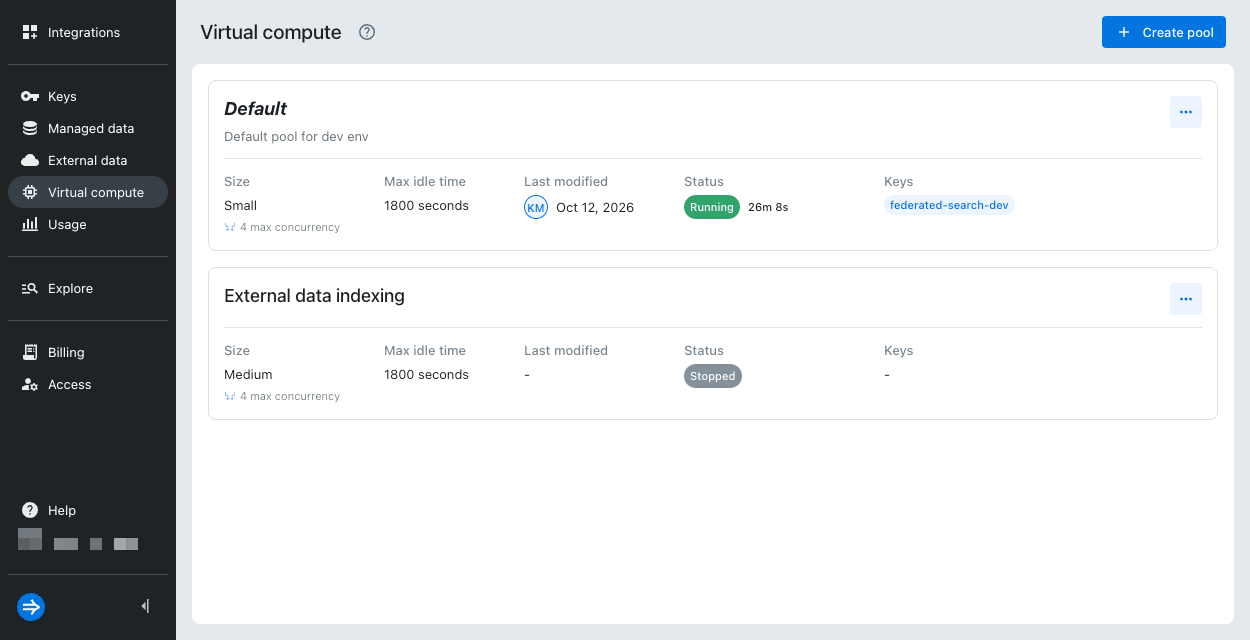
Because virtual compute resources spin up on demand and shut down after the idle time, the status of the virtual compute pool changes based on its current state:
- Starting: Virtual compute pool is starting. Lumi is provisioning compute resources to serve queries.
- Running: Virtual compute pool is running and available to serve queries.
- Stopped: Virtual compute pool is inactive. All compute resources are shut down.
Modify a virtual compute pool
To modify a virtual compute pool:
- From the Lumi navigation menu, click Virtual compute.
- Click the ellipsis next to the pool name.
- Select Edit or Delete.
- If editing, make the necessary changes, then click Save.
- If deleting, confirm your selection, then click Delete.
Updating IAM keys assigned to a virtual compute pool can take up to two minutes to take effect.
Learn more
For more information, see the following topics:
- Manage tiering rules to create and manage tiering rules.
- Manage deletion rules to set up automatic data deletion.
- Configure custom t-shirt sizes for Lumi Enterprise to create custom t-shirt sizes for Lumi Enterprise deployments.