Billing
AI summary
About AI summaries.
This information applies to Lumi Cloud.
Imply Lumi Cloud uses a tiered monthly consumption model for billing. Performing any of the following actions incurs a charge: ingesting, searching, and retaining data. Search and retention costs are further broken down by tier based on where the data is cached.
The Billing tab in the Lumi UI provides information about your usage as it relates to your costs. To view your credit consumption for a specific month, use the period drop-down.
The Billing page does not update in real time. Daily balance settlement and usage metrics can take up to 24 hours to finalize. Additionally, the final balance settlement for a period can take several days to finalize after the end of a period.
Billing models
Imply offers a Savings plan that uses Imply Credits (ICR) for tracking consumption. You purchase ICR at the start of the plan and can buy additional credits as needed. ICR are deducted when you ingest, search, or retain data.
Consumption view
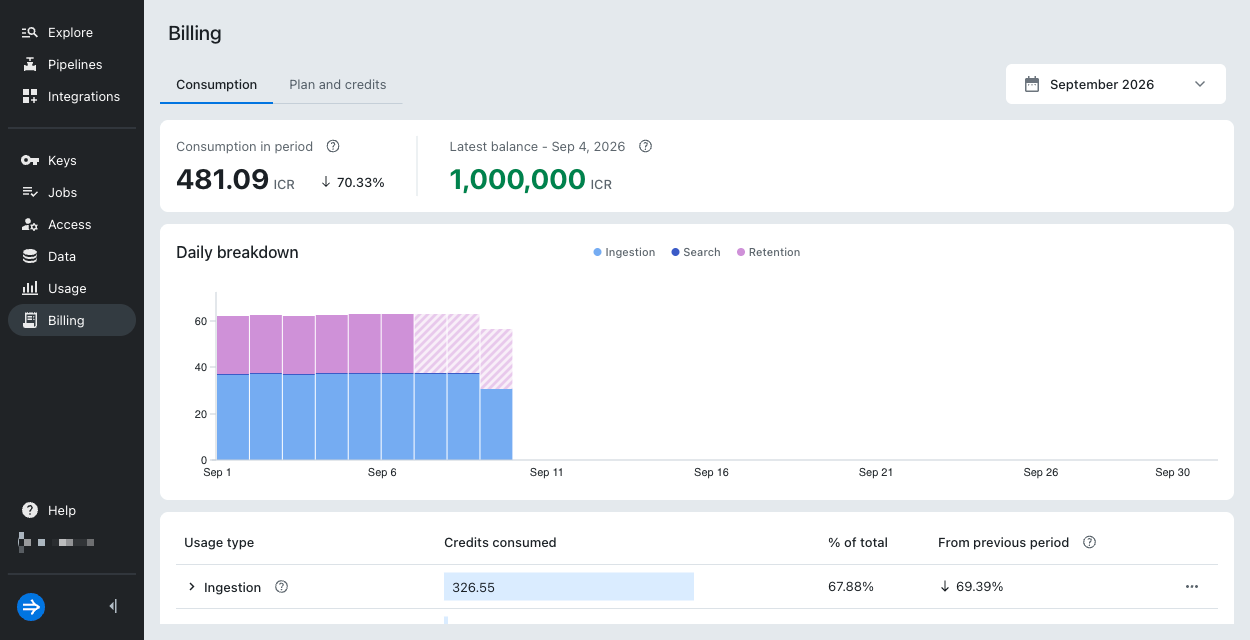
The Consumption view provides a daily cost breakdown for the current monthly period. The view focuses on your consumption as it relates to specific actions in Lumi: ingestion, search, and data retention. For a more general view of ICR credits and debits for your account, see the Plan and credits view.
Consumption in period shows your ICR balance during the period. Specifically, you see the amount of ICR consumed during this period.
Latest balance is available when the selected period is the current month. It shows the latest settled ICR balance. Since ICR settlement can take several days, the date displayed reflects the last day for which a balance has been settled.
The Daily breakdown chart shows your day-to-day usage. You can see your total spend for a given day and how each usage type contributed to that spend.
Hovering over a specific day gives you more detailed information about that day's spend, including how the hot tier and virtual tier contributed to the daily total.
Usage table
The usage breakdown section details your consumption for the current period or a previous one. It includes rolled-up metrics for each usage type, as well as detailed information.
For each type of usage, the following information is available:
- The amount of credits
- What percentage of your total spend came from a particular type of usage
- The change in consumption from the previous period
When you expand a usage type, you can click on the Rate and quantity icon to get information about how your consumed credits are calculated. Specifically, you see the ICR cost per GB of data and the quantity of data for each tier.
Ingestion
The cost for ingesting data is divided into tiers based on how much data you ingest over the course of a monthly period. The cost per unit of data (GB) goes down as you ingest more.
The following table lists the price tier thresholds in GB for ingestion:
| Tier threshold | Ingestion volume |
|---|---|
| 1 | 0 to 1,500 GB |
| 2 | 1,500 to 6,000 GB |
| 3 | 6,000 to 15,000 GB |
| 4 | 15,000 to 60,000 GB |
| 5 | 60,000 to 150,000 GB |
| 6 | 150,000 GB + |
The ingestion volume count resets on a monthly basis.
Search
Search costs vary by tier. The Usage section of the Usage table shows combined search consumption as well as a breakdown by hot and virtual tier.
Hot tier searches
Searches of data cached in the hot tier use persistent infrastructure. They provide faster query results at a higher cost than the virtual tier. As you perform more searches and cross a tier threshold, the cost per search goes down.
The following table lists the price tier thresholds in TB for searches of hot data:
| Tier threshold | Hot data search volume |
|---|---|
| 1 | 0 to 150 TB |
| 2 | 150 to 600 TB |
| 3 | 600 to 1,500 TB |
| 4 | 1,500 to 6,000 TB |
| 5 | 6,000 to 15,000 TB |
| 6 | 15,000 TB + |
The hot data search volume count resets on a monthly basis.
Virtual tier searches
Searches of data cached in the virtual tier use ephemeral infrastructure that is part of virtual compute pools. When you query data outside the hot tier, Lumi loads the data into the virtual tier cache if it isn't already present. Resources within the compute pools are also spun up to perform the search if there aren't virtual tier compute resources already running. This as-needed resource allocation and data loading results in lower cost searches than hot tier queries.
Note that the ephemeral virtual compute pool search infrastructure incurs costs while it's running, regardless of whether it's processing queries. Resources in a virtual compute pool stay idle for a set amount of time before shutting down. You can set a custom timeout.
The runtime for a pool is measured in 10 minute increments that are rounded up. For example, 5 minutes of runtime is treated as 10 minutes. Each virtual compute pool t-shirt size has a different ICR rate per compute minute. For example, an XS-sized compute pool doesn't cost the same as an L-sized pool.
The cost for a compute pool for virtual tier search is equal to the rate for the t-shirt size multiplied by the 10-minute increment.
In the Billing UI, the row for a t-shirt size represents the total for that t-shirt size across all the virtual compute pools you have configured. For example, if you have three M-sized pools, Lumi shows the combined cost for all three in a single row.
Retention
Retention shows the total ICR consumed to retain data during the selected time period, including a breakdown by hot and virtual tier.
As you cache more data and cross a tier threshold, the cost per GB goes down.
The following table shows the pricing thresholds in GB for hot tier data retention:
| Hot tier threshold | Size |
|---|---|
| 1 | 0 to 15,000 GB |
| 2 | 15,000 to 60,000 GB |
| 3 | 60,000 to 150,000 GB |
| 4 | 150,000 to 600,000 GB |
| 5 | 600,000 to 1,500,000 GB |
| 6 | 1,500,000 GB + |
The following table shows the pricing thresholds in GB for virtual tier data retention:
| Virtual tier threshold | Size |
|---|---|
| 1 | 0 to 15,000 GB |
| 2 | 15,000 to 60,000 GB |
| 3 | 60,000 to 150,000 GB |
| 4 | 150,000 to 600,000 GB |
| 5 | 600,000 to 1,500,000 GB |
| 6 | 1,500,000 GB + |
For both hot and virtual tier data retention, the count for the thresholds is measured over the course of your contract. It doesn't reset monthly like the ingestion and search thresholds.
Plan and credits view
The Plan and credits view provides information focused on credits and debits to your account. For a detailed view on what contributes to your credits, debits, and consumption, see the Consumption view.
Plan overview
The Plan overview pane displays information about your plan and balance, including the following:
- Plan type: Lumi offers a Savings plan that allows you to purchase credits at a discounted rate.
- Latest balance: The latest settled ICR balance. Since ICR settlement can take several days, the date displayed reflects the last day for which a balance has been settled.
- Support level: The support plan you are on for Lumi, such as "Standard."
- Rates: The ICR rates for ingesting, searching, and retaining data in Lumi. Rates are affected by the volume of data. The unit cost decreases as your data volume increases for each type of action. You also see the region of your Lumi account listed in this window.
Balance history
The Balance history pane shows historical monthly balance information for a specified year or the preceding 12 months.
The balance history tracks monthly periods of when credits are settled, not when they are consumed. It is not a dynamic reflection of your current consumption and available credits. Additionally, the current month is not available in the Balance history because finalized credit settlement takes several days after the end of a period.
This means that the balance history amount for a period reflects credit addition and consumption of the preceding period. For example, if you start the September period with 5000 credits and use 1000 credits in during that time, your October balance history shows 4000 credits (5000-1000).
The bar chart provides a high-level view of your net balance month-to-month. The supporting table lists billing events for the selected time period:
- Plan update events occur every month when you add credits. The credits are reflected immediately in your current balance.
- Monthly consumption events occur monthly and reflect your credit consumption for the month listed for the event. Note that this is different from the month the event posted.
Both events include your balance at the time of the event. Because of how credits are settled, the balance for a month can differ from the balance listed for a plan update or a monthly consumption event.
Click the ellipsis next to a month to navigate to the Consumption view for that month.