Timestamp handling
AI summary
About AI summaries.
The timestamp is an integral component of an event that underlies all observability analysis. In most cases, Imply Lumi automatically detects and stores the timestamp from an incoming event. If the timestamp assignment is incorrect or you want to use other values, you can manually assign the event timestamp. If Lumi can't detect the timestamp, it assigns the time at which it received the event.
This topic describes event timestamp handling in Lumi.
Timestamp detection
In most cases, Lumi parses the timestamp from the incoming log and stores it as the event timestamp. Lumi automatically detects the timestamp based on the protocol that sends the events or from one of the supported time formats.
Multiple time formats
If your incoming events have a mixture of time formats, such as different epoch formats, Lumi can automatically determine the timestamp.
If you're mapping the event timestamp manually, be sure to use the AUTO mode to retain the flexible detection behavior.
Otherwise, if you specify a fixed format, Lumi adheres to only that format for events processed through the pipeline.
Time zone assignment
When Lumi detects a time zone on the event timestamp, it preserves the designated time zone.
For example, 2023-10-26T15:30:00-05:00 denotes the timestamp five hours behind UTC.
When you manually map a timestamp that doesn't designate a time zone, select one of the available time zones, such as America/Los_Angeles.
If you don't specify the time zone, Lumi defaults to UTC.
A Splunk® forwarder can set the time zone even if it's not explicitly provided in the log. For details on how Splunk determines the timestamp and time zone, see Configure timestamp recognition and Specify time zones for timestamps.
When searching events, the time zone of your user account determines the timestamps displayed on events. For more information, see User account time zone.
Missing year determination
When a timestamp doesn't have the year component, Lumi determines the year on the incoming event as follows:
- Identify the date of the incoming event.
- Obtain the current timestamp as a reference.
- Check for a year transition:
- If the event date is December 31 and the current date is January 1, assign the current year minus one.
- If the event date is January 1 and the current date is December 31, assign the current year plus one.
- If the event date is February 29, check for a leap year:
- If the current year is a leap year, use the current year.
- If not, assign the previous leap year.
- Compare the event date and current date for their relative positions in the year:
- Compute the day of the year for the event date (
eventDay). - Compute the day of the year for the current date (
currentDay). - Evaluate
eventDay > (currentDay + 2).- If true, assign the current year minus one.
- If not, assign the current year.
- Compute the day of the year for the event date (
This process follows Splunk® behavior for missing year handling. For more information, see the Splunk documentation for how timestamp assignment works.
Unrecognized timestamps
If the event contains timestamps and Lumi isn't assigning them, consider the following strategies:
- For S2S integrations, configure the timestamp extraction properties on the IAM key.
- Manually assign the timestamp in a pipeline. See Manual timestamp mapping.
Manual timestamp mapping
To manually set the event timestamp, process your events using a timestamp mapper in a pipeline. The value assigned by the processor takes precedence over any timestamp Lumi previously determined.
Use the following process to manually assign the event timestamp:
-
Create a pipeline, and set its conditions to match on the incoming events.
-
If the incoming event stores the timestamp in a metadata field such as
time, you can skip this step. Otherwise, obtain the timestamp from the raw event message using the regex parser or grok parser. For example, configure a regex parser with the following:- Source attribute: Log body
- Regular expression: Regex pattern that matches on the timestamp
- Output attribute: Name for a temporary attribute, such as
parsed_time
-
Add a timestamp mapper with the following configuration:
- Source attribute: Name of the existing time field or temporary attribute created in the previous step
- Time format: Format for your timestamp. See supported time formats.
- Time zone ID: Time zone. Only applies when the timestamp doesn't already contain the time zone.
-
Add an attribute remover to remove the temporary attribute.
For a specific example, see the Processors reference.
If timestamp parsing fails, Lumi uses the present time of when it received the event. If you specifically want to map the current time, see Store event indexing time.
Time formats
In a timestamp mapper, you can select from one of the following formats:
| Time format | Description | Example |
|---|---|---|
ISO_8601 | ISO 8601 standard | 2025-07-01T02:47:05.000Z |
EPOCH_SECONDS | Number of seconds since epoch time | 1749599182 |
EPOCH_MILLISECONDS | Number of milliseconds since epoch time* | 1749599182000 |
EPOCH_MICROSECONDS | Number of microseconds since epoch time | 1749599182000000 |
EPOCH_NANOSECONDS | Number of nanoseconds since epoch time | 1749599182000000000 |
DATE | HTTP date format | Tue, 15 Nov 1994 08:12:31 GMT |
CLF | Common log format | 10/Oct/2011:13:55:36 -0700 |
AUTO | Automatically detect one of the preceding formats | N/A |
CUSTOM | Custom time pattern using DateTimeFormatter syntax. For details and examples, see Define custom time formats.Note that this syntax differs from strptime format you can use for parsing S2S timestamps. | yyyy-MM-dd HH:mm:ss to represent 2025-08-05 15:45:00 |
*The epoch time represents the Unix epoch: January 1, 1970, at 00:00:00 UTC.
JSON file upload
If Lumi doesn't automatically detect the timestamp in a JSON file upload, you can designate the time zone and time format using the same options. Specify the timestamp configuration directly in the file upload UI rather than creating a pipeline.
Lumi automatically detects the timestamps from Splunk CSV format.
Store event indexing time
The event indexing time represents the timestamp Lumi ingested your event.
You can use this information to filter searches by the ingestion time range, such as to troubleshoot forwarding issues like network latency.
This timestamp also supports federated searches using the time modifiers _index_earliest and _index_latest.
Lumi doesn't store this information by default. To capture it, add it as a user attribute on incoming events. To assign event indexing timestamps:
- Create a pipeline if you don't already have one. Ensure the pipeline conditions match the events you want to process.
- In the pipeline, add a value mapper.
- Select the option Set to Unix time of event indexing.
- Provide a value for the user attribute name. The default name is
_indextime.
This timestamp corresponds to _indextime in Splunk.
See the Splunk documentation for how to search with time modifiers and information on _indextime.
User account time zone
The time zone configured on your account determines the timestamps you view on events. Keep this in mind when performing searches that filter events by a certain time range.
For example, consider an event in UTC time, 2025-07-01T02:47:05.000Z:
- If your account is set to UTC time, you'd view the same date and time on the event,
Jul 01, 02:47:05.000 AM. - If your account time zone is
America/Los_Angelesduring daylight savings time, you'd view the timestamp as seven hours behind UTC, orJun 30, 07:47:05.000 PM.
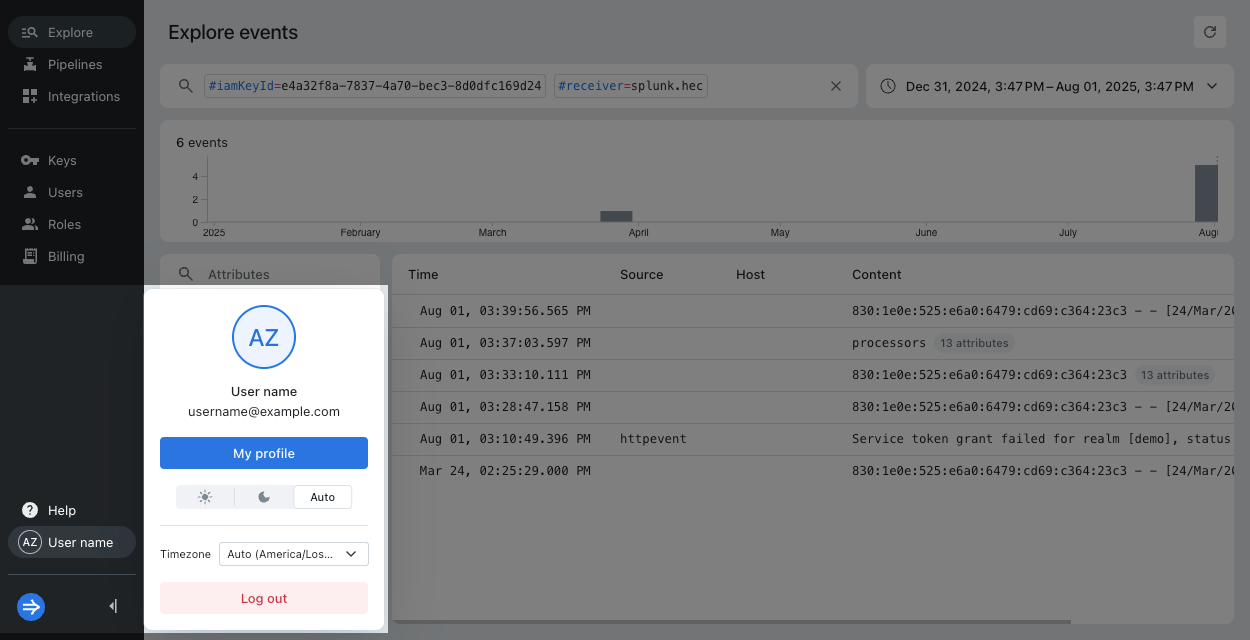
To change your account time zone, select your account name, click the Timezone drop-down, and select your time zone:
Learn more
For more information, see the following topics:
- Manage pipelines and processors for details on creating and managing pipelines.
- Processors for the types of processors available in Lumi.
- File upload for more details on file upload.