Search events with Claude Desktop
AI summary
About AI summaries.
You can use Claude Desktop to query Lumi events with natural language. The MCP integration registers Lumi as a Model Context Protocol (MCP) server within the app, so you can explore event data without leaving your workspace.
Prerequisites
To query Lumi events with Claude Desktop, you need the following:
- Access to Lumi with the Data manager role or higher. For information on roles and permissions, see Use roles to control access.
- Lumi IAM key with the MCP integration. See Create an IAM key for details.
You also need a Claude account with access to Claude Desktop and MCP features. Before you begin, install Claude Desktop and log in.
Obtain Lumi authentication details
To obtain the details you need from Lumi:
- Go to the Model Context Protocol (MCP) integration page in Lumi and select your IAM key.
- Select the Claude Desktop AI agent.
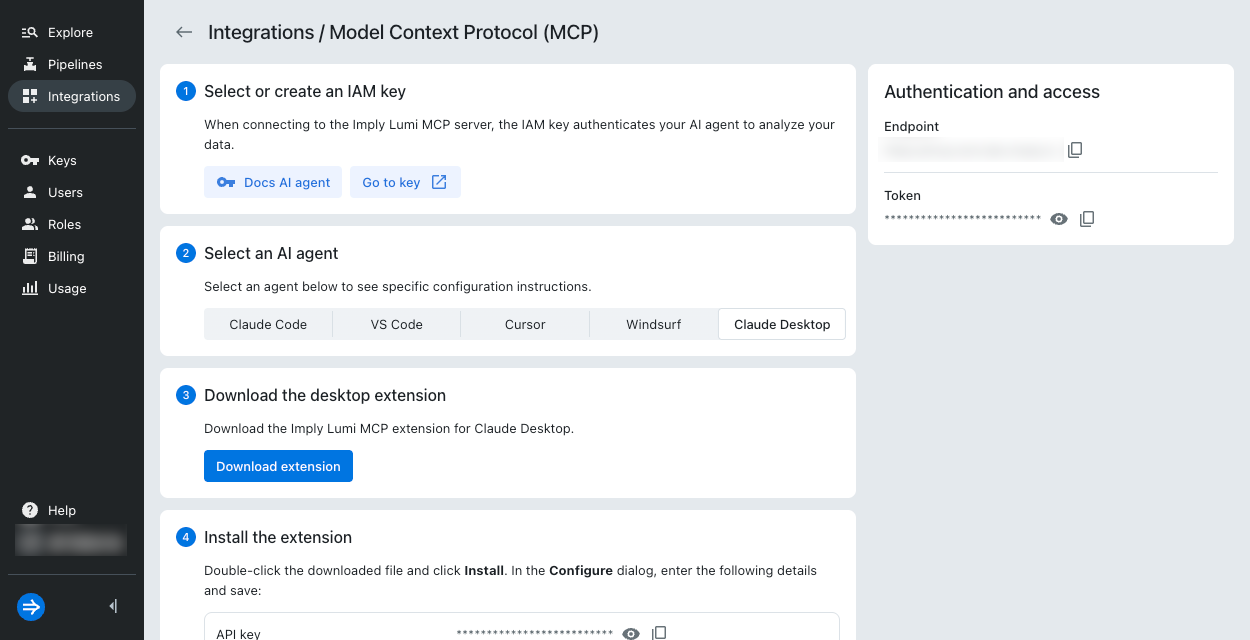
- The page populates with the information required to authenticate the connection.
You need the following details:
- API key: Key resembling
0b8d890e-0bc4-4208-ab68-c195c00d76b0 - URL: URL resembling
https://mcp.lumi.imply.io
- API key: Key resembling
- Download the MCP extension.
Install the MCP extension
To install the MCP extension:
- Double-click the downloaded file and click Install.
- In the Configure dialog, enter the following details and save:
- API key: Lumi IAM key.
- URL: Lumi URL.
- Click the Disabled toggle to enable the extension.
- Close the dialog.
Query Lumi from Claude Desktop
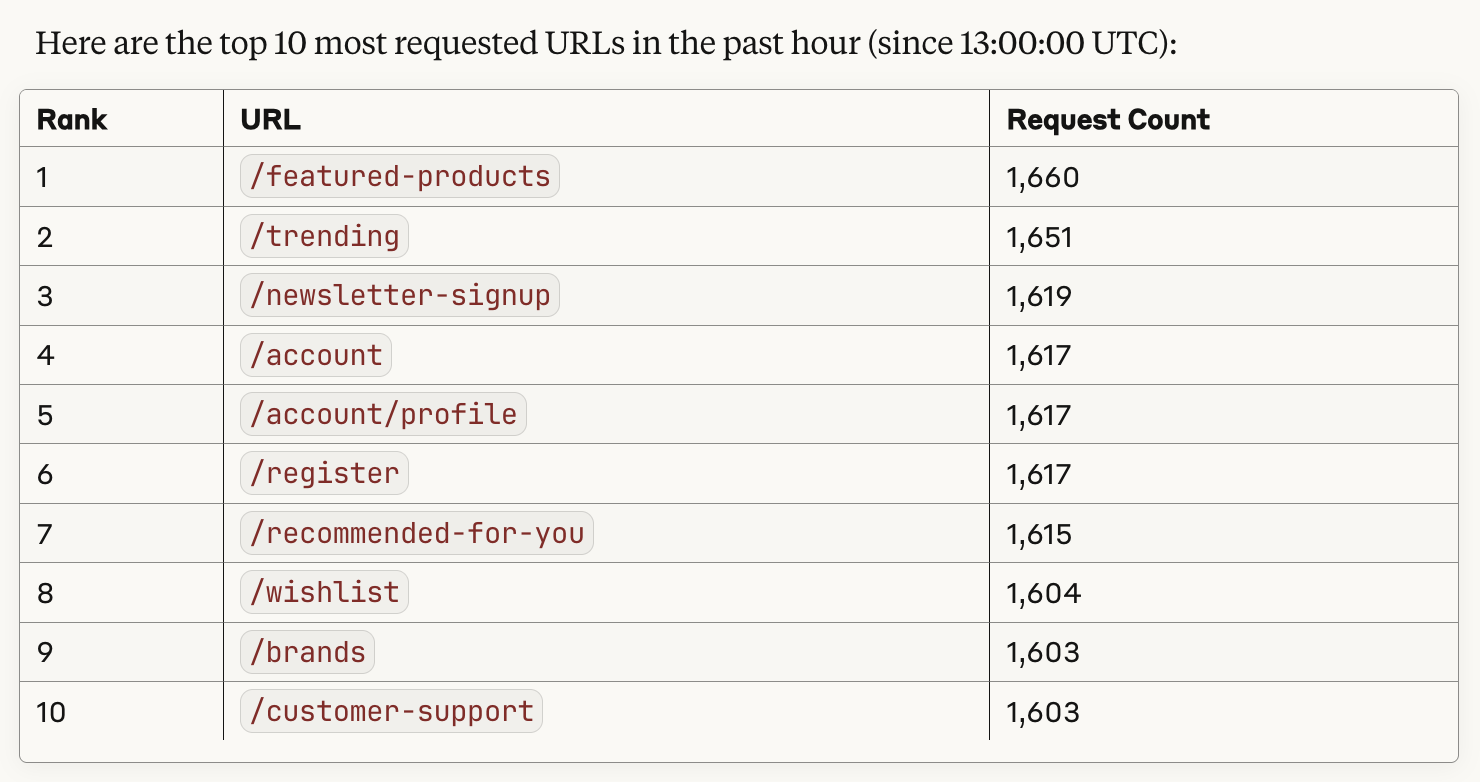
You can now query Lumi from Claude Desktop using natural language. For example, "@imply-lumi Show me the top 10 most requested URLs in the past hour." Claude generates a SQL statement to run the query and display the result.
Example response:
Learn more
See the following topics for more information:
- Search Lumi events for all options to search events.
- Search events with AI agents for other AI agents that integrate with Lumi.