Search events with Grafana
AI summary
About AI summaries.
You can search Imply Lumi events using Grafana, an open-source analytics and visualization platform. This topic provides details on configuring Grafana to query Lumi events.
To enable this feature, contact Imply Lumi support.
The screen captures and instructions in this topic show the configuration for open source Grafana v12.2.0.
Prerequisites
To search Lumi events with Grafana, you need the following:
- Access to Lumi with the Data manager role or higher. For information on roles and permissions, see Use roles to control access.
- Grafana user with the ability to add a data source:
- In open source Grafana, you need the Org Admin or Server Admin role.
- In Grafana Enterprise/Cloud with RBAC, you need the
datasources:writepermission on the relevant organization.
Configure a Lumi IAM key
You use a Lumi IAM key to set up basic authentication in Grafana. You can also configure user attribute labels for querying and filtering.
To set up the IAM key:
- From the Lumi navigation menu, click Integrations > Grafana.
- Select or create an IAM key. See Create an IAM key for details.
- Configure labels.
- Save your changes.
Configure user attributes as labels
You can configure Lumi user attributes as labels to make them available for filtering and querying in LogQL.
The Lumi index attribute automatically maps to service_name in Grafana.
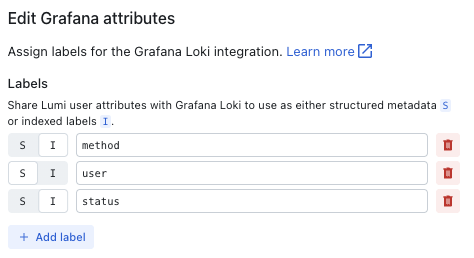
In the Labels field on the IAM key, configure user attributes as either structured metadata or indexed labels:
- Structured metadata (S): Attaches the attribute to events without creating a new Loki stream. Use for high-cardinality attributes such as
clientiporuserin web logs. For more information, see What is structured metadata in the Grafana docs. - Indexed labels (I): Indexes the attribute as a Loki stream label, enabling fast filtering in LogQL queries. Use for low-cardinality attributes such as
methodorstatusin web logs. For more information, see Log stream selector in the Grafana docs.
For example, the following configuration adds the method and status attributes as indexed labels and user as structured metadata:
Lumi automatically converts attribute names containing . to _ when you query Lumi events from Grafana. For example, cloud.region becomes cloud_region in LogQL queries.
Avoid using indexed labels for high-cardinality attributes. Each unique value creates a new Loki stream, which can degrade query performance.
Once configured, the attributes are available in the Grafana label browser and in LogQL queries.
Configure Grafana
In Grafana, you add a Grafana Loki data source to connect to Lumi using your Lumi IAM key details.
Add a Loki data source
To add a Loki data source to connect to Lumi:
- In Grafana, go to Connections > Data sources > Add a new data source.
- Search for and select Loki.
- Enter a name for the connection, such as
lumi. - Enter the following details provided by Lumi:
- URL: Your Lumi connection URL.
- Authentication method: Basic authentication.
- User: IAM key ID.
- Password: IAM key token.
Leave all other fields unchanged.
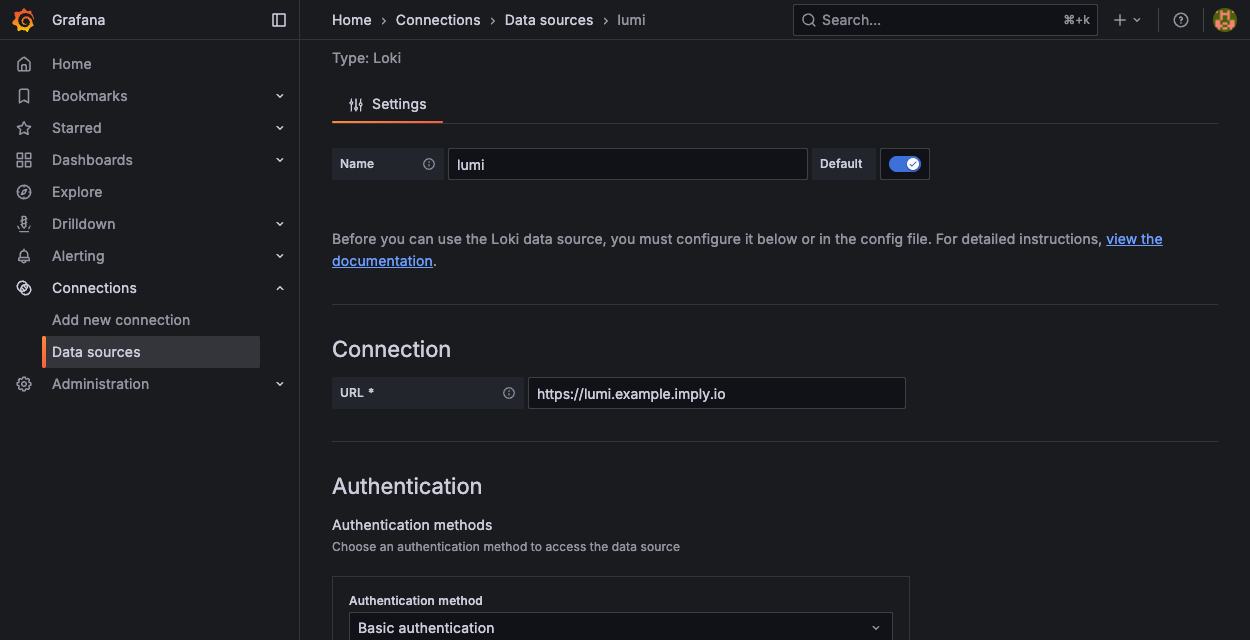
- Click Save & test to test the connection.
Search Lumi events
Once you have a successful connection, you can search Lumi events from Grafana.
- In the
lumidata source, click Explore data. - Use the Builder or Code mode to create a LogQL query.
For example, the following query finds logs with the 500 errorstatusand theGETmethod in theglobal_dds_web_prodLumi index:
{service_name="global_dds_web_prod", method="GET", status="500"}
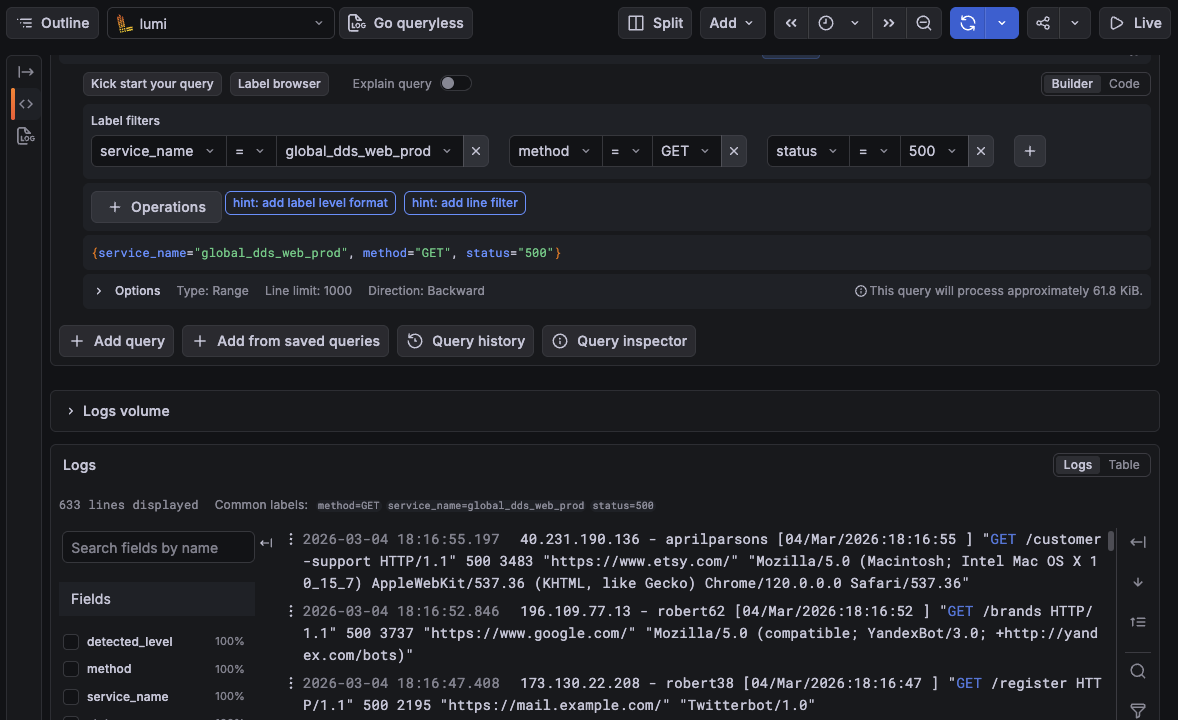
- Click Run query.
See the Grafana docs on Explore for details on creating queries and LogQL: Log query language for syntax details.
Learn more
See the following topics for more information:
- Search Lumi events for other options to search events.
- IAM keys for details on IAM keys.