Search methods
AI summary
About AI summaries.
After sending events to Imply Lumi, you can search for events and filter by event information, integration type, or event age. This topic takes you through common use cases for searching events.
For details on how to use the explore view, see Search events with Lumi.
Prerequisites
To search for events, you need a Lumi user with the Viewer role or higher. For information on roles and permissions, see Use roles to control access.
Search events by attribute
In the explore view, you can use the search bar to filter events by user or system attributes:
-
From the Lumi navigation menu, click Explore.
-
In the search bar, enter the search condition for the attribute that you want to filter by.
-
To search by a user attribute, enter the attribute name followed by its condition.
For example, search for events where the index is
mainand the source type is nototel:index=main sourcetype!=otel -
To search by system attribute, preface the attribute name with
#.
For example, search for events where the status isinfo:#status=info
-
-
Adjust the time range selector to span your event timestamps.
-
Select an event to view its attributes.
A user attribute can have a null value. When you search using the pattern NOT attributeName=*, Lumi returns events where the specified attribute exists and is null.
For example, search for events where user is null:
NOT user=*
When searching for events using federated search in Splunk®, you can use the fillnull command to replace null or missing attribute values with a default value.
For an example, see Federated search examples.
Search events from an integration
When you sent events in the last 24 hours, you can go to the ingestion integration to view them in the preview pane.
Use the Keys page to search any events sent by a specific integration.
Search recent events
If you sent events to Lumi with timestamps from the last 24 hours, you can preview them from the Integrations page.
-
From the Lumi navigation menu, click Integrations and select your ingestion method.
-
Click Select or create key and select the IAM key used to ingest your events.
-
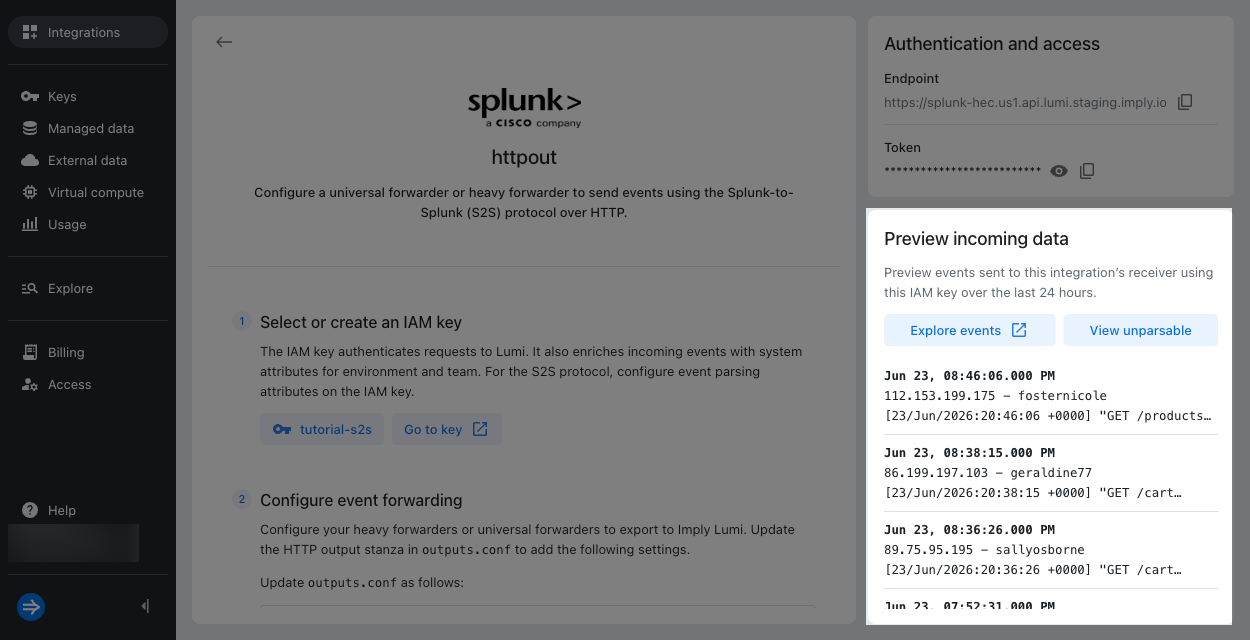
View your incoming events in the Preview incoming data pane.
-
Click Explore events to view all of the ingested events sent using the selected integration and key.
Search events from a custom time range
If you don't see events in the preview pane, you can filter by the integration and key from the Keys page.
-
From the Lumi navigation menu, click Keys and select your IAM key.
-
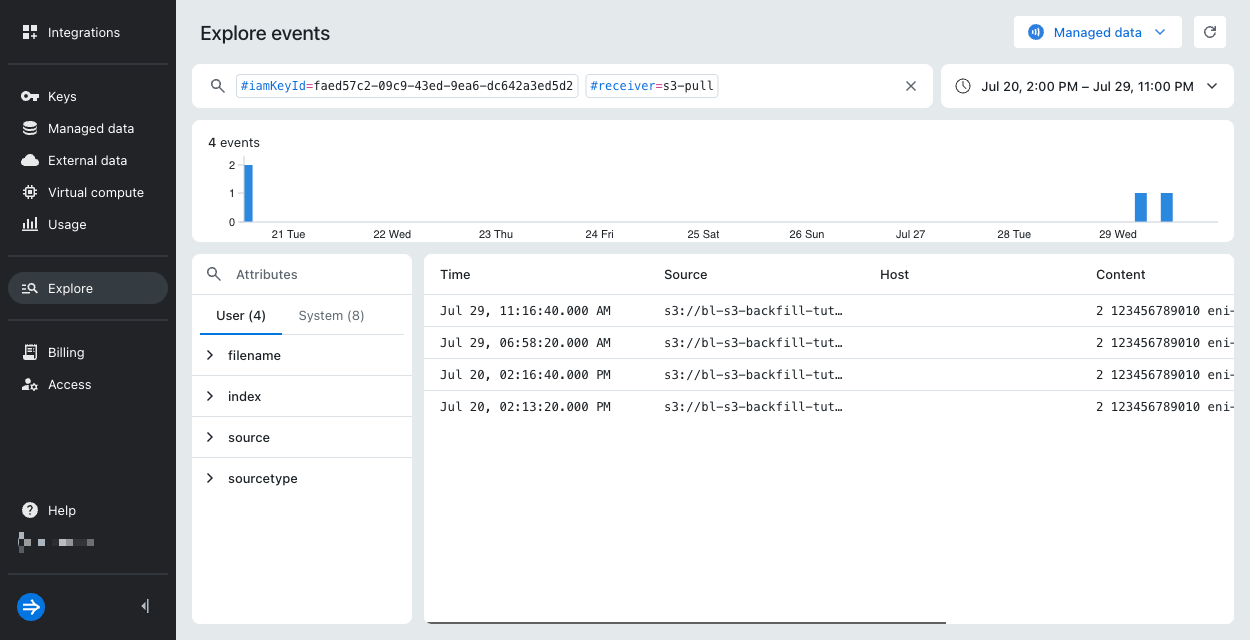
In the Integrations pane, click the ellipsis next to the key's last seen information and select Search in explorer. Lumi takes you to the explore view and applies a filter for your integration type.
-
Optionally, filter your search by user or system attributes.
-
Adjust the time range selector to span your event timestamps.
-
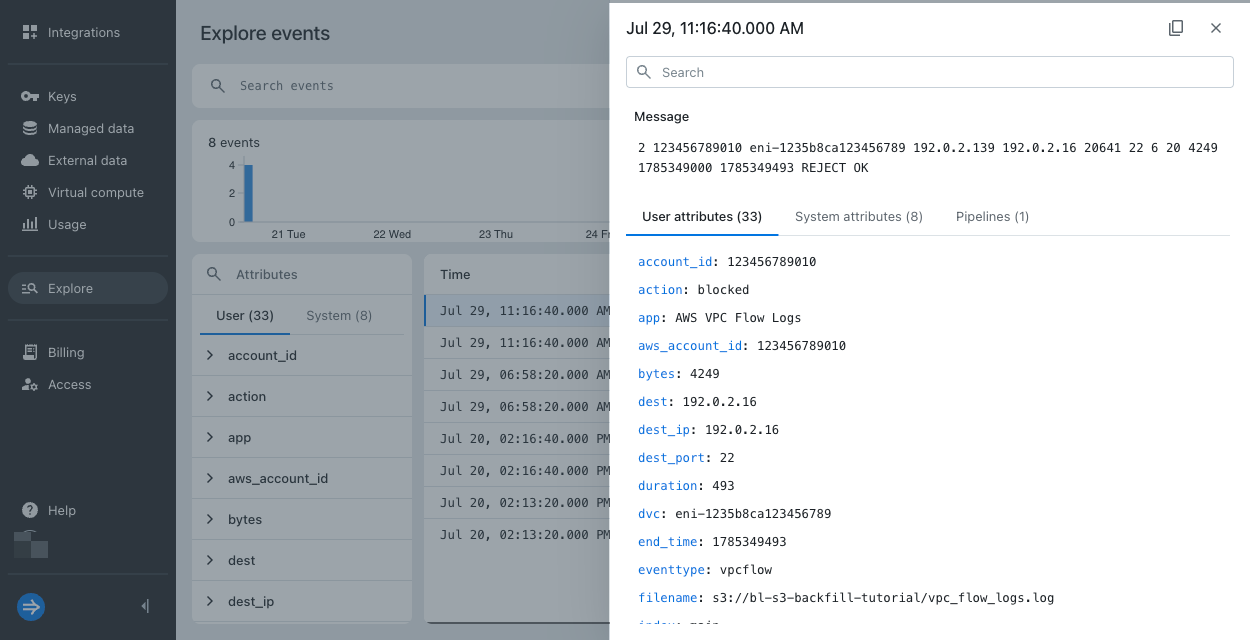
Select an event to view its attributes.
Search events from a file
If you uploaded a file to Lumi, use the file system attribute to search events that only came from the file.
-
From the Lumi navigation menu, click Explore.
-
In the search bar, enter the name of the file you uploaded using the
filesystem attribute.
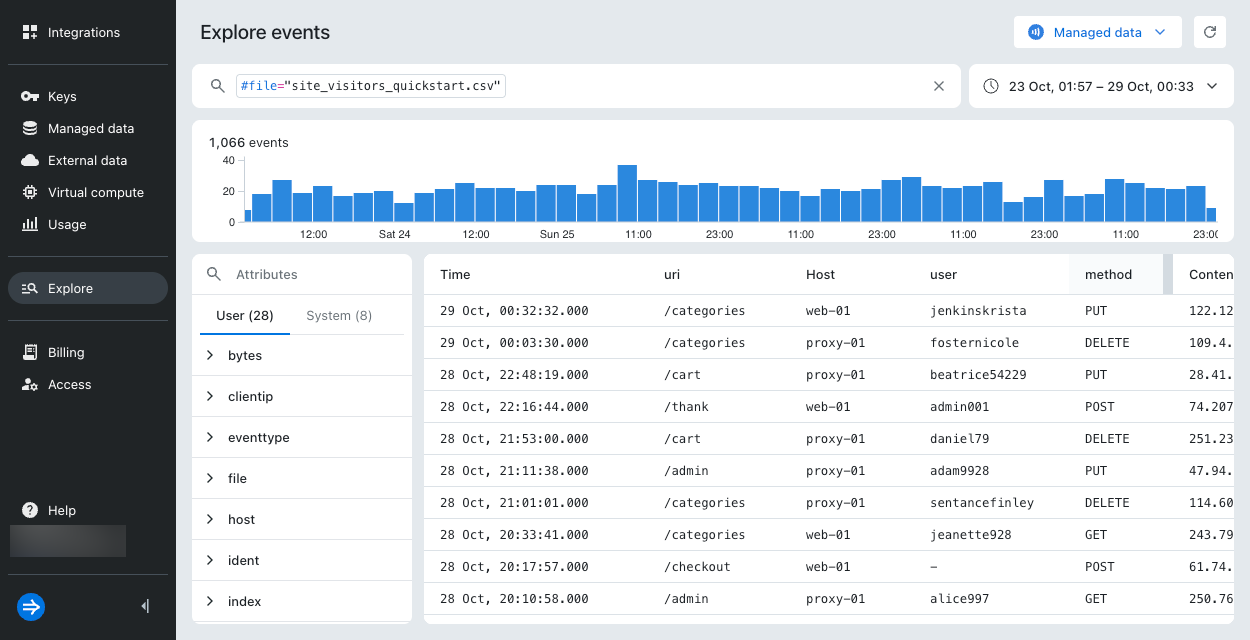
The following examples show search filters uploaded events:
-
Search events from
site_visitors_quickstart.csv:#file=site_visitors_quickstart.csv -
Search all events from CSV files:
#file=*.csv -
Search all events uploaded to Lumi using the
receiversystem attribute:#receiver=imply.file
-
-
Optionally, filter your search by user or system attributes.
-
Adjust the time range selector to span your event timestamps.
-
Select an event to view its attributes.
Learn more
See the following topics for more information:
- How to search events with Lumi to walk through set of queries for an example web store.
- Event model to learn more about user and system attributes in Lumi.
- Lumi query syntax reference for information on supported search syntax and limitations.