Event formats reference
AI summary
About AI summaries.
When you use Imply Lumi in your observability workflows, you typically have an incoming stream of events for the logs you want to capture and analyze. In some cases, you might need to ingest a batch of events stored in a file. This can be useful when performing a backfill to load historical events or for a quick evaluation of your data in Lumi.
This topic lists the supported event and file compression formats you can use to batch ingest events.
The formats apply to file upload and S3 pull.
Supported formats
You can use the following event formats for batch ingestion:
- CSV (generic)
- JSON (generic)
- Splunk® CSV
- Splunk HEC
- Parquet
- Plain text
The following sections describe the formats in more detail. See Automatic detection for the framework Lumi uses to detect the event format and Manual specification to specifically designate your format.
CSV
For events in generic CSV format, Lumi automatically parses each field as a user attribute.
Consider the following example CSV:
host,timestamp,location
127.0.0.1,24/Mar/2025:16:25:29 -0500,"Chicago, IL"
Lumi generates the following user attributes, shown in alphabetical order:
host: 127.0.0.1
location: Chicago, IL
timestamp: 24/Mar/2025:16:25:29 -0500
You can use the following settings to customize CSV parsing when you manually specify the CSV format in a backfill job or when you upload a CSV file:
- Delimiter: Defaults to
,for CSV. Specify any single character or\tfor TSV. - Rows to skip: Defaults to 0. Set this value if you want to skip any preamble rows or override headers in the file.
- Custom headers: By default, Lumi infers headers from the file. You can provide your own header names, separated by commas (regardless of your delimiter). For example,
timestamp,message,host.
JSON
For generic JSON, Lumi extracts each top-level field as a separate user attribute. You can format JSON events using any of the following structures:
-
Separate objects: each object is a separate event.
For example:
{"time": "2025-11-14T22:46:11Z", "log": "example log 1"}{"time": "2025-11-14T23:46:11Z", "log": "example log 2"} -
Array of objects: each object in the array is an event.
For example:
[{"time": "2025-11-14T22:46:11Z", "log": "example log 1"},{"time": "2025-11-14T23:46:11Z", "log": "example log 2"}] -
Newline-delimited objects: each line is a separate event.
For example:
{"time": "2025-11-14T22:46:11Z", "log": "example log 1"}{"time": "2025-11-14T23:46:11Z", "log": "example log 2"}
Lumi doesn't support the following:
- A single JSON object that contains all the events.
- JSON files exported from Splunk.
Splunk CSV
The Splunk CSV format represents the format of a CSV file that Splunk exports. This format contains at minimum the following fields:
_raw: raw event message_time: event timestamp
A typical file contains additional fields for extracted attributes, such as host or user.
Lumi assigns user attributes for these additional fields.
See the Splunk documentation for more information on the exported format.
Splunk HEC
The Splunk HEC format refers to the JSON format for an HTTP request to the Splunk HEC endpoint.
At minimum, it requires the top-level field event that contains the raw event message.
Lumi automatically detects Splunk HEC when the object has the top-level fields for event and at least one of
the Splunk event metadata fields:
time, host, source, sourcetype, index, fields.
To send an event with user attributes, include the attributes in a nested JSON object assigned to fields.
If you include a custom attribute—for example, status—as a top-level field, Lumi doesn't assign the user attribute.
For more information, see Format events for HTTP event collector in the Splunk documentation.
The following example shows a Splunk HEC JSON event that includes attributes for key1 and key2:
{
  "event": "Demo log",
  "time": "2025-11-14T22:46:11Z",
  "index": "demo",
  "fields": {
    "key1": "value1",
    "key2": [
      "value2.0",
      "value2.1"
    ]
  }
}
In this case, Lumi generates the following user attributes:
index: demo
key1: value1
key2: [value2.0, value2.1]
sourcetype: httpevent
For additional examples, see Send events with Splunk HEC.
Parquet
The Apache Parquet format is indicated by the .parquet file extension or by the Parquet magic byte sequence.
The sequence is the leading 4-byte identifier, PAR1.
Parquet is a schema-encoded binary format that stores the data in a columnar layout. Lumi automatically parses individual records in the Parquet file.
Plain text
Plain text encompasses all other event formats. The raw log line becomes the event message, and the timestamp Lumi received the event becomes the event timestamp.
Automatic detection
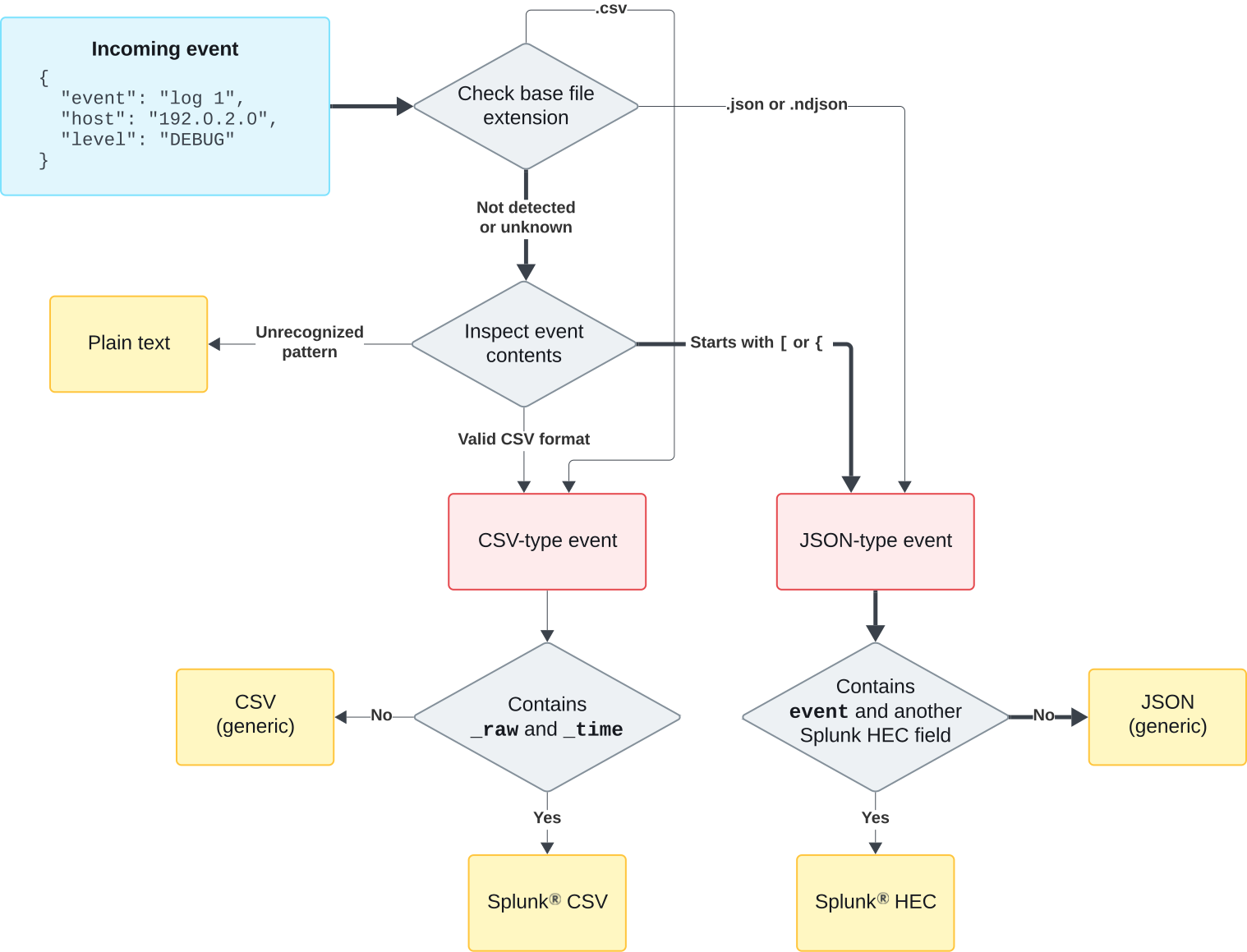
Lumi automatically detects the event format using the following heuristics:
-
Check the file extension. Uses the base extension for compressed files like
.json.gz.- CSV:
.csv - JSON:
.jsonor.ndjson - Parquet:
.parquet
- CSV:
-
If the extension is inconclusive, inspect the first 1024 bytes of the file:
- CSV: At least two rows where the first row has at least two non-blank columns
- JSON: Content starts with
{or[ - Parquet: First four bytes are
PAR1
-
If CSV or JSON is detected, check for Splunk-specific markers:
- Splunk CSV: Headers begin with
_raw,_time - Splunk HEC: Includes
eventand at least one supported metadata field such assource - Otherwise, parse as generic CSV or JSON.
- Splunk CSV: Headers begin with
-
If no other format is detected, treat the file as plain text and parse line-by-line.
The following diagram shows the decision tree of format detection for an example event. The arrows in bold show the pathway of the example event detected as generic JSON.
Manual specification
You can manually specify the format if you want to skip automatic detection. This can be useful in the following cases:
- Your file extension doesn't reflect the actual event format.
- You have comma-separated data that you want to treat as plain text instead of CSV.
- You have JSON events misinterpreted as Splunk HEC.
In S3 pull, you can set the format on the IAM key or in the backfill job:
-
IAM key attribute: Applies to any recurring or backfill S3 pull ingestion.
- Go to the Keys page in Lumi and find your IAM key.
- For the S3 pull integration, click the ellipsis and select Edit attributes.
- Under Format, click the drop-down and select your format.
- Click Save.
-
Backfill job specification: Applies to incoming events from a single backfill job. Overrides any format on the IAM key.
When creating a job, select the format in the Format drop-down menu.
In file upload, select the format from the Format drop-down menu after you upload your file.
Compression algorithms
A compressed format allows you to save storage space and streamline data management tasks. Lumi supports the following compression algorithms:
- Brotli
- BZIP2
- DEFLATE
- GZIP
- LZMA
- LZ4
- Snappy
- XZ
- Z
- ZSTD
Learn more
See the following topics for more information:
- Quickstart to learn to send events to Lumi through file upload.
- Send events with S3 pull for details on the S3 pull integration.
- Event splitting to learn how Lumi splits events by source type.
- Timestamp detection to learn about event timestamp assignment.