Manage backfill jobs
AI summary
About AI summaries.
Use the S3 backfill integration to load events into Imply Lumi from batch files stored in AWS S3. For example, you might have a large set of files with historical data. After you create a backfill job, you can monitor its progress and metrics from the Jobs page. This topic covers how to use the Jobs page to view and manage your backfill jobs.
How a backfill job works
The process of a backfill job takes the following steps:
- You submit a request to backfill data from S3.
For details on how to submit a backfill job, see Backfill events with S3 pull. - Lumi validates that it can access your objects.
In case of permissions errors, revisit Configure AWS access. - Lumi creates the backfill job in a Pending state and checks that it doesn't exceed more than 1,000,000 objects.
See Backfill job behavior. - Upon validation, Lumi transitions the job to Running, which includes the following stages:
- Discovery: Lumi identifies the objects to ingest.
- Processing: Lumi collects, processes, and retains the events.
- The job completes with one of the following statuses:
- Succeeded: The ingestion completed successfully.
- Failed: Lumi terminated the job when an error arose, whether in discovery or processing. See Errors.
- Canceled: A user canceled the job. See Cancel a job.
Jobs overview
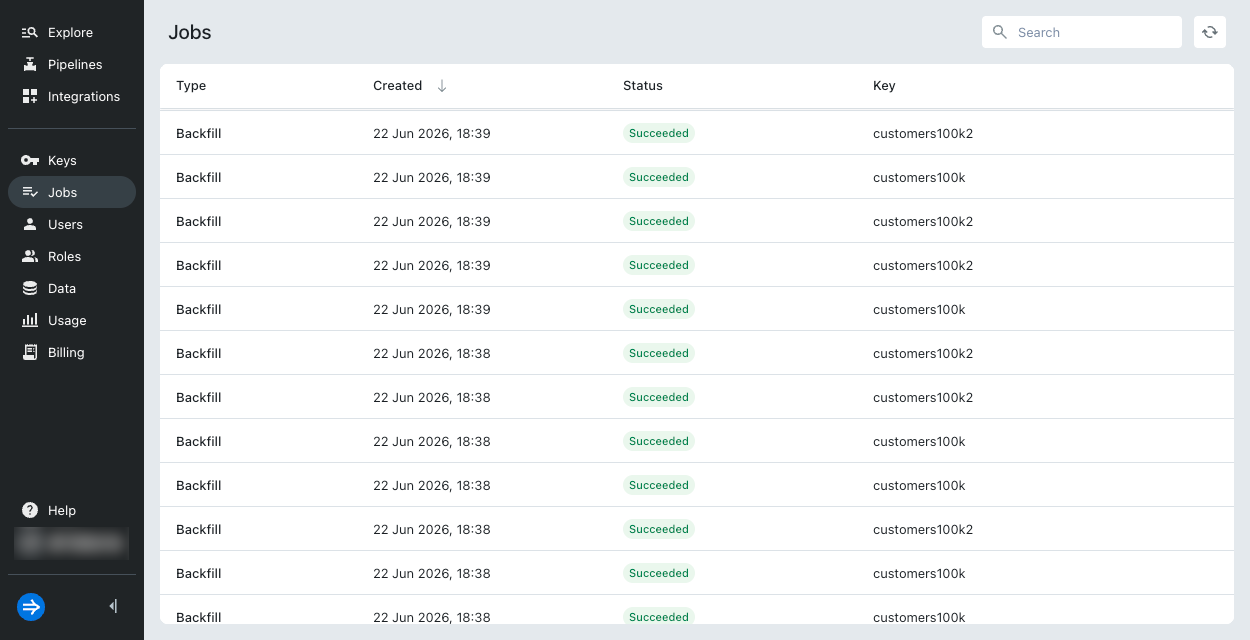
To view all jobs, click Jobs from the Lumi navigation menu. On this page, you can search and sort by the job creation date, status, and associated IAM key. To refresh the information on this page, click the refresh icon in the top right.
View job details
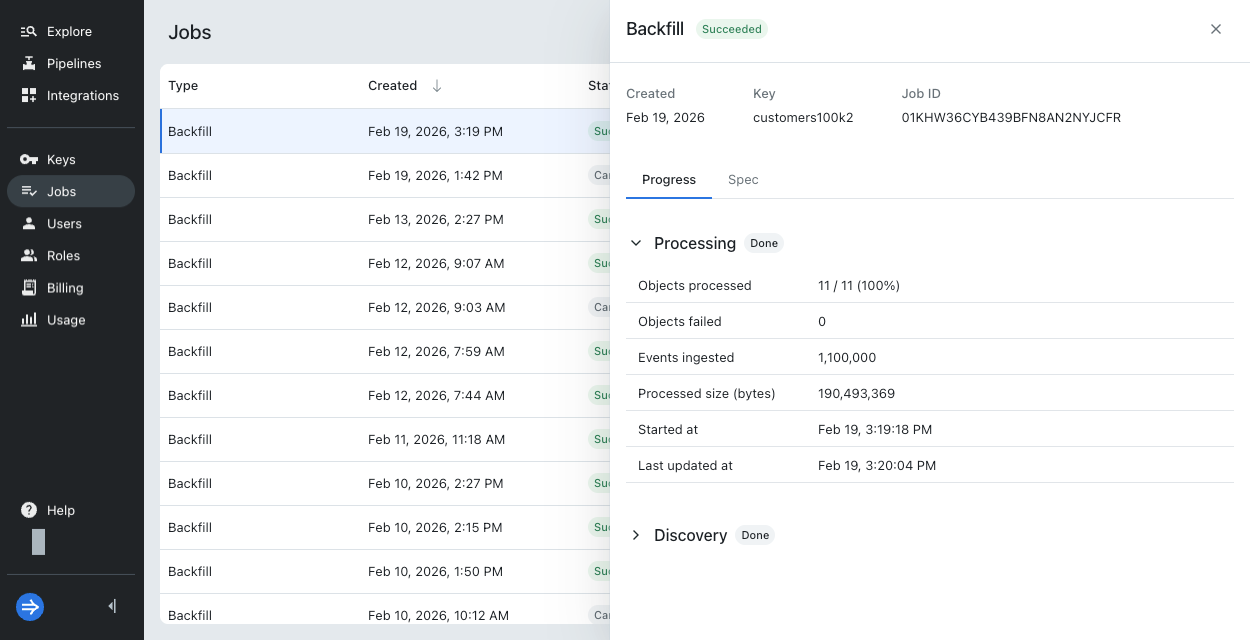
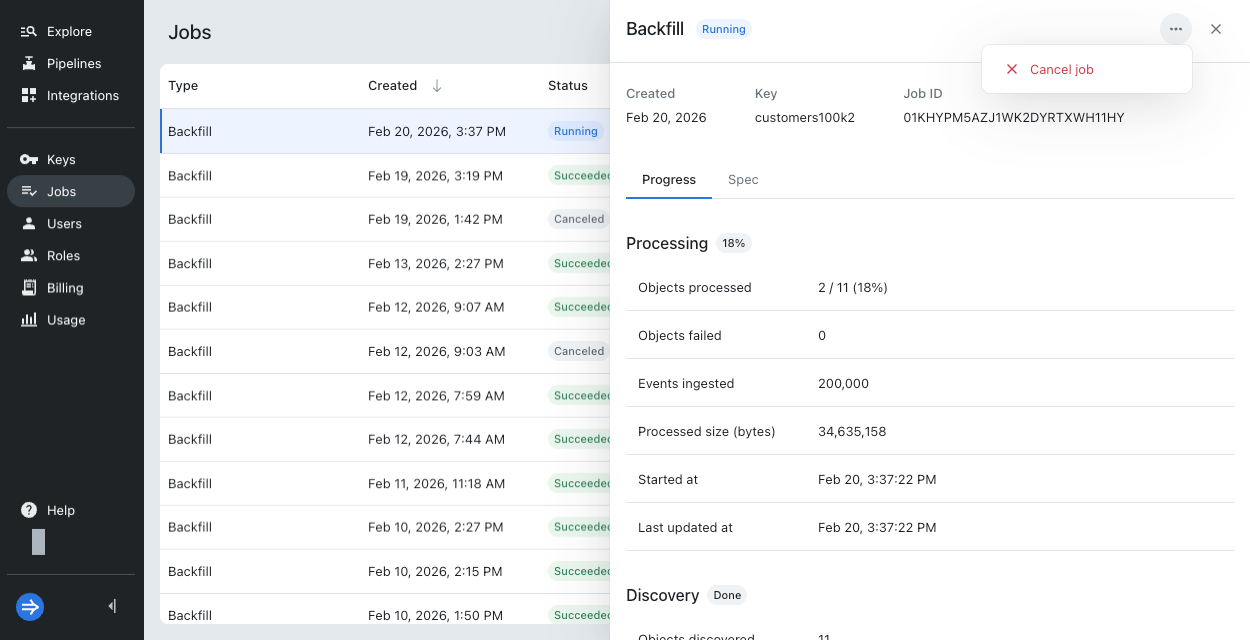
From the Jobs page, you can click a job to see more details. The top of the job details pane shows when the job was created, the associated Lumi IAM key, and the unique identifier for the job. The IAM key stores the ARN of your AWS IAM role.
The job details pane also shows details about the discovery and processing phases of a backfill job.
Discovery
A backfill job that starts running enters the discovery phase first, where Lumi identifies what objects to ingest and how many there are. Open the Discovery expander to view the following job details:
- Objects discovered
- Total size (bytes)
- Created at
- Last updated at
If a job is taking a long time in discovery, you might need to recreate the job with a more specific object filter or break it down into multiple smaller jobs.
Processing
After a backfill job passes the discovery phase, it enters the processing phase. In this phase, Lumi begins ingesting events from the objects discovered. Open the Processing expander to view the following job details:
- Objects processed
- Objects failed
- Events ingested
- Processed size (bytes)
- Started at
- Last updated at
If a backfill job is canceled while in the discovery phase, the Processing section doesn't display when the job was started or last updated.
Spec
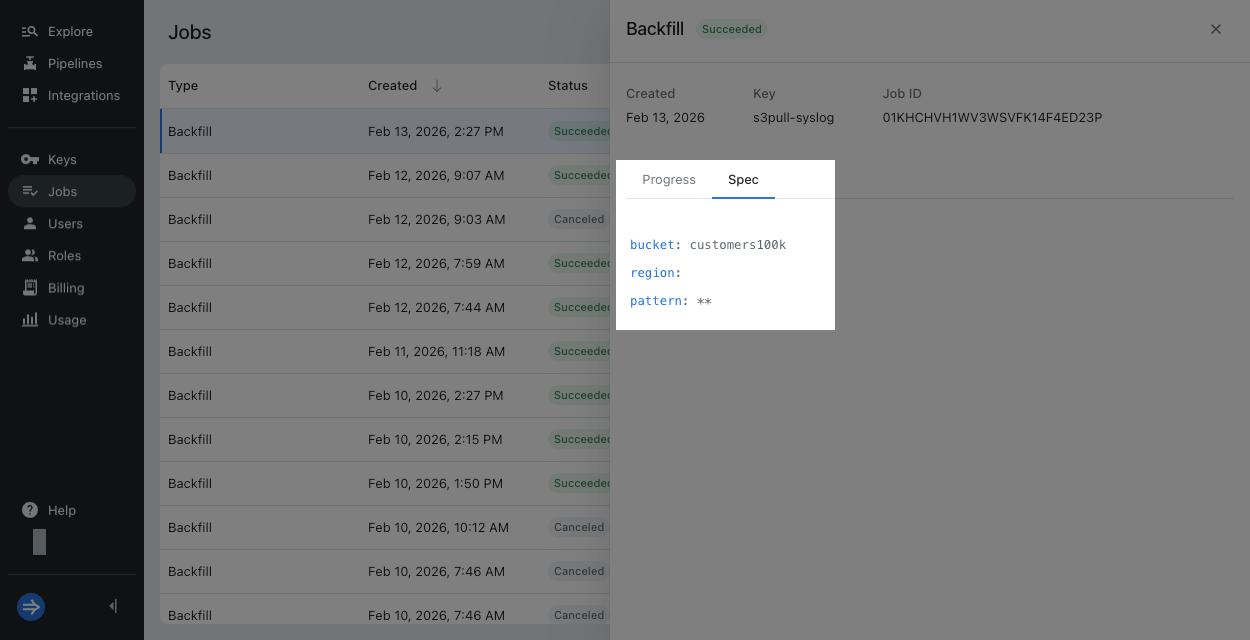
To review the configuration you submitted for a backfill job, click the Spec tab. Ensure that you don't submit the same configuration multiple times as that can lead to duplicate events.
Errors
If an error occurs, Lumi displays it in the stage it was raised, Discovery or Processing. A backfill job halts when it enters an error state. Any ingested events remain ingested.
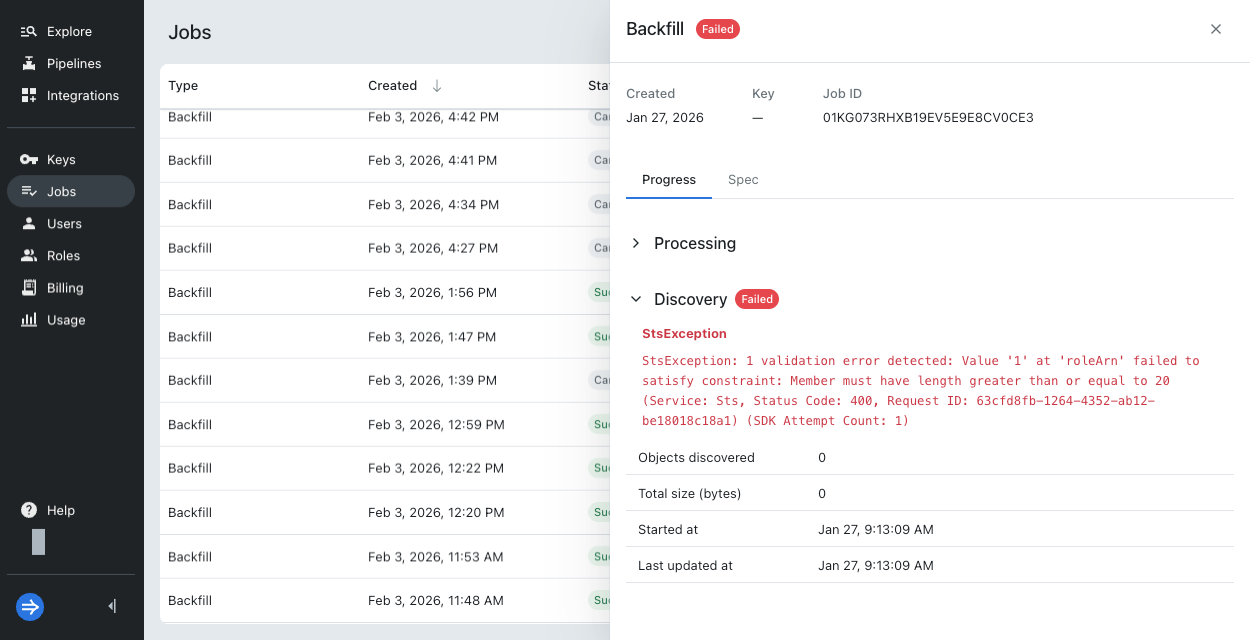
Note that permissions errors can also arise when you submit a backfill job, such as when Lumi detects an incorrect ARN on your IAM key or doesn't have the AWS permissions to access your objects. If this occurs, Lumi doesn't create the job.
Cancel a job
You can cancel a job that's in a Running or Pending state. If you cancel a backfill job that was already running, any ingested events remain ingested.
To cancel a job, click the ellipsis and select Cancel job. Confirm the action in the dialog.
Learn more
See the following topics for more information:
- Send events with S3 pull for how to configure permissions between Lumi and AWS.
- Backfill events with S3 pull for how to create a backfill job and limits of backfill jobs.