Send events with S2S
AI summary
About AI summaries.
You can forward events from Splunk® universal or heavy forwarders to Imply Lumi using the Splunk-to-Splunk (S2S) data transmission protocol.
Lumi supports two S2S integrations, each corresponding to a Splunk output processor:
tcpout: Forwards data using the S2S protocol over TCPhttpout: Encapsulates the S2S payload and forwards it over HTTP
For information on the Splunk processors and their use cases, see Intermediate data routing using universal and heavy forwarders.
This topic provides details on event forwarding configuration using Splunk-to-Splunk (S2S). For an end-to-end tutorial, see How to send events with S2S.
Prerequisites
Before you send events to Lumi using S2S, you need the following:
- Access to Lumi with the Data manager role or higher. For information on roles and permissions, see Use roles to control access.
- Splunk universal forwarder or heavy forwarder.
This topic assumes that you manage your Splunk configuration locally. If you manage Splunk through a deployment server, see Updating your configuration. - For the
tcpoutintegration: Port 9997 open for outbound TCP traffic on the machine forwarding the events. - For the
httpoutintegration: Port 443 open for outbound TCP traffic on the machine forwarding the events.
Configure event forwarding
This section describes how to forward events to Lumi using S2S.
It involves updating your universal or heavy forwarder outputs.conf file.
The process assumes you already have your input source and any parsing or transforms configured in Splunk.
To configure event forwarding, complete the following steps:
-
From the Lumi navigation menu, click Integrations then
tcpoutorhttpout. -
Select or create an IAM key. See Create an IAM key for details.
The IAM key authenticates connections to send events to Lumi. It also enriches incoming events with the system attributes for environment and team.
-
Assign or confirm the S2S attributes on the key to configure event parsing.
-
Copy the provided Splunk configuration into your forwarder's
outputs.conffile.
See the following sections for more details. -
Restart the forwarder for the changes to take effect.
If you manage a distributed deployment, remember to deploy the new configuration to all the forwarders. Refer to the Splunk documentation for details.
The following sections show the configuration for each S2S integration.
S2S over TCP
Update or add the TCP output stanza in outputs.conf to include the following settings:
[tcpout]
defaultGroup = logs_lumi

[tcpout:logs_lumi]
server = LUMI_ENDPOINT
token = IAM_KEY_TOKEN
useSSL = true
useClientSSLCompression = false
Replace the variables with your own values:
LUMI_ENDPOINT: Lumi endpoint.
For example,splunk-tcp.us1.api.lumi.imply.io:9997IAM_KEY_TOKEN: IAM key token.
For example,229a2561-0000-0000-0000-bc433de16f89
You must include useSSL = true because the Lumi endpoint is SSL-enabled.
Lumi doesn't support compression, so you must also include useClientSSLCompression = false.
If you add or override additional settings in this stanza, that may impact how your data gets transmitted. In that case, Lumi may not receive your data correctly.
S2S over HTTP
Update or add the HTTP output stanza in outputs.conf to include the following settings:
[httpout]
httpEventCollectorToken = IAM_KEY_TOKEN
uri = LUMI_ENDPOINT
Replace the variables with your own values:
LUMI_ENDPOINT: Lumi endpoint.
For example,https://splunk-hec.us1.api.lumi.imply.ioIAM_KEY_TOKEN: IAM key token.
For example,229a2561-0000-0000-0000-bc433de16f89
S2S attributes
If you send events from Splunk universal forwarders, you can assign S2S attributes on the IAM key to configure event parsing.
For example, you can define the format for timestamp extraction using the pattern %d/%b/%Y:%H:%M:%S.
Ensure that the Lumi settings match any server-side settings you have for Splunk.
Lumi doesn't store S2S attributes with events.
These settings don't apply to incoming events from heavy forwarders.
For more information and examples, see event parsing reference and IAM key attribute reference.
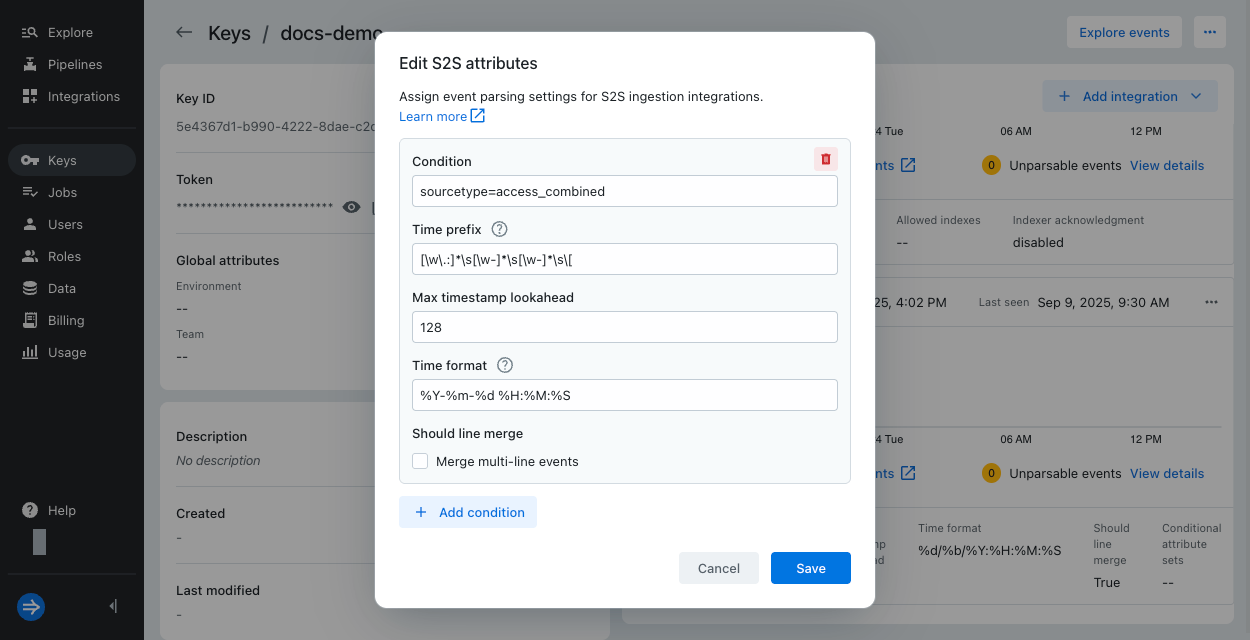
Conditional attributes
An IAM key can store multiple sets of S2S attributes. This is useful if you use the same key for multiple applications, where different forwarders handle different source types. Conditional attributes allow you to parse different types of events coming in through universal forwarders managed by the same Splunk configuration.
To set conditional S2S attributes:
- Create or edit your IAM key.
- Confirm the base set of S2S attributes, which Lumi falls back to when no conditions are met.
- Select Add condition.
- Enter the condition for when to use those attributes.
You can filter by
source,sourcetype,index, orhost. Example conditions:sourcetype=access_combinedindex=main AND sourcetype=XmlWinEventLog:*source="/var/log/" OR source="/var/www/"
- Fill in the attribute values.
- Define any extra conditional attributes in the same way. Lumi evaluates each condition from top to bottom and only uses the attributes from the first condition met.
- Save the IAM key.
Check Lumi for events
Once you configure event forwarding and send events, you can preview the incoming data in Lumi:
-
From the Lumi navigation menu, click Integrations, then select
tcpoutorhttpout. -
In Select or create an IAM key, select your key.
-
In Preview incoming data, view the events coming in to Lumi. Lumi automatically refreshes the preview pane to display the latest events. The preview pane only shows events with timestamps in the last 24 hours.
-
Click Explore events to see more events associated with the IAM key. The explore view populates the search bar with your IAM key ID and the receiver type. For example:
#iamKeyId=229a2561-0000-0000-0000-bc433de16f89 #receiver=splunk.s2sAdjust the time range selector to filter the data displayed.
Once events start flowing into Lumi, you can search them. See Search events with Lumi for details on how to search and Lumi query syntax for a list of supported operators.
If you sent events but don't see them in the preview pane, they might be older than 24 hours. Search for them in the explore view, and filter your search by the time range that spans your event timestamps. For details on how to search events from an integration, see Search methods. For information on troubleshooting ingestion, see Troubleshoot data ingestion.
Learn more
See the following topics for more information:
- How to send events with S2S for a tutorial on sending events over S2S.
- Send events to Lumi for other options to send events.
- Event parsing for S2S for supported patterns to parse events.
- IAM keys attributes for a reference on IAM key attributes.
For information on the Splunk output processors, refer to the following documentation: