Send events with S3 pull
AI summary
About AI summaries.
You can send events from an Amazon Simple Storage Service (Amazon S3) bucket to Imply Lumi using the S3 pull integration.
The S3 pull integration supports the following configurations:
- Recurring: For continually sending real-time data. Configure one of the following discovery methods:
- SNS subscription: Set up object notifications from AWS. The notification triggers ingestion for those objects in Lumi.
- Polling: Define a polling frequency to check for new objects on a schedule.
- Backfill: Manually specify which objects to ingest for a one-time batch ingestion of historical data.
All configurations require you to configure AWS access and create a Lumi IAM key before creating an ingestion job. This topic covers the initial setup.
For end-to-end tutorials, see How to ingest events from S3 event notifications and How to backfill VPC flow logs from S3.
The instructions in this topic reflect AWS configurations as of October 2025.
Prerequisites
To send events from an S3 bucket to Lumi, you need the following:
- Access to Lumi with the Data manager role or higher. For information on roles and permissions, see Use roles to control access.
- AWS IAM permissions to manage roles and policies (recommended) or an AWS access key.
- Amazon S3 bucket, including the ARN of the bucket in the AWS documentation.
- S3 objects in plain text, CSV, or JSON format. For more information, see Event formats.
Workflow
Follow this process to configure S3 ingestion into Lumi:
- Configure AWS access using IAM role assumption or an access key.
You can use either authentication method with recurring or backfill jobs. - Create a Lumi IAM key to store AWS credentials and optionally set user attributes.
- Initiate the ingestion:
- For recurring SNS-based ingestion, set up event notifications.
- For recurring poll-based ingestion, create an S3 recurring job.
- For backfill ingestion, create an S3 backfill job.
- Check that Lumi received events.
S3 pull strategy
How you configure S3 pull ingestion depends on your use case:
- For a one-time ingestion of historical data, use backfill.
- To get events as soon as they arrive, use recurring ingestion with SNS.
- To get events on a fixed schedule, use recurring ingestion with polling. This is also a good choice when you want recurring ingestion, but don't have S3 permissions to configure event notifications.
Event duplication
Configuring S3 pull multiple times with the same bucket and object filter may produce duplicate events. To prevent this, Lumi automatically skips objects already ingested via SNS-based ingestion when you configure backfill or polling on the same bucket. Note that this deduplication only applies to objects ingested within the past 90 days.
To disable this option, clear Skip objects already ingested by SNS when you create your job. Only use this when you need to reprocess the same S3 objects. For example:
- You ingest objects that have incorrect, missing, or corrupted events. You delete these events, ensure that the objects have the correct data, and reingest the events.
- When searching events, you realize that you need to extract more user attributes for effective analysis. You create a pipeline or update your source type to match a predefined pipeline. You reingest the objects to search the enriched events.
Configure AWS access
Before loading data from an S3 bucket into Lumi, configure AWS access using either IAM role assumption or an access key. When possible, use IAM role assumption as a security best practice. You might need an access key if your S3 bucket is managed by a third party.
IAM role assumption
To set up IAM role assumption, complete the following sections to create an AWS permissions policy and an AWS IAM role.
The following diagram shows how AWS services and Lumi interact:
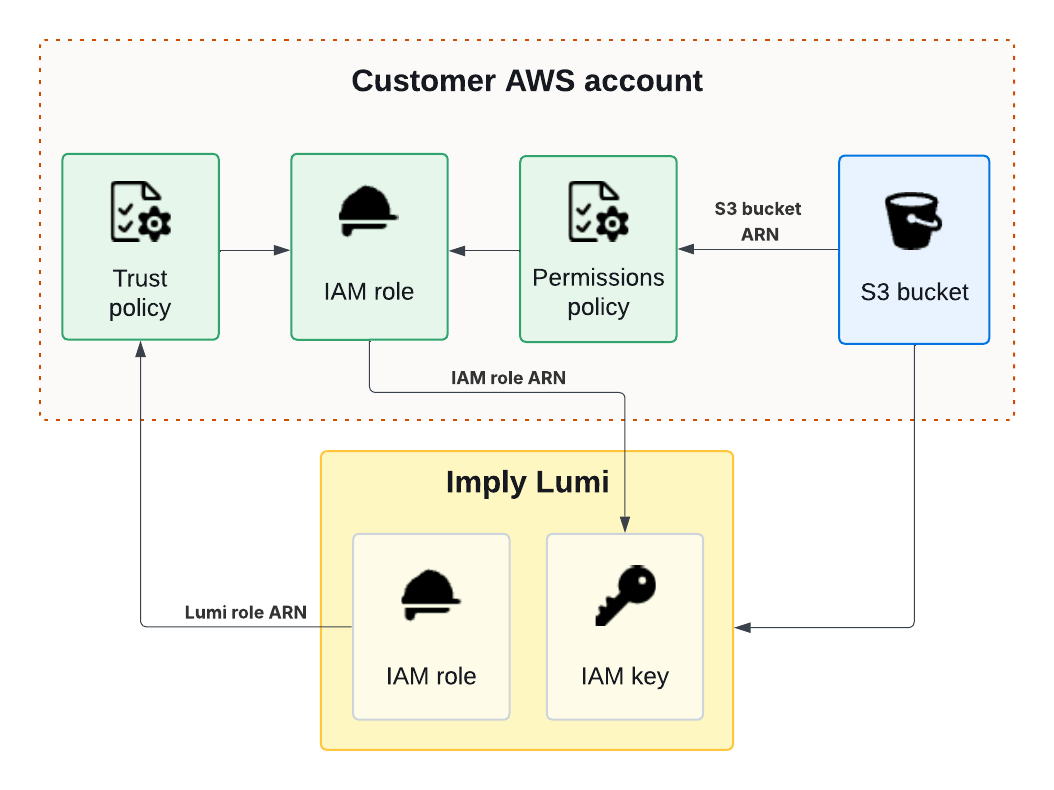
Create an AWS permissions policy
Create a permissions policy that grants access to the S3 bucket:
-
In the AWS console, go to the IAM dashboard.
-
Click Policies in the left sidebar, then click Create policy.
-
In the Policy editor section, click JSON.
-
Replace the contents in the policy editor with the following policy. Replace both instances of
S3 ARNwith the ARN of your S3 bucket.{"Version": "2012-10-17","Statement": [{"Effect": "Allow","Action": ["s3:ListBucket"],"Resource": ["S3 ARN"]},{"Effect": "Allow","Action": ["s3:GetObject"],"Resource": ["S3 ARN/*"]}]}The policy editor should resemble the following:
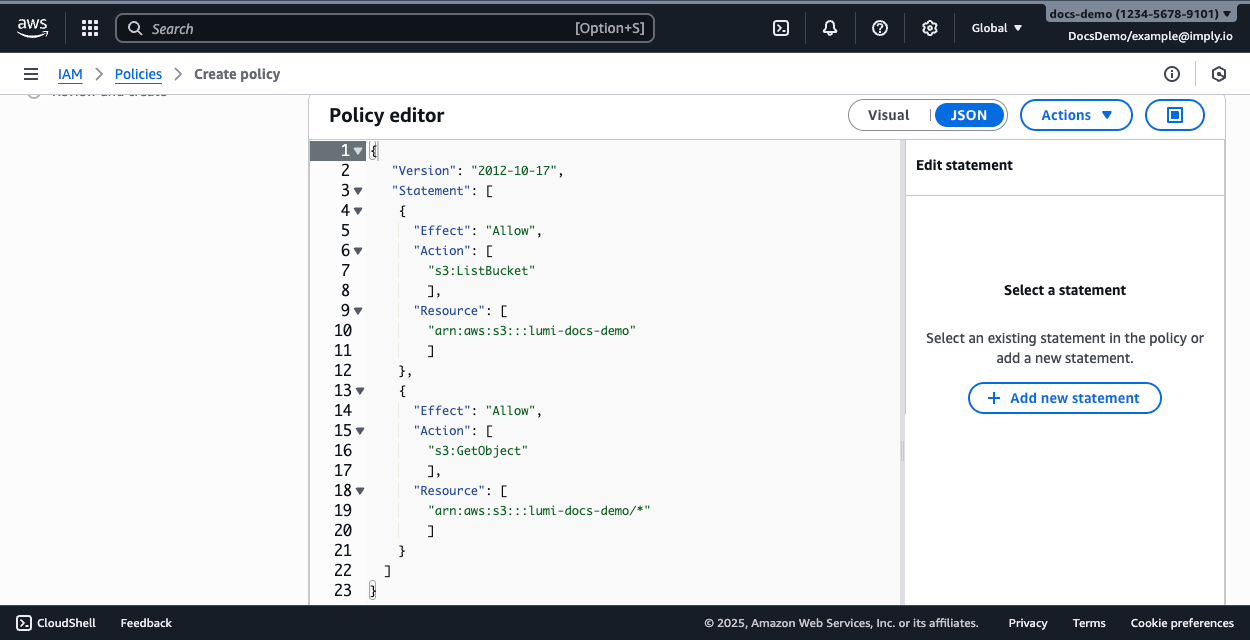
-
Optionally, click Actions and select Optimize for readability to format the JSON.
-
Click Next.
-
Enter a name for the policy, then click Create policy.
Handling objects encrypted with SSE-KMS
If your S3 bucket uses server-side encryption with AWS Key Management Service (AWS KMS) keys (SSE-KMS), whether with customer managed keys or AWS managed keys, the IAM role you use for Lumi must include the kms:Decrypt permission.
For more information, see the AWS documentation on SSE-KMS encryption.
To grant this permission, add the following statement to the permissions policy:
{
    "Effect": "Allow",
    "Action": "kms:Decrypt",
    "Resource": "arn:aws:kms:REGION:ACCOUNT_ID:key/KMS_KEY_ID"
}
Replace REGION, ACCOUNT_ID, and KMS_KEY_ID with your AWS region, account ID, and the ARN of the specific KMS key used to encrypt the data.
Create an AWS IAM role
Lumi provides a trust policy template that allows Lumi to assume an IAM role in your AWS account.
Start by obtaining the trust policy from Lumi:
- From the Lumi navigation menu, click Integrations > S3 pull.
- In the Configure AWS access section, click IAM role.
- Scroll down to the Create an AWS IAM role step and copy the trust policy. You'll use it to create an IAM role in AWS.
Create an IAM role with the trust policy:
-
In the AWS console, go to the IAM dashboard.
-
Click Roles in the left sidebar, then click Create role.
-
In the Trusted entity type section, select Custom trust policy.
-
Replace the contents in the policy editor with the trust policy you copied from Lumi.
The policy editor should resemble the following:
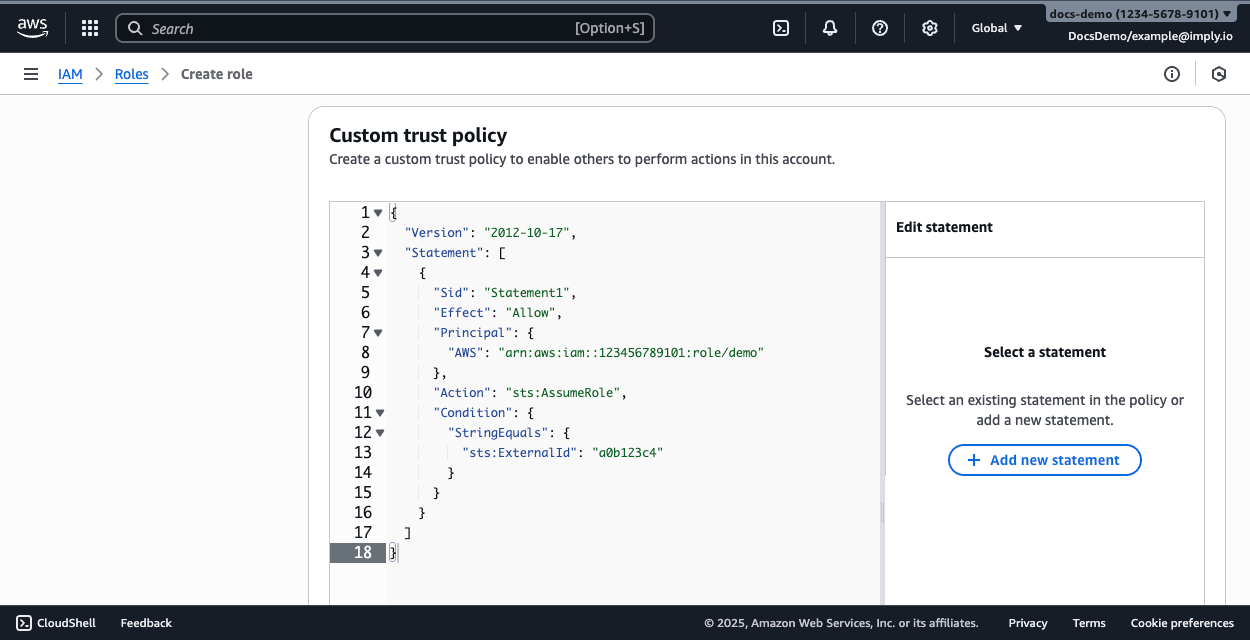
-
Click Next.
-
Search for and select the permissions policy you created in the previous step.
-
Click Next.
-
Enter a name for the role, then click Create role.
-
Search for and select your role to view its details. Save the ARN of the role. You can now create a Lumi IAM key.
Access key
An access key in AWS provides long-term credentials associated with an IAM user. For authentication with Lumi, you need an access key from the AWS account that manages the S3 bucket, whether yours or an external third-party account. If you already have an access key, obtain its access key ID and secret access key to create a Lumi IAM key.
If you don't have an access key, complete the following steps to create one:
- In the AWS console, go to IAM Users and select or create your user.
- Ensure the IAM user has permissions for
s3:ListBucketands3:GetObjecton the target bucket. If not:- Follow the steps to create a permissions policy.
- On the AWS IAM user page, select Add permissions > Attach policies directly, and attach the policy.
- Go to Security credentials > Create access key and complete the steps to create the key.
- Copy the Access key ID and Secret access key. You can now create a Lumi IAM key.
Configure a Lumi IAM key
Configure a Lumi IAM key using the AWS authentication you just configured:
- From the Lumi navigation menu, click Integrations > S3 pull.
- In the Configure AWS access section, select your authentication method.
- Select or create an IAM key.
- If you create a new key, enter a name, optional description, and global attributes.
- Fill in your AWS credentials:
- IAM role: Provide the ARN of your AWS IAM role.
- Access key: Provide the access key ID and secret. You can't view the secret after you save the key.
- Optionally configure the S3 pull attributes:
- Enter default values for the source, source type, and index. Lumi doesn't store the user attributes if null.
- Select the format of your events, such as CSV. Lumi auto-detects the format by default.
- Save your changes.
You can now create a recurring or backfill ingestion job to start sending events to Lumi.
Check Lumi for events
To view events ingested from S3:
- From the Lumi navigation menu, click Keys and find your IAM key.
- For the S3 pull integration, click the ellipsis and select Search in explorer.
- Optionally, adjust the time range selector to filter the data displayed. The time range reflects the timestamps on the events, not the ingested time.
- You can view the object source in the
filenameuser attribute.
If you don't see any events:
- For recurring ingestion, confirm whether your bucket received new objects.
- For recurring ingestion at fixed intervals, check for events again after the polling interval has elapsed.
- For backfill ingestion, check the status of your job and whether there are any errors in discovery or processing.
For information on troubleshooting ingestion, see Troubleshoot data ingestion.
S3 pull attributes
When you create an IAM key in Lumi, you configure AWS authentication using S3 pull attributes.
S3 pull attributes also include optional default values for Splunk® default fields. Skip any attributes you don't need or already defined, such as attributes defined in the event or a pipeline. If you don't assign any values, Lumi doesn't create the user attributes.
In addition to any default fields, Lumi stores ingestion metadata as event attributes.
| Attribute | Value assignment | Description | Example |
|---|---|---|---|
| AWS role ARN | IAM key attribute | Amazon Resource Name of your role for IAM role assumption | arn:aws:iam::012345678910:role/demo-role |
| Access key ID | IAM key attribute | ID of your AWS access key | AKIAIOSFODNN7EXAMPLE |
| Access key secret | IAM key attribute | Secret associated with the AWS access key | wJalrXUtnFEMI/K7MDENG/bPxRfiCYEXAMPLEKEY |
| Source | IAM key attribute | Default value for source user attribute | example-bucket |
| Source type | IAM key attribute | Default value for sourcetype user attribute | access_combined |
| Index | IAM key attribute | Default value for index user attribute | main |
| Format | IAM key attribute | Event format to parse S3 objects | CSV |
| Object name | Configured by Lumi | filename user attribute for the URI of the source object | s3://my-test-bucket/empty.json |
| Backfill job ID | Configured by Lumi | correlationId system attribute for the unique ID of a backfill job | 01KBE5V2VFA9PKWDRBRK6N51VV |
Learn more
See the following topics for more information:
- Send events to Lumi for other options to send events.
- Transform events using pipelines for information on how to transform events in Lumi.