Backfill events with S3 pull
AI summary
About AI summaries.
Use the S3 pull integration to ingest historical data from an Amazon S3 bucket into Imply Lumi. The S3 pull integration is suitable for backfill ingestion, where you manually specify a predefined batch of objects to ingest.
This topic provides details to configure backfill ingestion using the S3 pull integration.
For a tutorial on backfilling events from an Amazon S3 bucket into Lumi, see How to backfill VPC flow logs from S3.
Prerequisites
Before you continue, review Send events with S3 pull and ensure that you:
- Met the prerequisites
- Configured AWS access
- Created a Lumi IAM key
How a backfill job works
A backfill job follows these steps:
- You create a job to ingest data from S3.
- Lumi validates that it can access your objects.
If you encounter permissions errors, see Configure AWS access. - Lumi creates the backfill job in a Pending state and checks that it doesn't exceed more than 1,000,000 objects.
- Upon validation, Lumi transitions the job to Running, which includes the following stages:
- Discovery: Lumi identifies the objects to ingest.
- Processing: Lumi collects, processes, and retains the events.
- The job completes successfully, fails with an error, or is canceled by a user.
Before creating backfill jobs, note the following constraints and behavior:
- Limit your job to a maximum of 1,000,000 objects. If you exceed this amount, Lumi doesn't proceed with ingestion. Create multiple smaller jobs, or refine your filter to reduce the size of your job. For details, see Reduce job scope.
- It can take time for a job to begin, depending on the volume of discovered objects and any backlog of existing backfill requests.
- Avoid creating backfill jobs with the same settings. This can lead to duplicate events.
- Lumi assigns the user attribute
filenameand the system attributecorrelationIdto each event from a backfill job. Events from the same job have the same correlation ID. For more information, see S3 pull attributes.
Create a job
Create a backfill job using the Lumi UI:
-
From the Lumi navigation menu, click Integrations > S3 pull.
-
In Select the job type, click Backfill.
-
Select your AWS access method and your Lumi IAM key.
-
In Create a new job, enter the following details:
-
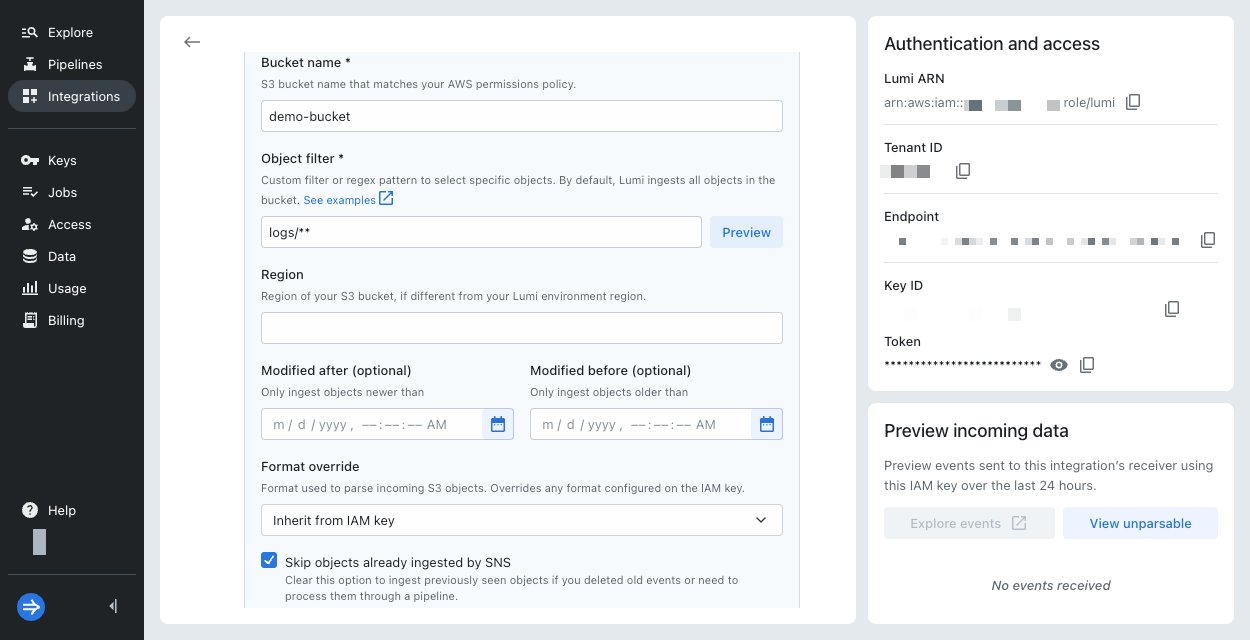
Bucket name: Name of the S3 bucket containing the data.
-
Object filter: Glob pattern for object keys that defines which objects to include when ingesting data. The pattern must match the entire object key. See S3 object filters for examples.
infoAs a best practice, use the most specific prefix that matches your objects.
-
-
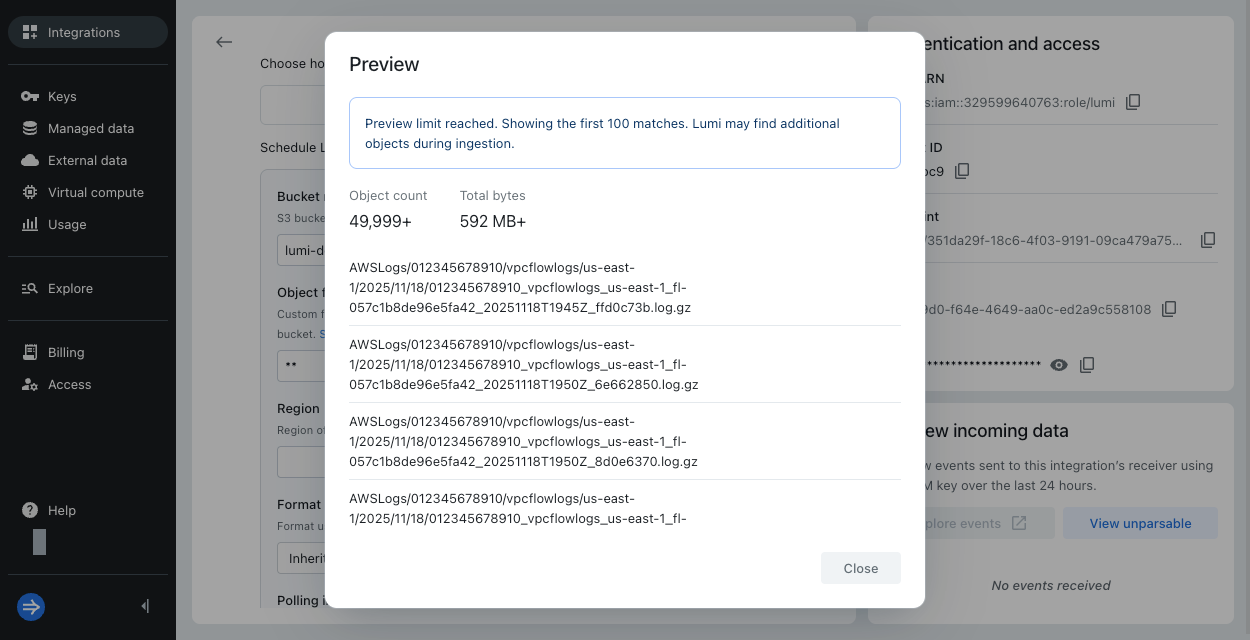
Optionally, click Preview to see the objects that match your filter. Lumi displays the first 100 matches. If you reached the preview limit and Lumi didn't find any matches, refine your object filter to be more specific.
-
Optionally, provide the following information:
- Region: AWS region of your S3 bucket. By default, it assumes the same region as the Lumi environment. The region is required when your AWS bucket and Lumi account are in different regions.
- Modified after: Start date in ISO 8601 format. Only include objects that were created or modified after this date. Required when you have a date pattern in your object filter.
- Modified before: End date in ISO 8601 format. Only include objects that were created or modified before this date. Required when you have a date pattern in your object filter.
- Format override: Event format, such as CSV or JSON. By default, the job inherits the format selected on the IAM key. Otherwise, Lumi automatically detects the format.
-
If you previously configured SNS-based recurring ingestion on the same bucket, review the option to Skip objects already ingested by SNS. In most cases, leave this option selected to avoid event duplication.
-
Click Start job. Ingestion might not begin immediately.
If you encounter an error, see Troubleshoot access for S3 pull. -
In Preview incoming data, view the events coming into Lumi. Lumi automatically refreshes the preview pane to display the latest events.
-
Click Explore events to see more events associated with the IAM key. Adjust the time filter to choose the range of data displayed.
View job status
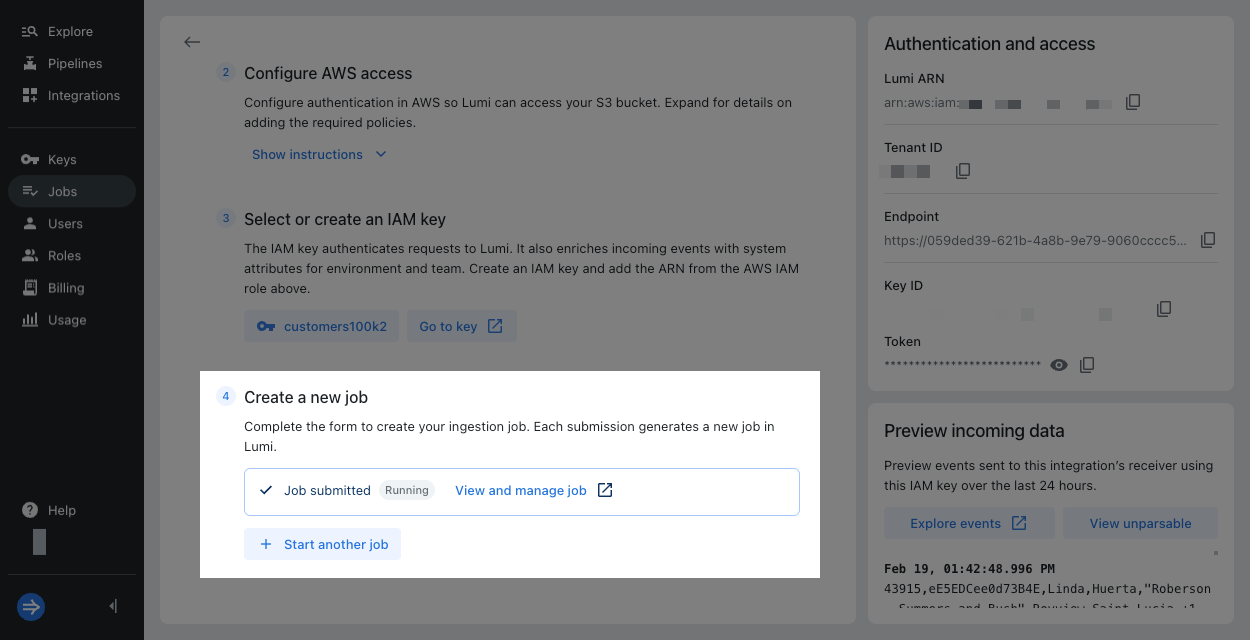
Lumi displays the status of the job after you submit it. Click View and manage job for more details on the Jobs page. There, you can see the progress of discovery and processing for the job. You can also cancel the job and view past jobs. For more details, see View and manage jobs.
Learn more
See the following topics for more information:
- Recurring ingestion for recurring ingestion from an Amazon S3 bucket to Lumi.
- Transform events using pipelines for information on how to transform events in Lumi.
- Send events to Lumi for other options to send events.
- Cloud regions for Lumi regions and their AWS equivalents.