Manage S3 jobs
AI summary
About AI summaries.
To ingest logs from Amazon S3 into Imply Lumi, you can configure the S3 pull integration to backfill or ingest data periodically. Backfill and poll-based recurring ingestion create jobs you can monitor and manage from the Jobs page.
Jobs overview
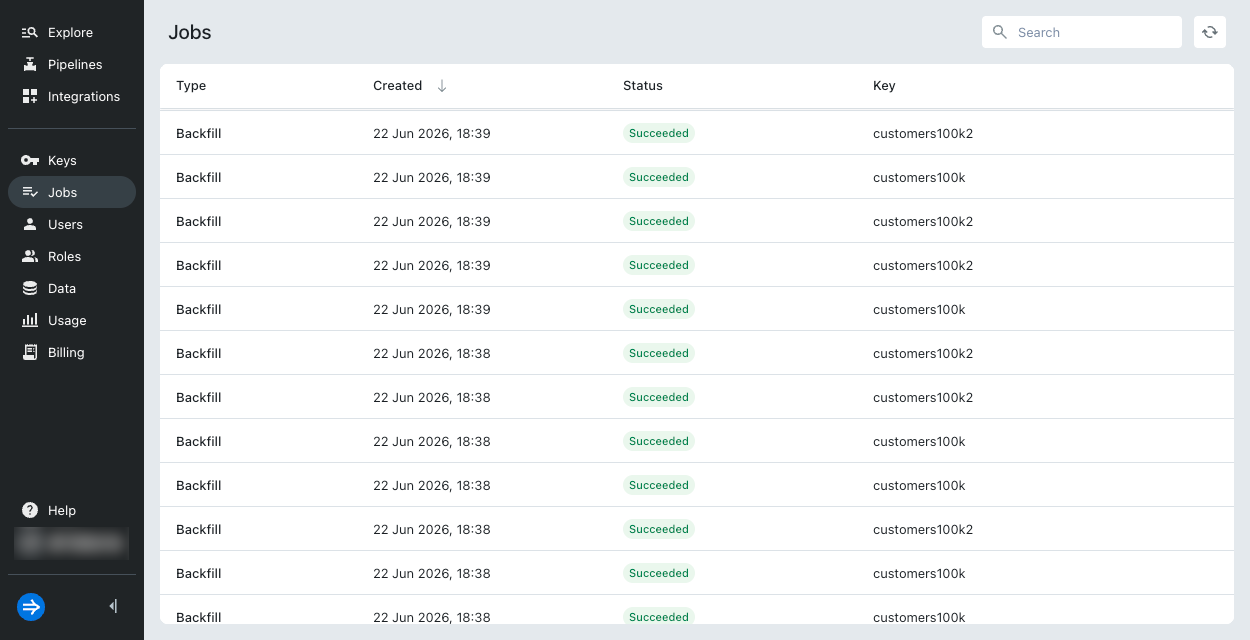
To view all jobs, click Managed data > Jobs from the Lumi navigation menu. On this page, you can view:
- Job creation date
- Job status
- IAM key used to create the job
To refresh the information on this page, click the refresh icon in the top right.
Job status
A backfill job status is one of the following:
- Pending: The job has been created but hasn't started.
- Running: Ingestion is in progress.
- Canceled: A user canceled the job.
- Succeeded: The backfill ingestion completed successfully.
A poll-based recurring job status is one of the following:
- Active: The recurring job runs as scheduled.
- Paused: The job is paused, and no new tasks will begin. You can resume the job later.
Either job type can show a Failed status, which means that Lumi encountered an error during discovery or processing. For a recurring job, a failed state only means that the latest task failed. Lumi retries polling at the next scheduled interval, continuing from the last successful task.
View job details
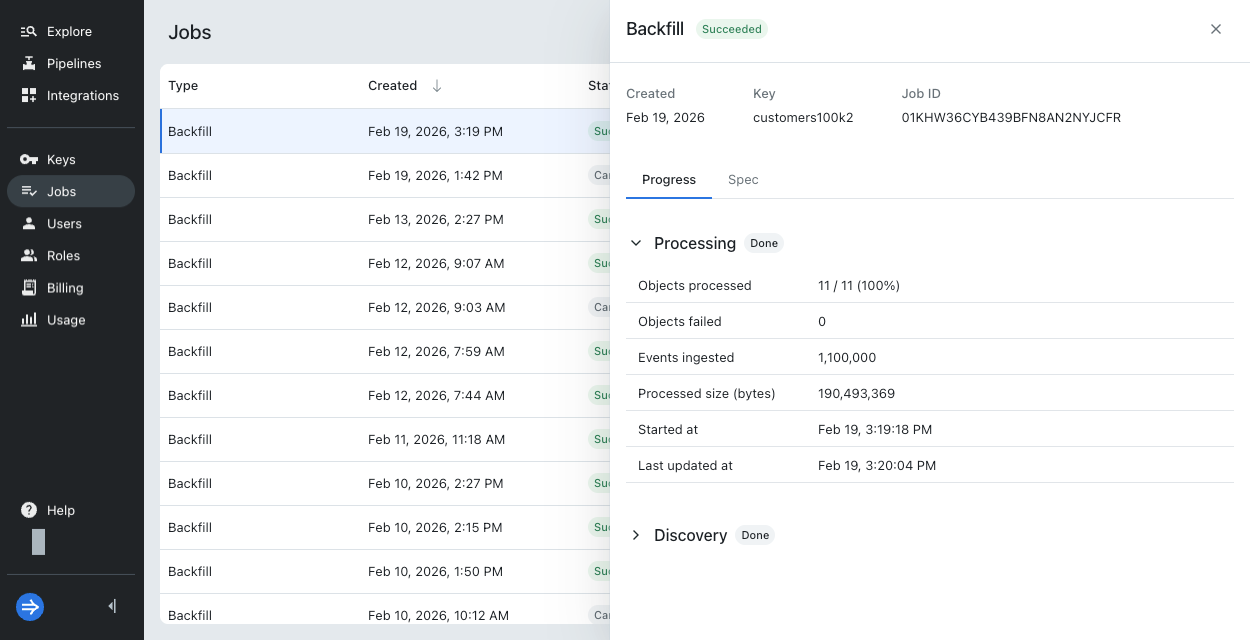
From the Jobs page, you can click a job to see more details.
The top of the job details pane shows the unique identifier for the job, also stored as the correlationId system attribute.
Click the tabs on the job details page to view more details:
- Progress: view metrics for discovery and processing
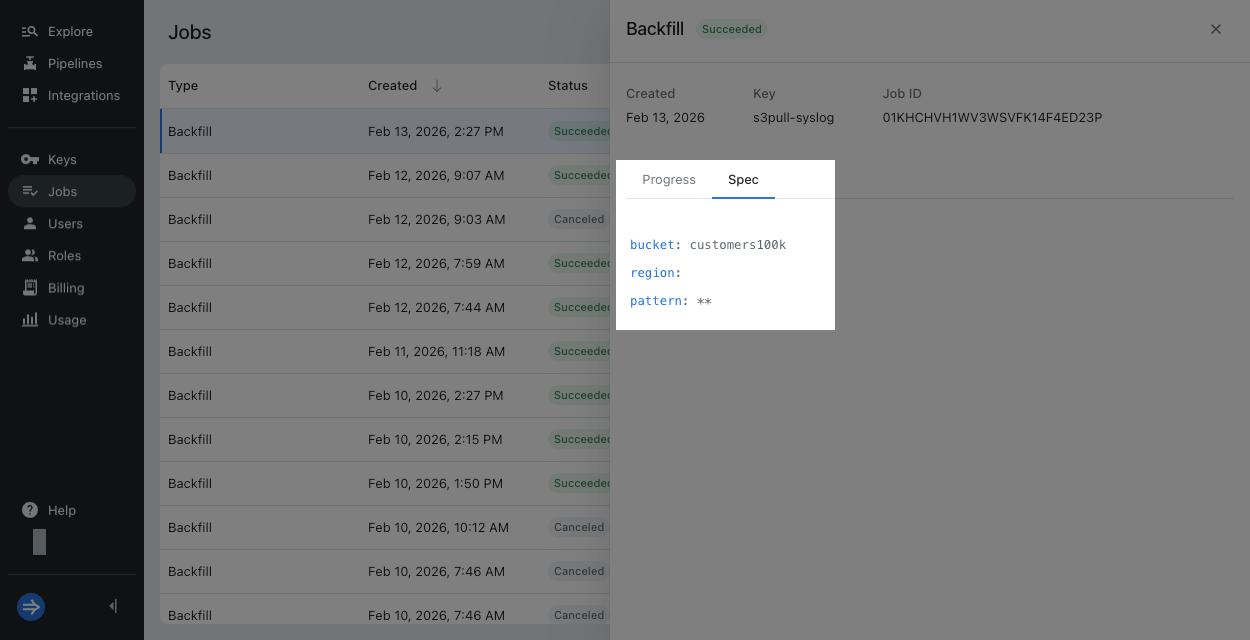
- Spec: view the job configuration
For a recurring job, the job details page describes the status of the latest poll.
Discovery
A job enters the discovery phase first, where Lumi identifies what objects to ingest and how many there are. Open the Discovery expander to view the following job details:
- Objects discovered
- Total size (bytes)
- Created at
- Last updated at
If a job is taking too long in discovery, recreate the job with a more specific object filter or break it down into smaller jobs.
Processing
After the job passes the discovery phase, it enters the processing phase. In this phase, Lumi begins ingesting events from the objects discovered. Open the Processing expander to view the following job details:
- Objects processed
- Objects failed
- Events ingested
- Processed size (bytes)
- Started at
- Last updated at
If a job is canceled while in the discovery phase, the Processing section doesn't display when the job was started or last updated.
Spec
To review the configuration you submitted for the job, click the Spec tab. To avoid ingesting duplicate events, don't submit the same configuration multiple times.
View job errors
Jobs can fail for various reasons, such as a transient network issue, S3 throttling, brief authentication glitch, or Lumi-side processing issue. If an error occurs, Lumi displays it in the stage it was raised, Discovery or Processing. A backfill job halts when it enters an error state. A poll-based job retries ingestion at the next scheduled task. Any ingested events remain ingested.
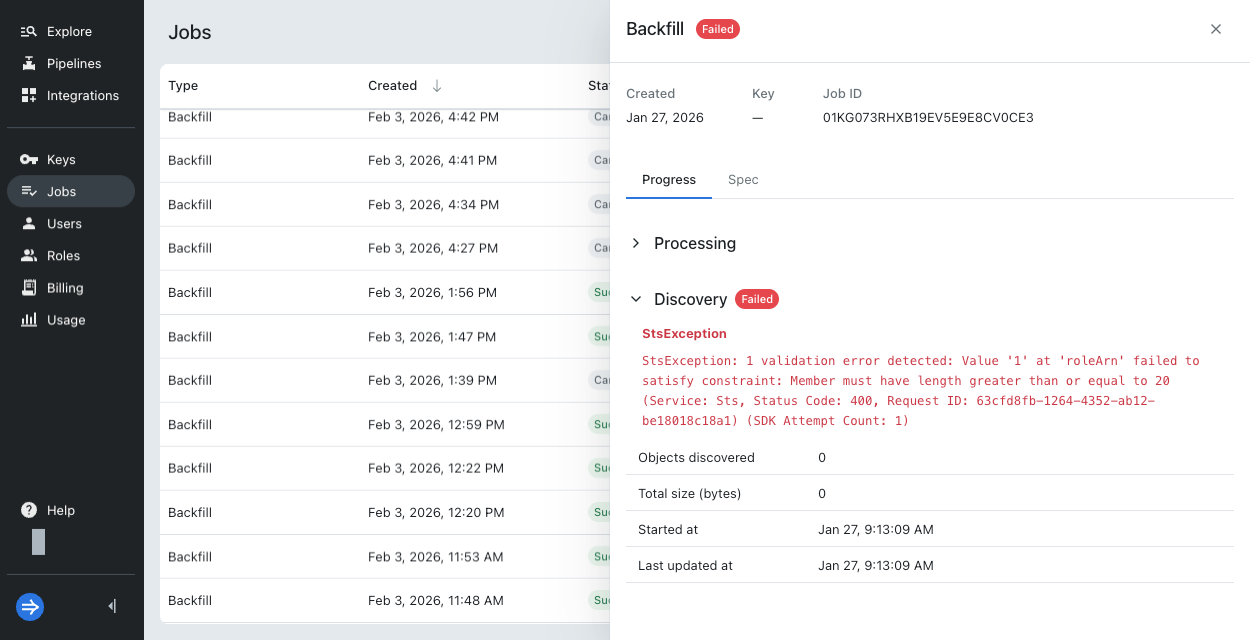
Note that permissions errors can also arise before the job initiates, such as when Lumi detects an incorrect ARN on your IAM key or doesn't have the AWS permissions to access your objects. If this occurs, Lumi doesn't create the job.
Cancel a backfill job
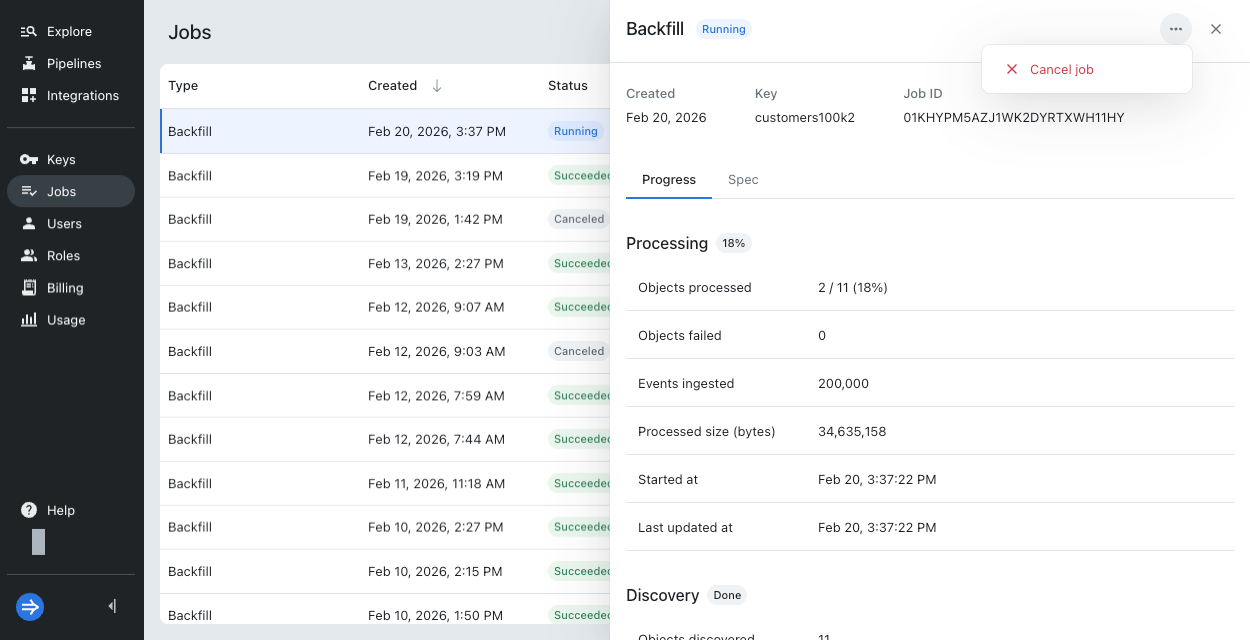
You can cancel a job that's in a Running or Pending state. Any ingested events from a running job remain ingested.
To cancel a job, click the ellipsis and select Cancel job. Confirm the action in the dialog.
Pause or resume polls
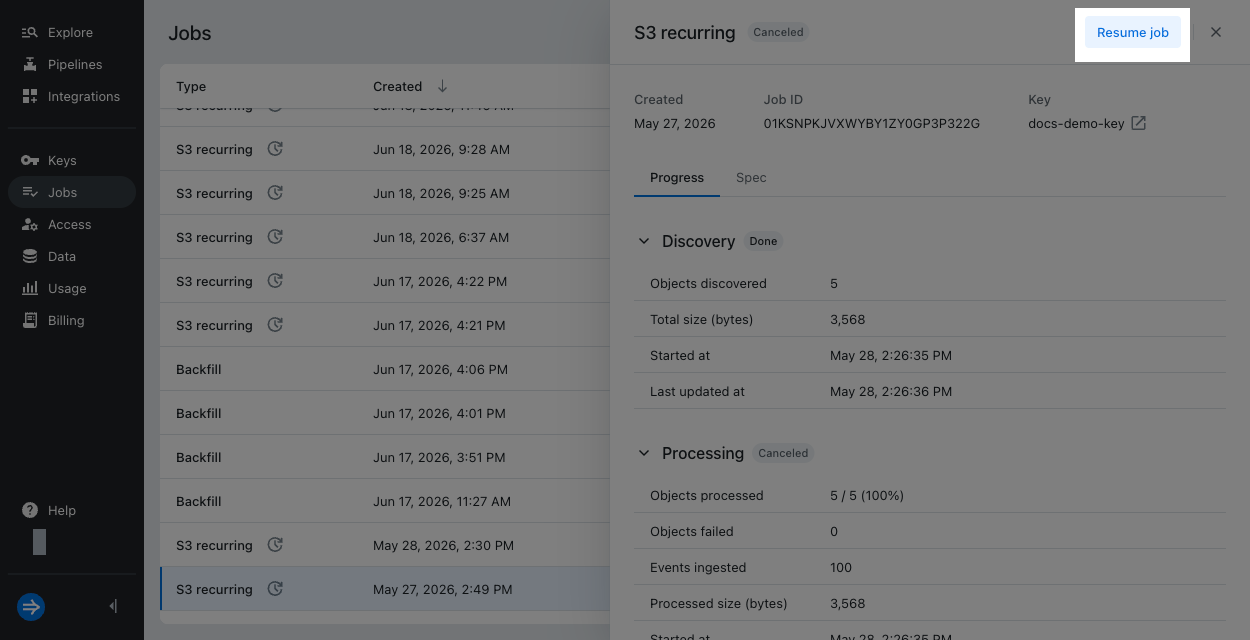
You can pause or resume poll-based recurring jobs. When resuming a job, Lumi picks up where it left off in the last successful task. From the Jobs page, select the job, and click Pause job or Resume job.
Learn more
See the following topics for more information:
- Send events with S3 pull for how to configure permissions between Lumi and AWS.
- Backfill events with S3 pull for how to create a backfill job and limits of backfill jobs.
- Recurring ingestion from S3 at fixed intervals to configure recurring ingestion at fixed time intervals.