Send events with Splunk HEC
AI summary
About AI summaries.
You can send events to Imply Lumi using the Splunk® HTTP event collector (HEC). Push events to the HEC endpoint in Lumi using your application of choice to send HTTP requests. This integration is also compatible with the OpenTelemetry (OTel) collector.
The following diagram shows a high-level overview of the HEC integration:
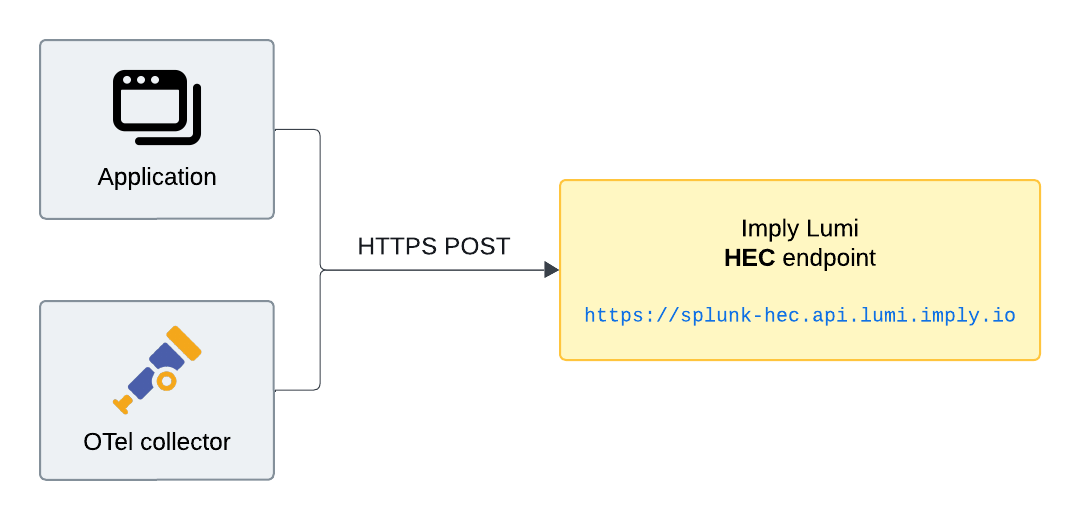
To learn how to use the HEC integration with the OTel collector, see How to send events with the OTel collector.
This topic provides details on configuring event forwarding using HEC.
Prerequisites
Before you send events to Lumi using HEC, you need the following:
-
Access to Lumi with the Data manager role or higher. For information on roles and permissions, see Use roles to control access.
-
Port 443 open for outbound TCP traffic on the machine forwarding the events.
Configure event forwarding
This section describes how to configure event forwarding to Lumi with the HEC integration. You can send events using any application that supports sending HTTP requests.
To configure event forwarding, complete the following steps:
-
From the Lumi navigation menu, click Integrations > Splunk HEC.
-
Select or create an IAM key.
The IAM key token has the same format as a Splunk HEC token and is compatible with Splunk authentication. -
Assign IAM key attributes:
- Global attributes: System attributes for
envandteam - HEC attributes: Default values for user attributes and indexing settings
- Global attributes: System attributes for
-
Send events to the Splunk HEC endpoint in Lumi. See examples. You can use the same request body as the HTTP event collector in Splunk.
- Provide your Lumi IAM key using the Splunk authentication scheme.
- Send the request to the Lumi endpoint shown in the integration.
HEC attributes
HEC attributes are optional settings on an IAM key that configure HEC forwarding and user attribute defaults for Splunk fields. Note that the default values only apply if the fields aren't assigned by a forwarding agent or pipeline. For details on user attribute assignment, see Event model.
The following table lists HEC attributes:
| Attribute | Description | Example | User attribute if null |
|---|---|---|---|
| Source | Default value for source user attribute.Lumi populates Source with http:IAM_KEY_NAME, which follows the default source name assignment in Splunk—http:TOKEN_NAME. Note that HEC token names are unique in Splunk, but IAM key names aren't unique in Lumi. | http:demo-key | Not assigned |
| Source type | Default value for sourcetype user attribute | access_combined | httpevent |
| Index | Default value for index user attribute | main | main |
| Allowed indexes | Accepted index values for incoming HEC events. If none are specified, Lumi accepts events with any index value. | main, demo | N/A |
| Indexer acknowledgment | Whether to enable the data protocol for HEC indexer acknowledgment. When selected, HEC requests must include a channel ID using the header X-Splunk-Request-Channel. Lumi returns an acknowledgment ID in the API response. However, unlike Splunk, acknowledgment from Lumi indicates receipt of the event and doesn't confirm event ingestion. | Checked | N/A |
Examples
The following sections provide examples for configuring an OTel collector, which is suitable for production-level scenarios, and the command-line tool curl to quickly test a connection to Lumi.
To use the examples, replace the variables with your own values:
IAM_KEY_TOKEN: IAM key token provided by Lumi.
For example,229a2561-0000-0000-0000-bc433de16f89LUMI_ENDPOINT: Lumi endpoint.
For example,https://splunk-hec.api.lumi.imply.io/services/collector
OTel collector
You can use the Splunk HEC integration with an OTel collector.
This requires the splunk_hec
exporter,
which is available in the Splunk distribution or contributor distribution.
Update your OTel collector configuration to create an exporter and enable it in the pipelines service:
-
In the configuration for your OTel collector, add a section in
exporterswith exporter typesplunk_hec:exporters:<any existing exporters>...splunk_hec/logs_lumi:token: "IAM_KEY_TOKEN"endpoint: "LUMI_ENDPOINT"The name of an OTel collector exporter follows the format
TYPE/NAME, where the name uniquely identifies the component. The example uses thelogs_luminame, but you can customize it to your preference. -
Enable the exporter by listing it in
service.pipelines.logs.exporters:service:...pipelines:logs:receivers: ...processors: ...exporters: [..., splunk_hec/logs_lumi]
For a full example configuration, see Send events with the OTel collector.
Curl command
You can use curl to send a test event to Lumi. This command-line tool is suitable for quick tests and simple API calls.
To send a curl command with Splunk HEC:
- Format requests like you do with the HTTP event collector in Splunk.
Only the
eventfield is required. - Provide your Lumi IAM key using the Splunk authentication scheme.
- Send the request to the Lumi endpoint provided in the integration.
The following code block shows an example command. Replace IAM_KEY_TOKEN and LUMI_ENDPOINT with your own values.
curl -X POST \
     -H "Content-Type: application/json" \
     -H "Authorization: Splunk IAM_KEY_TOKEN" \
     -d '{"event": "test event", "source": "curl", "sourcetype": "httpevent"}' \
  LUMI_ENDPOINT
Custom user attributes
You can add user attributes to the event by including them in fields.
If you provide custom attributes at the same level as event, Lumi still ingests the event but ignores the custom attributes.
The following example sends an event that includes the user attributes key1: value1 and key2: ["value2", "value3"]:
curl -X POST \
  -H "Content-Type: application/json" \
  -H "Authorization: Splunk 229a2561-0000-0000-0000-bc433de16f89" \
  -d '{
        "event": "Demo log",
        "fields": {
          "key1": "value1",
          "key2": ["value2", "value3"]
        },
        "index": "demo",
        "source": "curl",
        "sourcetype": "httpevent"
      }' \
  https://splunk-hec.us1.api.lumi.imply.io/services/collector
Batch events
You can batch multiple events in a single request by concatenating the JSON payloads. Combine them sequentially without using a delimiter. For example:
curl -X POST \
  -H "Content-Type: application/json" \
  -H "Authorization: Splunk 229a2561-0000-0000-0000-bc433de16f89" \
  -d '{
        "event": "Demo log 1",
        "fields": { "key1": "value1" }
      }
      {
        "event": "Demo log 2",
        "fields": { "key2": "value2" }
      }' \
  https://splunk-hec.us1.api.lumi.imply.io/services/collector
Raw text
The /services/collector endpoint expects structured JSON data.
To send logs in raw text format, append /raw to the Lumi endpoint.
For example:
curl -X POST \
     -H "Content-Type: application/json" \
     -H "Authorization: Splunk IAM_KEY_TOKEN" \
     -d 'test event' \
  https://splunk-hec.us1.api.lumi.imply.io/services/collector/raw
You can send a batch of events to the raw endpoint.
Optionally, append query parameters to set default fields for the host, index, source, sourcetype, and time fields.
For example, the following URL sets the default index to main: https://splunk-hec.us1.api.lumi.imply.io/services/collector/raw?index=main.
Check Lumi for events
Once you configure event forwarding and send events, you can preview the incoming data in Lumi:
-
From the Lumi navigation menu, click Integrations > Splunk HEC.
-
In the Select or create an IAM key pane, select your key.
-
In the Preview incoming data pane, you'll see the events coming in to Lumi. For example:
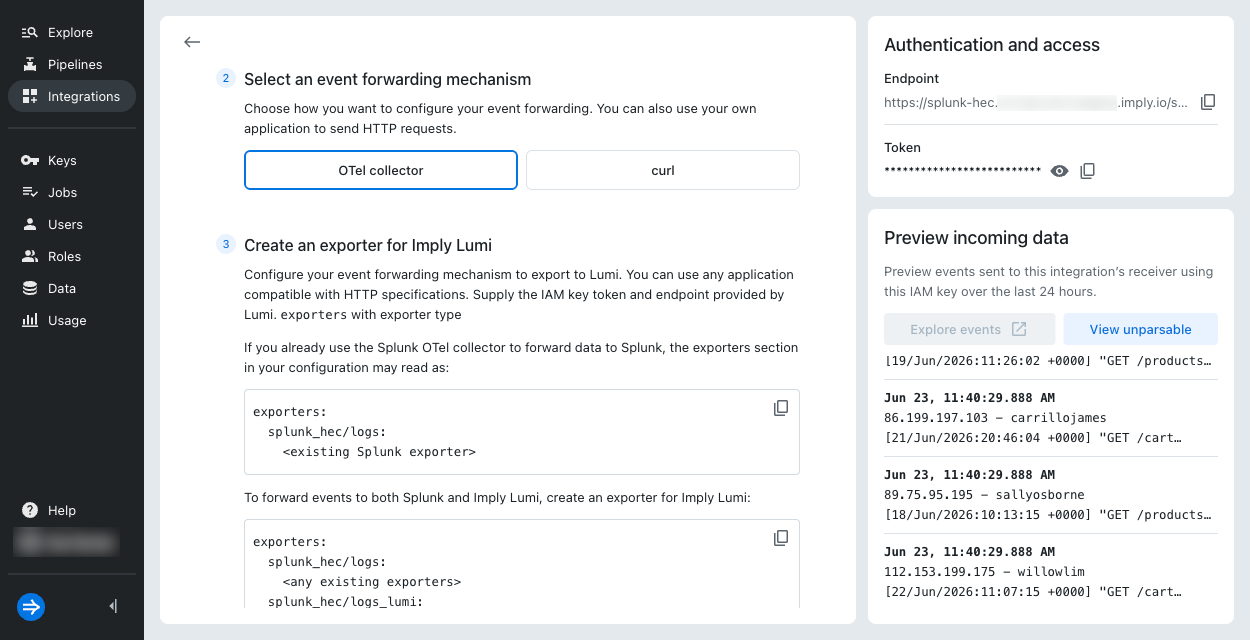
Lumi automatically refreshes the preview pane to display the latest events. The preview pane only shows events with timestamps in the last 24 hours.
-
Click Explore events to see more events associated with the IAM key. The explore view populates the search bar with your IAM key ID and the receiver type. For example:
#iamKeyId=229a2561-0000-0000-0000-bc433de16f89 #receiver=splunk.hecAdjust the time range selector to filter the data displayed.
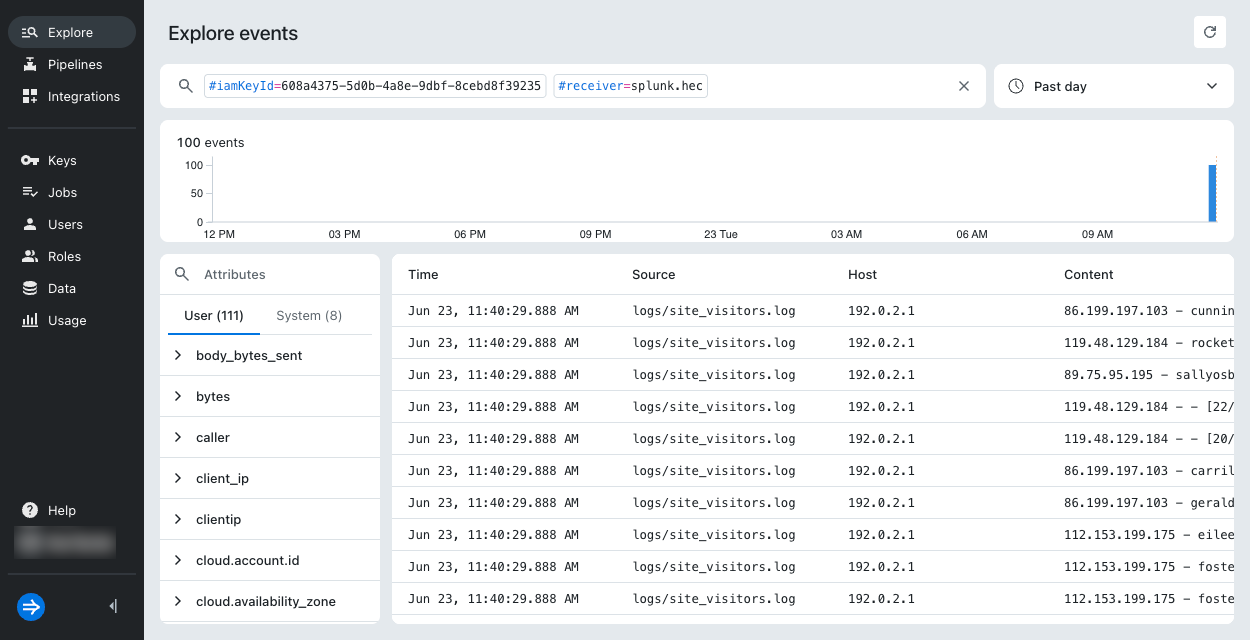
Once events start flowing into Lumi, you can search them. See Search events with Lumi for details on how to search and Lumi query syntax for a list of supported operators.
If you sent events but don't see them in the preview pane, they might be older than 24 hours. Search for them in the explore view, and filter your search by the time range that spans your event timestamps. For details on how to search events from an integration, see Search methods. If you still don't see any incoming data, check the details in your curl request or OTel config file. For information on troubleshooting ingestion, see Troubleshoot data ingestion.
Learn more
See the following topics for more information:
- Send events with the OTel collector for a tutorial on using the OTel collector.
- Send events to Lumi for other options to send events.