Timestamp detection
AI summary
About AI summaries.
The timestamp is an integral component of an event that underlies all observability analysis. In most cases, Imply Lumi automatically detects and stores the timestamp from an incoming event. Otherwise, it assigns the time that it received the event.
If the timestamp assignment is incorrect or you want to use other values, you can configure a pipeline to set the timestamp.
This topic describes event timestamp handling in Lumi.
How timestamp detection works
In most cases, Lumi parses the timestamp from the incoming log and stores it as the event timestamp. Lumi automatically detects the timestamp based on the protocol that sends the events or from one of the supported time formats.
Multiple time formats
Lumi can automatically determine the timestamp even if your events have a mixture of time formats, such as different epoch units.
If you set the timestamp using a pipeline, be sure to use the AUTO mode to retain the flexible detection behavior.
If you specify a fixed format, Lumi adheres to only that format for events processed through the pipeline.
Time zone assignment
When Lumi detects a time zone on the event timestamp, it preserves the designated time zone.
For example, 2023-10-26T15:30:00-05:00 denotes the timestamp five hours behind UTC.
Defaults to UTC.
A Splunk® forwarder can set the time zone even if it's not explicitly provided in the log. For details on how Splunk determines the timestamp and time zone, see Configure timestamp recognition and Specify time zones for timestamps.
When searching events, the time zone of your user profile determines the timestamps displayed on events. For more information, see User profile time zone.
Missing year determination
When a timestamp doesn't have the year component, Lumi determines the year on the incoming event as follows:
- Identify the date of the incoming event.
- Obtain the current timestamp as a reference.
- Check for a year transition:
- If the event date is December 31 and the current date is January 1, assign the current year minus one.
- If the event date is January 1 and the current date is December 31, assign the current year plus one.
- If the event date is February 29, check for a leap year:
- If the current year is a leap year, use the current year.
- If not, assign the previous leap year.
- Compare the event date and current date for their relative positions in the year:
- Compute the day of the year for the event date (
eventDay). - Compute the day of the year for the current date (
currentDay). - Evaluate
eventDay > (currentDay + 2).- If true, assign the current year minus one.
- If not, assign the current year.
- Compute the day of the year for the event date (
This process follows Splunk® behavior for missing year handling. For more information, see the Splunk documentation for how timestamp assignment works.
Unrecognized timestamps
If the event contains timestamps and Lumi isn't assigning them, consider the following strategies:
- For S2S integrations and raw HEC format, configure the timestamp extraction properties on the IAM key.
- For JSON file upload, designate the time zone and time format in the UI.
- Assign the timestamp in a pipeline. You can use this strategy regardless of how you send events.
User profile time zone
The time zone configured on your user profile determines the timestamps you view on events in Lumi. Keep this in mind when performing searches that filter events by a certain time range.
For example, consider an event in UTC time, 2025-07-01T02:47:05.000Z:
- If your profile is set to UTC time, you'd view the same date and time on the event,
Jul 01, 02:47:05.000 AM. - If your profile time zone is
America/Los_Angelesduring daylight savings time, you'd view the timestamp as seven hours behind UTC, orJun 30, 07:47:05.000 PM.
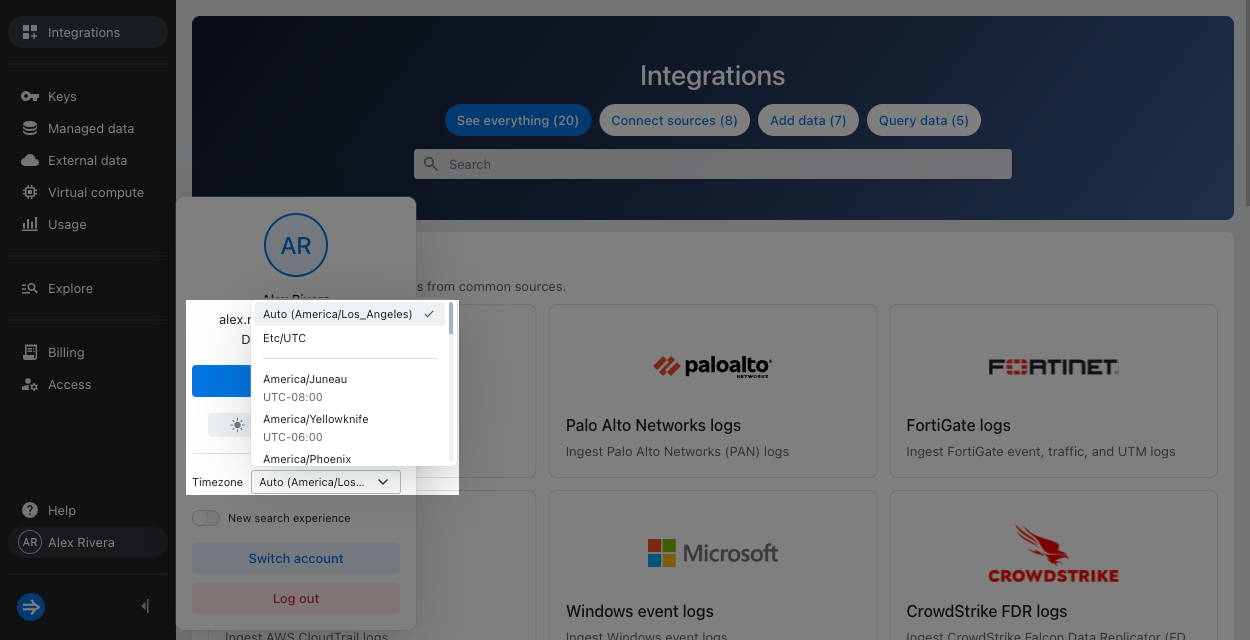
To change your time zone, select your user name, click the Timezone drop-down, and select your time zone:
Learn more
For more information, see the following topics:
- Assign event timestamps using a pipeline for a step-by-step guide on assigning the event timestamp.
- S2S event parsing reference for how to configure timestamp parsing for S2S.