Lumi concepts for Splunk users
AI summary
About AI summaries.
Imply Lumi is designed for compatibility with the Splunk® platform in your observability applications. If you use Lumi in conjunction with Splunk, it's important to understand how their similar concepts align and translate functionality from one system to another. You can ensure compatibility and continuity when making changes to your observability workflow.
This topic describes analogous concepts in Lumi and Splunk, focusing on the technical aspects of sending and searching events. The information is geared towards a Splunk administrator who's familiar with configuring universal or heavy forwarders in Splunk to ingest, process, and forward data.
Refer to the Splunk documentation for more information on configuring Splunk.
How to use this topic
This topic is organized by the flow of data through the Splunk pipeline. Depending on the topology of your deployment, you can apply the configuration settings on different Splunk processing components, whether the forwarder, indexer, or search head. See the Splunk documentation on how the data pipeline relates to Splunk processing components.
Navigate this topic by the following concepts:
-
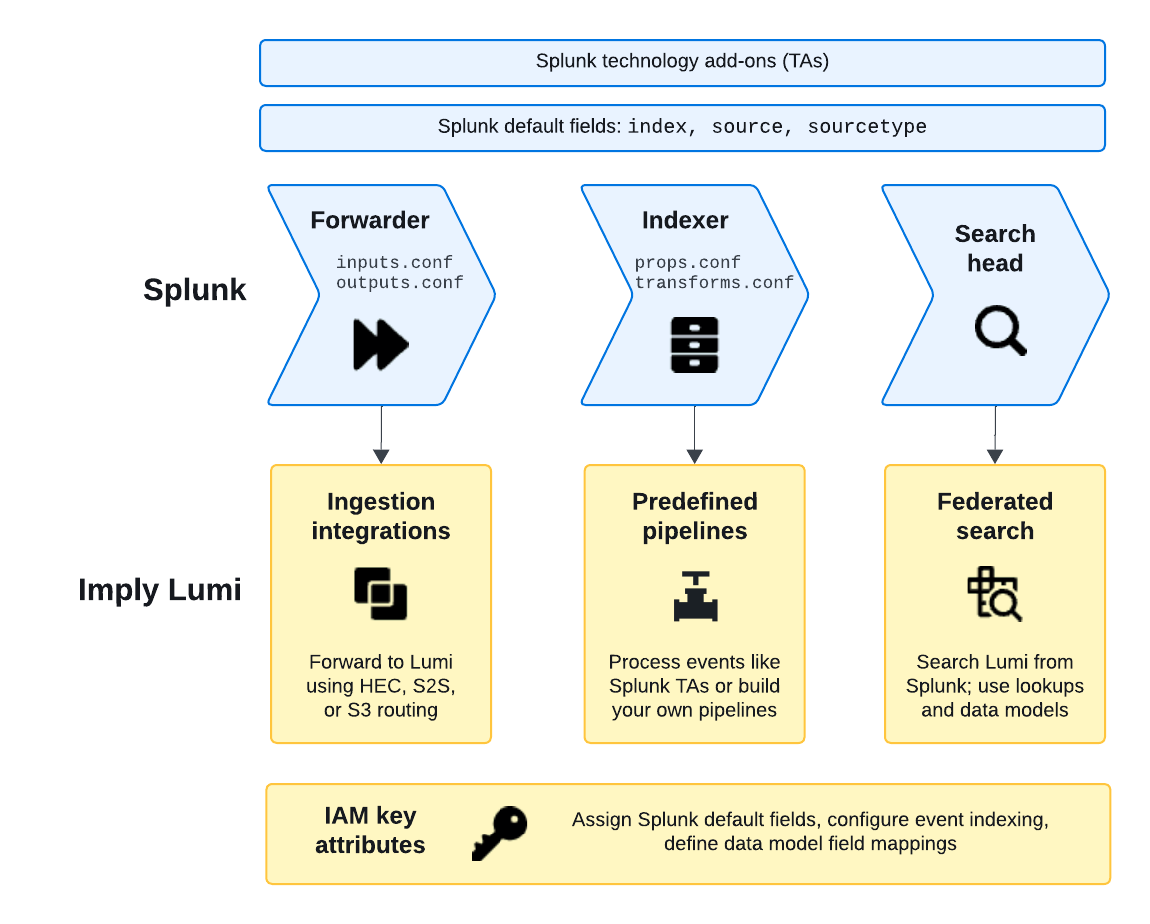
When you send events to Lumi, your forwarder configuration largely remains the same with the addition of defining a destination for Lumi. See Inputs and Outputs in this topic.
-
If you define event processing on the indexers or use a technology add-on, apply the equivalent processing settings in Lumi. For details, see Props and transforms and Splunk default fields.
-
You can search events in Lumi either directly in the explore view or through a federated search from Splunk. Commands in the query are processed by the federated search head (Splunk) or the remote search head (Lumi). For more information, see Search.
The following diagram presents an overview of the relationship between Splunk and Lumi concepts:
Updating your configuration
Splunk stores configuration across multiple layers of .conf files for default, local, and app settings.
Where you make changes depends on the type of change and your deployment architecture.
For example, to configure local inputs on a forwarder, you edit $SPLUNK_HOME/etc/system/local/inputs.conf.
See the Splunk documentation to learn about the file structure and configuration precedence.
Some Splunk deployments use deployment servers to manage groups of Splunk Enterprise instances.
Deployment server updates can override any changes you make to forwarders' local .conf files.
If you use a deployment server, you need to update the appropriate deployment application rather than the local system files.
Alternatively, if you prefer to edit the .conf files locally, you can configure Splunk to preserve your local configuration.
Restart Splunk after you make any configuration changes.
Inputs
Inputs define the source of events you plan to ingest.
You set these in the Splunk configuration file inputs.conf.
In many cases, you don't need to update your existing inputs.
The batch input source in Splunk is similar to the file upload integration in Lumi.
File upload in Lumi is intended for you to ingest data quickly to evaluate how to use the product in your observability workflows.
Note that it's not intended for backfill scenarios to retroactively process historical data.
Receiver
The inputs.conf file also defines the Splunk receivers—how Splunk listens for incoming data.
You don't need to configure receivers in Lumi, but take note of the port Lumi uses to listen for incoming data.
For the port listed in an integration's prerequisites, ensure that it's open for outbound traffic on the machine forwarding the events to Lumi.
Outputs
In Splunk, the outputs.conf configuration file determines where to forward events, whether to a Splunk instance or a third-party system.
In Lumi, ingestion integrations are the routes available for event forwarding.
For example, if you already use the S2S data protocol from Splunk, you might have configured processors of type [tcpout] or [httpout] in your outputs configuration.
To integrate with Lumi, you add a target group to the existing output processor with configuration details for one of the S2S integrations in Lumi.
Props and transforms
Before you store or analyze observability data, you might choose to perform field extractions or mask sensitive data.
In Splunk, you configure this processing in the props.conf and transforms.conf configuration files.
In Lumi, you apply these settings using pipelines and IAM key settings.
For an example of how a Splunk configuration from props.conf and transforms.conf maps to a pipeline, see Compare to Splunk configuration.
Technology add-ons
A Splunk technology add-on (TA) provides preconfigured processing and transformation rules specific to a log type or source. For example, the Splunk Add-on for Microsoft Windows handles Windows event logs.
In Lumi, you can configure event processing in the following ways:
- Use a predefined pipeline that Lumi built. For example, Windows event logs.
- Migrate a Splunk TA into a Lumi pipeline. This process creates a new pipeline directly from an add-on that you upload.
- Create your own pipeline. Define transformation tasks using processors.
Event parsing
For the tcpout or httpout output processor in Splunk, you configure event parsing in the props.conf configuration file.
In Lumi, you apply event parsing settings on the IAM key. These apply to events sent from universal forwarders. For more information, see S2S attributes and IAM key attributes.
Splunk default fields
Splunk default fields are metadata fields on the events, such as index, source, and sourcetype.
They provide context that you can use to drill down in your observability analysis.
The forwarders assign these metadata fields based on the properties in inputs.conf.
For the Splunk HTTP event collector, you can assign these fields on the HEC token or provide them in the JSON payload.
Lumi stores the Splunk default fields as user attributes on the incoming events. You can assign these fields in Lumi through your forwarding agent, IAM key attributes, or a pipeline. For step-by-step instructions, see Assign Splunk default fields.
Index
An index in Splunk is the repository that stores the data. It's similar to a database table in terms of how you organize and scope your data. An index stores structured events and associated metadata after Splunk parses the events and applies any specified filters or transforms. In Splunk you also use an index for:
- Maintenance purposes, such as to define a retention rule or to limit user access.
- Filtering your searches, such as for drilling down into specific event features or optimizing query performance.
In Lumi, the index is a user attribute on an event. Treat it as any other metadata field to understand an event's context or to filter your searches.
The Lumi index also applies to Splunk federated search.
On the Lumi IAM key, you can set allowed indexes that determine what data is made available to Splunk.
For example, if your events in Lumi use demo as the index, a standard mode federated index with demo as the remote dataset returns only those events.
In both Splunk and Lumi, the default index name is main.
How you reference the index in SPL depends on the federated search mode.
For details on assigning the index user attribute in Lumi, see Assign Splunk default fields.
Source type
In Splunk, sourcetype determines which props.conf stanza applies to an event, and it controls parsing rules for the event.
In Lumi, predefined pipelines use sourcetype as their pipeline condition in the same way.
The sourcetype value on an incoming event determines which predefined pipeline, if any, processes it.
If you rely on predefined pipelines, make sure your forwarding agent or IAM key is setting the sourcetype value the pipeline expects.
Search
You can issue queries on Lumi events in Splunk through Splunk federated search. In federated searches, you use the Splunk Search Processing Language (SPL) commands and functions supported for use in Lumi.
When you perform a federated search in Splunk, some commands run on the federated search head (Splunk) and others run on the remote search head (Lumi). See Federated search reference for the commands that run on the federated search head by design and commands Lumi has implemented on the remote search head.
Standard and transparent modes
Lumi supports two federated search modes. The mode determines how you reference indexes in SPL and which search features are available.
- Transparent mode: Query Lumi indexes directly in SPL without the
federated:prefix, for exampleindex=main. Supports data model queries and lookups. The recommended mode for most use cases. - Standard mode: Route queries through a Splunk federated index that maps to a Lumi index. Use the
federated:prefix, for exampleindex="federated:lumi-main". Gives you explicit control over which federated indexes are queried, and lets you use different index names in Splunk than those configured in Lumi. Doesn't support data model queries or lookups.
For setup instructions and guidance on choosing a mode, see Search events with Splunk.
Data models
Splunk data models organize and search data using standardized field names, such as those in the Common Information Model (CIM). You can query Lumi events with data models in transparent mode only.
When Splunk sends a data model query, Lumi translates the data model field names to its own field names using mappings on the IAM key, then translates them back before returning results. This lets you analyze Lumi events alongside your Splunk data using consistent field names.
To query Lumi events with data models, see Query Lumi events with data models.
Lookups
Splunk lookups enrich search results with data from an external source, such as a CSV file that maps usernames to roles. You can enrich Lumi events with lookups in transparent mode only.
Splunk propagates lookup definitions and data to Lumi through knowledge bundle replication, and Lumi performs the enrichment. The fields you match on must exist in your Lumi events.
To enrich Lumi query results with a Splunk lookup, see Enrich Lumi events with Splunk lookups.
Learn more
See the following topics for more information:
- Send events to Lumi for integrations for sending events to Lumi.
- Search events with Lumi for how to search events in Lumi.
- Forward data to third-party systems for configuring Splunk to forward data to non-Splunk systems.
- List of configuration files for configuration files available in Splunk.