Build pipelines from Splunk technology add-ons
AI summary
About AI summaries.
Splunk® technology add-ons (TAs) define transformations for structured event types such as Cisco logs. Predefined pipelines in Imply Lumi apply similar processing.
If you can't find your source type in the predefined pipeline library, you can import a Splunk TA directly into Lumi.
The imported TA translates to a pipeline that replicates the transformations in props.conf and transforms.conf.
As a result, the events you send to Lumi are enriched with the same attributes that you see in Splunk.
This lets you perform the same workflows for search and analysis across both platforms seamlessly.
This guide walks you through the process of migrating event transformations from the Splunk Add-on for Cisco ASA into Lumi.
Prerequisites
- Access to Lumi with the Data manager role or higher. For information on roles and permissions, see Use roles to control access.
- Understanding of how to create and update pipelines and processors. For details, see Manage pipelines and processors.
- Splunk TA. You can use any of your existing TAs or download one from the Splunk data platform.
A Splunk TA comes in the form of a compressed file in
.spl,.tgz, or.tar.gzformat.
1. Import the TA
Load a Splunk TA into a Lumi pipeline:
- Acquire your Splunk TA.
This example uses the Splunk Add-on for Cisco ASA.
Log into your Splunk account to download the add-on. - From the Lumi navigation menu, select Pipelines.
- Click + Create pipeline.
- Click Import.
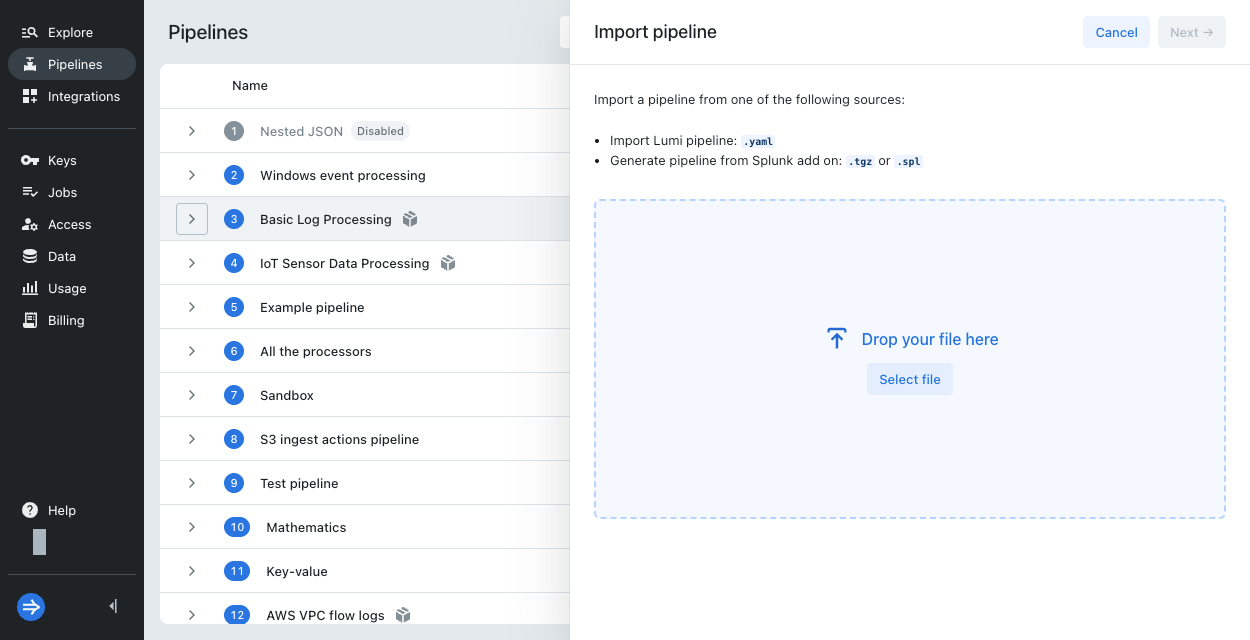
- Select the Splunk TA file. In this case,
splunk-add-on-for-cisco-asa_612.spl.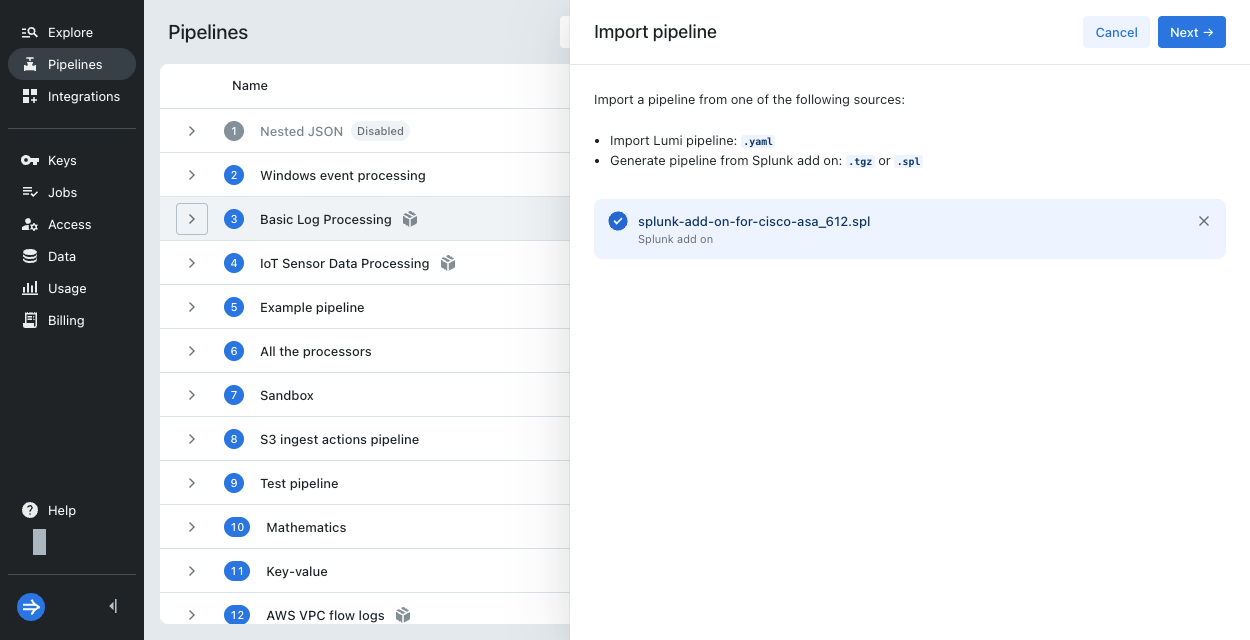
- Click Next.
- Optionally, rename the pipeline.
- Select the source types for the types of logs you want to process. Lumi creates a nested pipeline for each source type. This example uses
cisco:asa.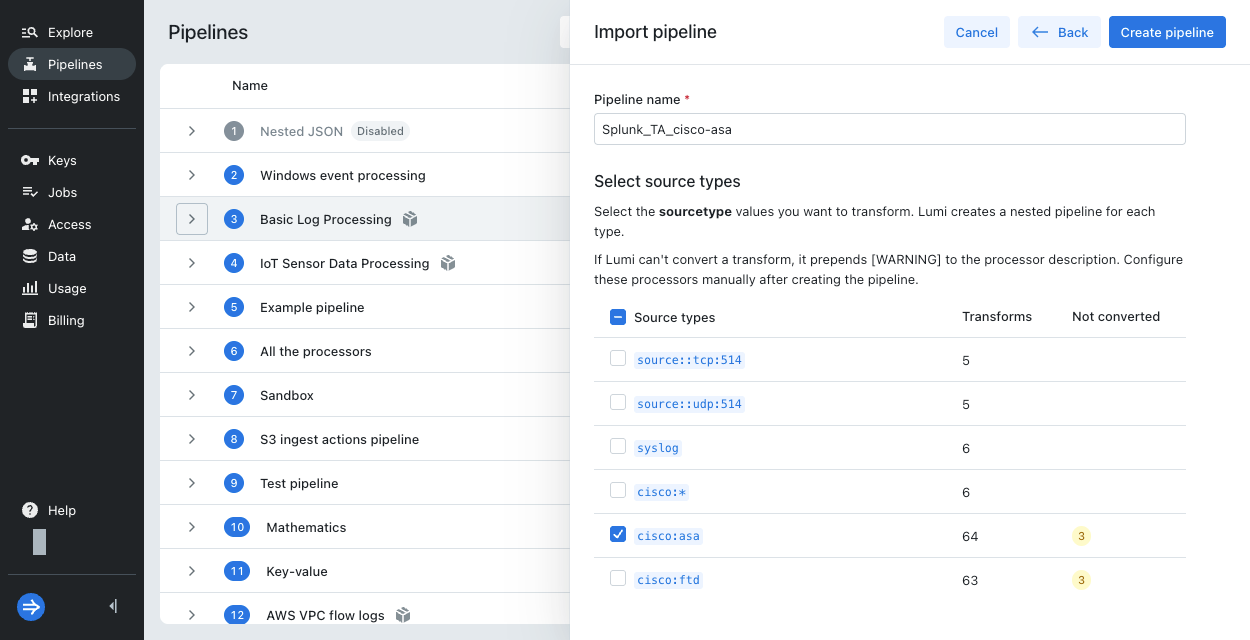 Note the number of processors not converted. You'll review and configure these processors after you create the pipeline.
 - Click Create pipeline.
- Lumi creates the pipeline in a disabled state. Any processors Lumi couldn't convert are also disabled.
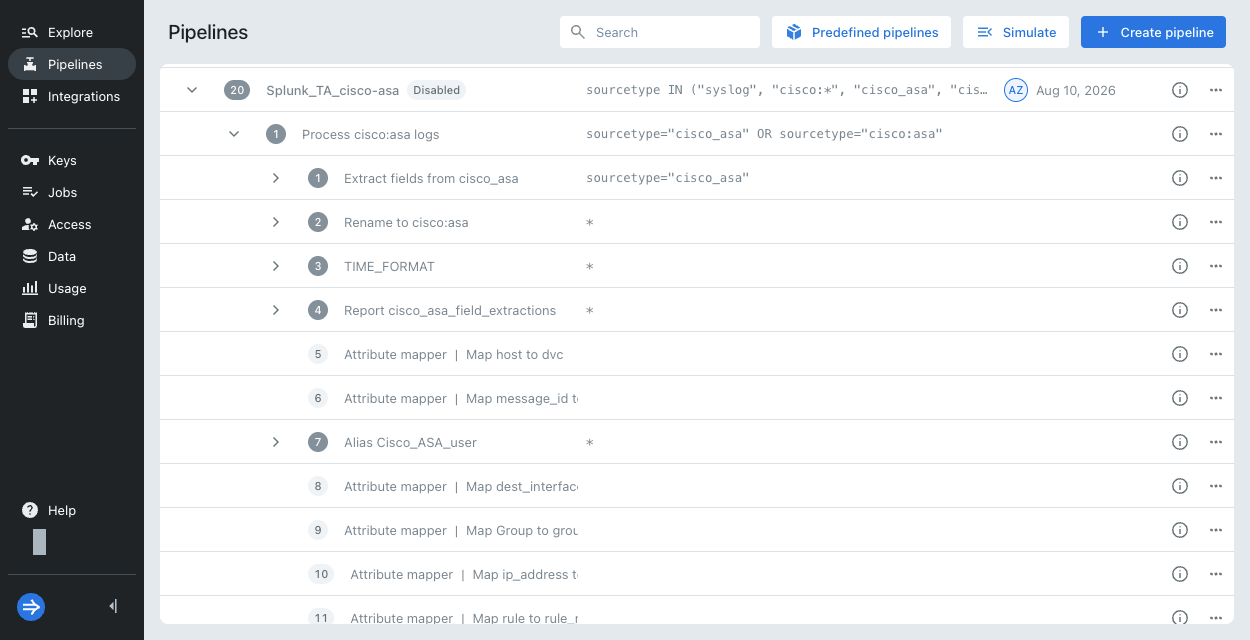
2. Simulate event processing
Test your pipeline with Cisco ASA logs. To simulate the pipeline:
-
Optionally, modify the pipeline condition so it doesn't process any currently incoming events:
-
Click the ellipsis next to the pipeline, then select Edit.
-
Append a testing condition to the expression. For example:
index=example AND sourcetype IN ...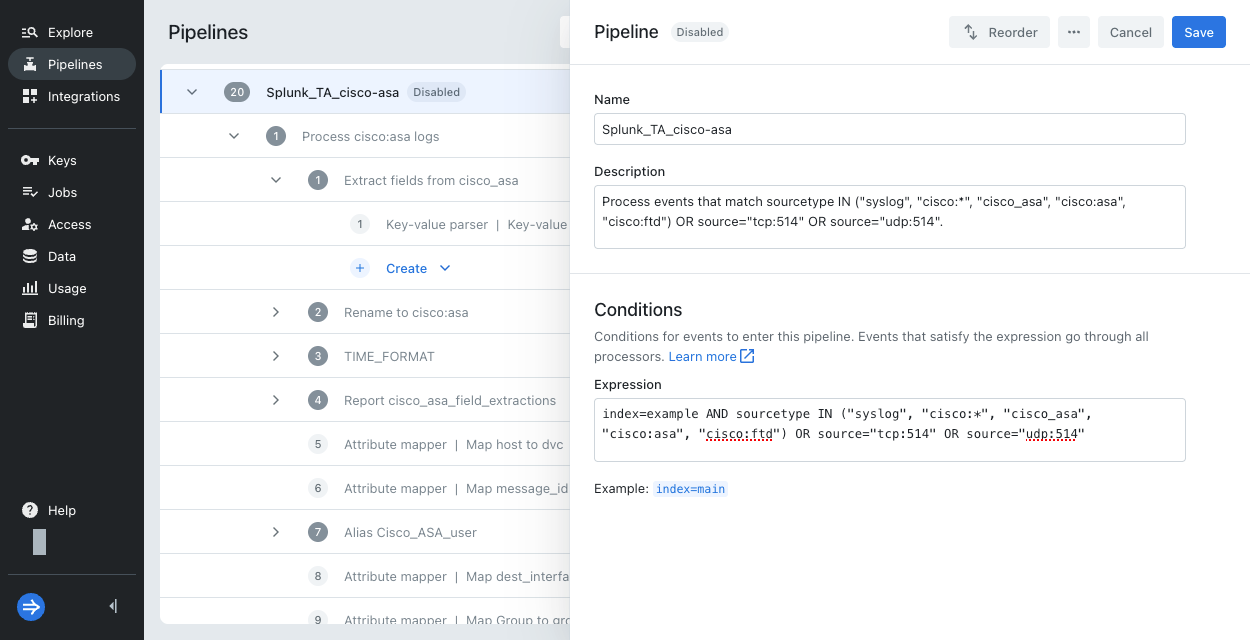
-
Click Save.
-
-
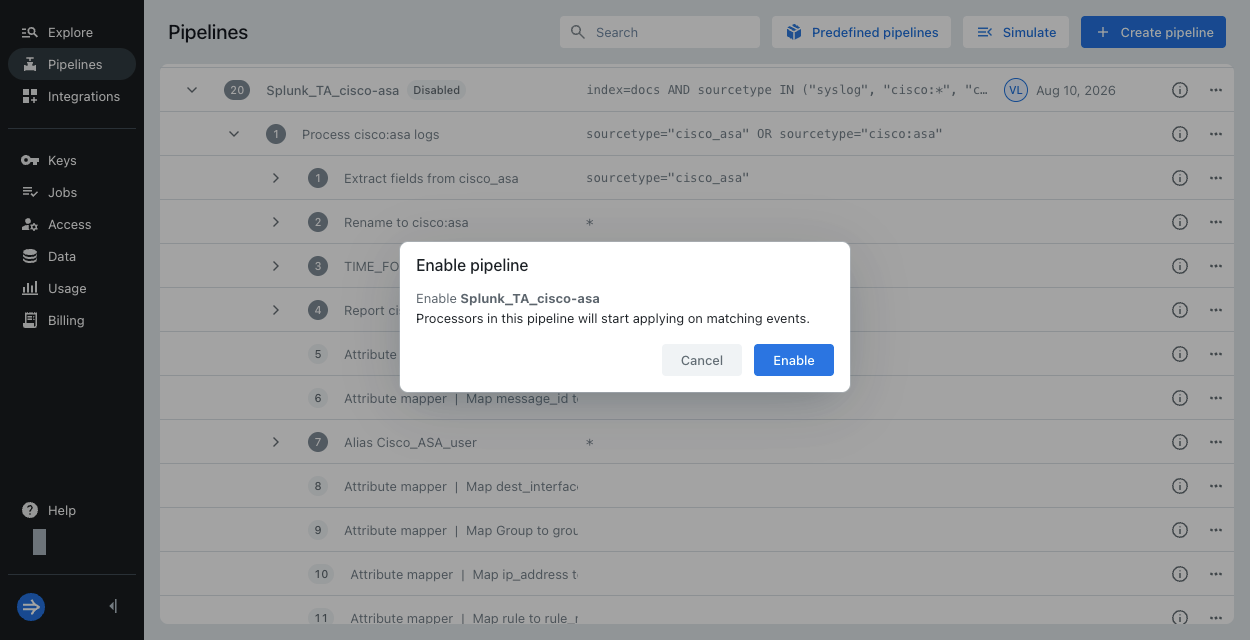
Click the ellipsis next to the pipeline, then select Enable.
-
Click the ellipsis next to the pipeline, then select Simulate.
-
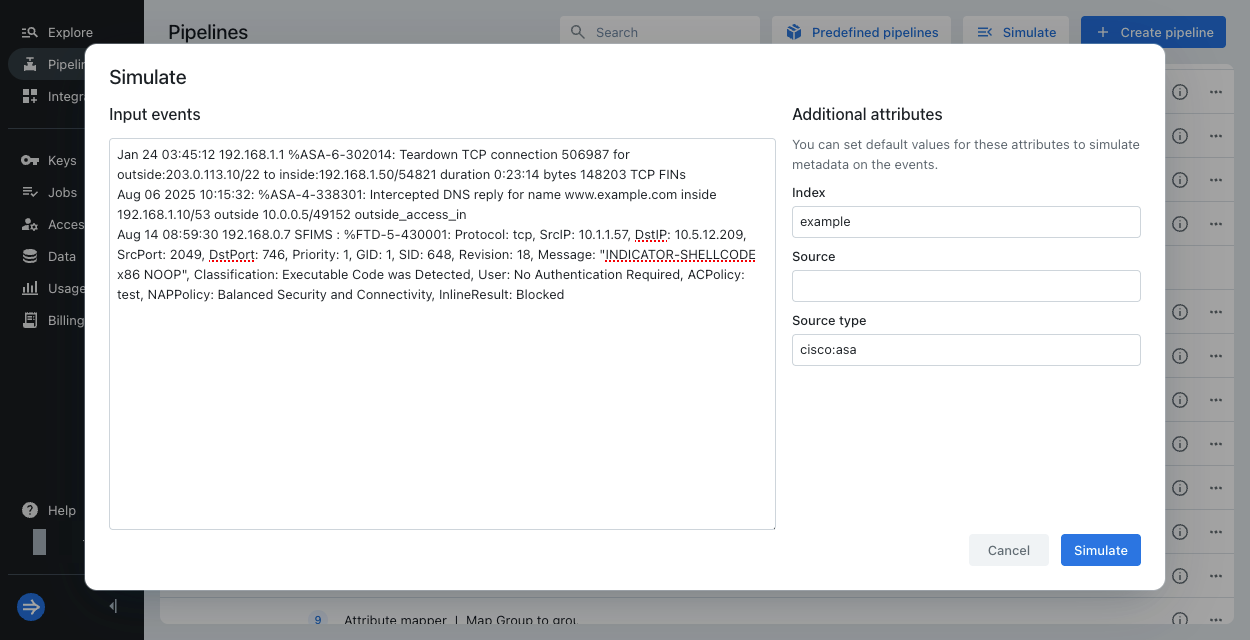
In Input events, paste the example events.
Jan 24 03:45:12 192.168.1.1 %ASA-6-302014: Teardown TCP connection 506987 for outside:203.0.113.10/22 to inside:192.168.1.50/54821 duration 0:23:14 bytes 148203 TCP FINsAug 06 2025 10:15:32: %ASA-4-338301: Intercepted DNS reply for name www.example.com inside 192.168.1.10/53 outside 10.0.0.5/49152 outside_access_inAug 14 08:59:30 192.168.0.7 SFIMS : %FTD-5-430001: Protocol: tcp, SrcIP: 10.1.1.57, DstIP: 10.5.12.209, SrcPort: 2049, DstPort: 746, Priority: 1, GID: 1, SID: 648, Revision: 18, Message: "INDICATOR-SHELLCODE x86 NOOP", Classification: Executable Code was Detected, User: No Authentication Required, ACPolicy: test, NAPPolicy: Balanced Security and Connectivity, InlineResult: Blocked -
In Additional attributes, assign the attributes that correspond with the pipeline condition.
For the example, assign the indexexampleand the source typecisco:asa. -
Click Simulate.
-
-
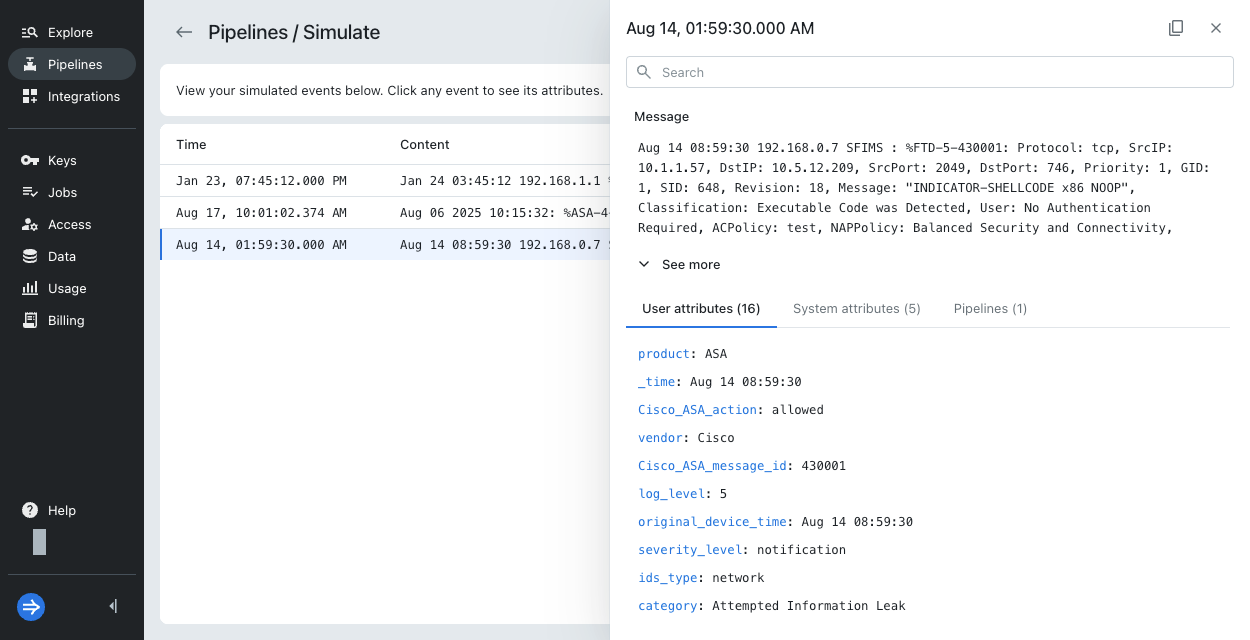
In the simulation results, select an event to see its attributes.
-
Simulation doesn't add any events to Lumi. If you're satisfied with the result, you can now send events.
If you have unconverted transforms and are missing important attributes, see the next section to build unconverted transforms. You can also generally add or modify processors.
3. Build unconverted transforms
Review and optionally recreate any processors with warnings.
Before you recreate the processors, evaluate whether you need the user attributes they generate. You might not need to configure the processors if your searches or other processors don't use the attributes.
Some processors with warnings may still be functional, for example, if Lumi inferred a Splunk configuration that wasn't set.
Other warning processors are disabled and marked not supported, indicating that Lumi couldn't convert the Splunk functionality.
You might still be able to replicate the Splunk transform in Lumi by manually creating your own processors.
Review supported functionality in the processors reference.
The following example shows how to configure an unconverted transform:
-
Expand the new pipeline and identify unconverted processors, whose names begin with
⚠️.
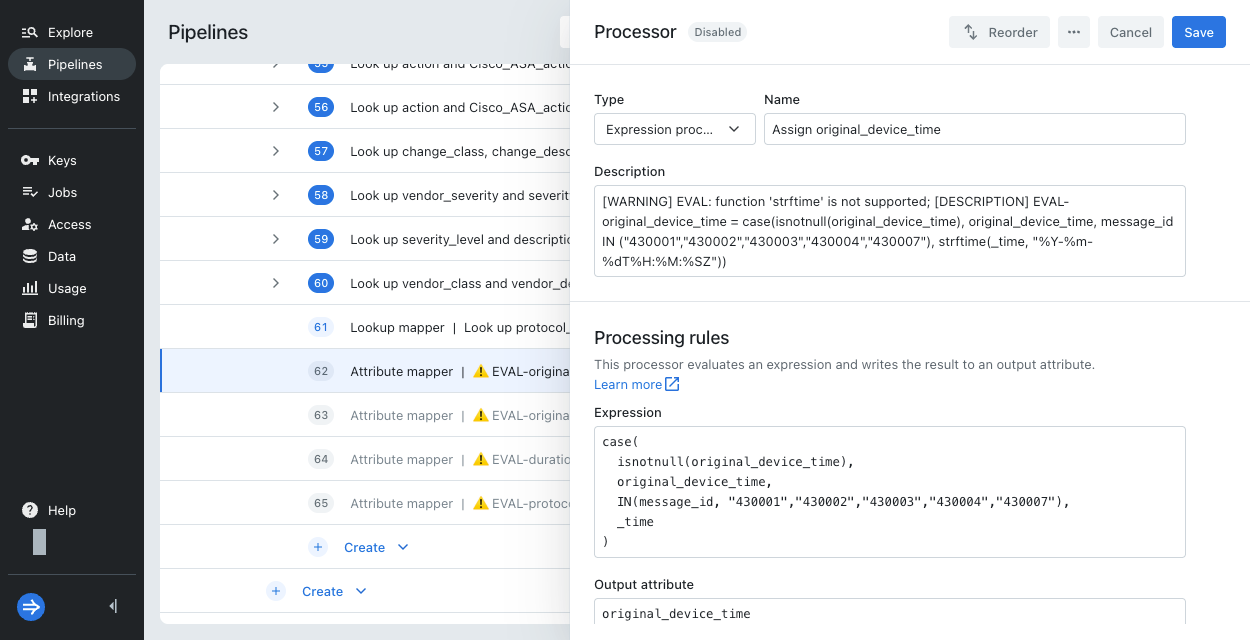
In this case, the flagged processor is⚠️ EVAL-original_device_time (not supported). -
Review the description for the unconverted processor:
[WARNING] EVAL: function 'strftime' is not supported; [DESCRIPTION] EVAL-original_device_time = case(isnotnull(original_device_time), original_device_time, message_id IN ("430001","430002","430003","430004","430007"), strftime(_time, "%Y-%m-%dT%H:%M:%SZ"))The description includes the exact line of the Splunk configuration that caused the warning. Here,
original_device_timecan't be assigned since Lumi doesn't have thestrftimefunction for reformatting_time. -
Update the processor as follows:
-
Change the type to Expression processor.
-
Change the name to
Assign original_device_time. -
Copy and paste the expression with
strftimeremoved:case(isnotnull(original_device_time),original_device_time,IN(message_id, "430001","430002","430003","430004","430007"),_time)This expression evaluates two conditionals, whether the original device time exists and whether the message ID is the listed subset. If neither condition passes, the processor doesn't assign an attribute. If only the second condition passes, the processor assigns the event timestamp.
Note that the expression doesn't perform the time formatting with
strftime, but you can display the formatted version in federated search with the search termstrftime(original_device_time, "%Y-%m-%dT%H:%M:%SZ"). -
For the output attribute, enter
original_device_time. -
Click Save.
-
-
Click the ellipsis next to the expression processor and select Enable.
-
Modify the
TIME_FORMATnested pipeline to ensure that the pipeline retains the timestamp extracted from the message:- Update the regex parser named Extract timestamp to name its output attribute
_time. - Update the timestamp mapper named Parse timestamp to use the source attribute
_time.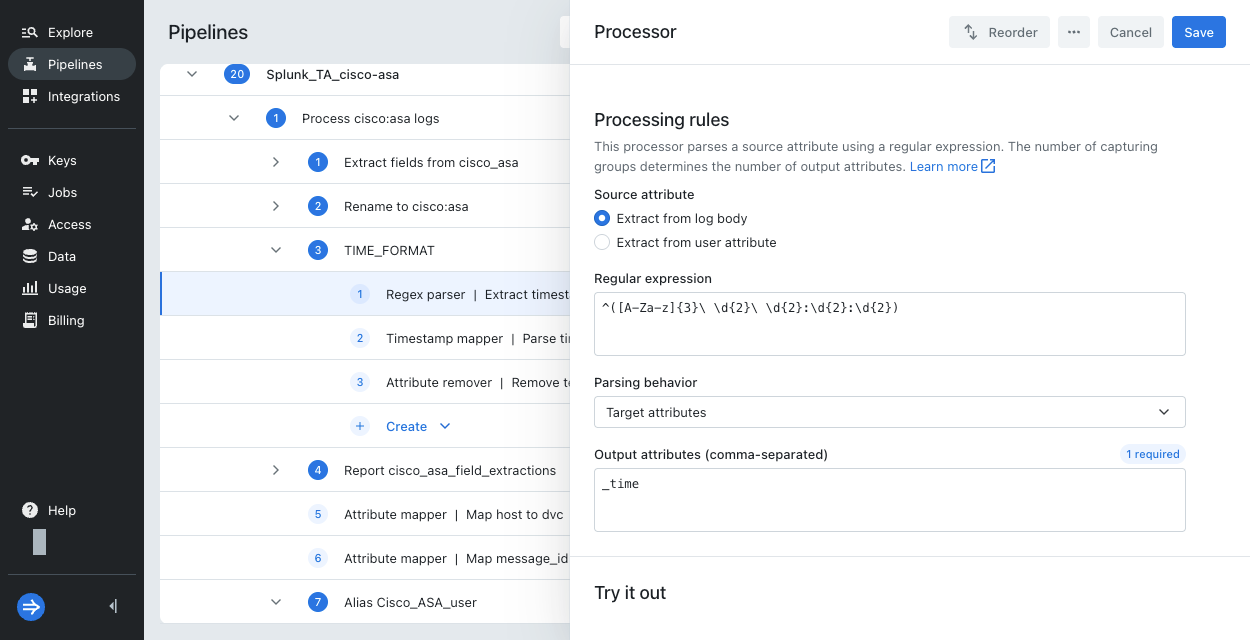
- Update the regex parser named Extract timestamp to name its output attribute
-
Simulate the pipeline again. If you have no further changes, you can now send events to Lumi.
4. Send events
When you're ready to use the pipeline:
- Restore or confirm the pipeline conditions to match your events.
- Optionally update the pipeline order.
- Send events to be processed by the new pipeline.
See the available integrations to send events to Lumi.
Types of coverage gaps
When Lumi can't directly translate a Splunk transform, it creates the closest processor and adds a warning label to the processor name and description. For example:
Processor name: ⚠️ EVAL-vendor_region (not supported)
Processor description:
[WARNING] EVAL: substr() length must be a numeric literal; [DESCRIPTION] EVAL-vendor_region = if(isnotnull(region), region, substr(AvailabilityZone,1,(len(AvailabilityZone) - 1)))
A warning next to a nested pipeline indicates incomplete processing. The existing processors in the nested pipeline converted correctly, but one or more Splunk transforms didn't transfer. To view the details, select the ellipsis then click Edit.
The following table describes potential reasons that Lumi can't convert a transform and their associated labels:
| Suffix | Processor state | Description | Example scenario |
|---|---|---|---|
defaulted | Enabled | Lumi inferred an unspecified Splunk setting. | transforms.conf lists an invalid setting for case_sensitive_match. Lumi defaults to a case-sensitive match. |
warning | Enabled | Similar functionality replicated. The processing might be inexact or incomplete. | A Splunk LOOKUP expression references a CSV column that no longer exists in the lookup file. Lumi drops the missing field. |
not supported | Disabled | Can't replicate the Splunk transform. This label only means that Lumi couldn't convert the transform during the TA migration. You might be able to configure one or more processors to achieve the same functionality. | A function used in a Splunk EVAL statement isn't available in Lumi. |
For additional context on the unconverted transforms, refer to props.conf and transforms.conf from your Splunk TA.
You can typically find these files in default/.
Lumi is constantly adding support for migrating Splunk transforms, so coverage gaps will decline over time. If you have a required Splunk transform that Lumi can't configure, contact Imply Lumi support.
Limitations
The following Splunk transformations aren't supported:
-
Transforms at data collection: Lumi doesn't replicate any processing or external script calls configured in
inputs.conf. The pipeline input should reflect the same event message that Splunk stores in_raw. -
External lookup:
external_cmdcalls a custom script to enrich events. You can't use external scripts in Lumi pipelines. -
KV store lookup:
external_type = kvstoreandcollection = <collection_name>direct Splunk to map event fields using a Splunk KV store. You can't reference these stores in Lumi pipelines.
Learn more
- Manage pipelines and processors for how to create and manage pipelines and processors.
- Lumi concepts for Splunk users to learn about how Splunk TAs conceptually map to Lumi pipelines.
- Search events with Splunk to set up federated search.