Install the Lumi Terraform provider
This topic explains how to install the Imply Lumi Terraform provider and set it up to manage Lumi resources.
The Lumi provider isn't available in the public Terraform registry. Contact your Imply support representative to obtain the provider binary. You then install it into a local directory where Terraform can find it.
When you complete the steps in this topic, you'll have the following:
- An IAM key that authenticates the provider to Lumi
- The provider installed where Terraform can load it
- A minimal configuration that confirms Terraform can load the provider
Prerequisites
Before you begin, make sure you have the following:
- Access to Lumi with the Manager role or higher. For details, see Use roles to control access.
- Lumi Terraform provider binary from Imply
- Terraform CLI version 1.5.7 or higher
Configure authentication
Create an IAM key to authenticate the Terraform provider. As a best practice, only use this key for Terraform. Enable other integrations, such as Splunk® federated search, on separate keys, so you can rotate or revoke this key without affecting them.
This authenticating key is separate from any IAM keys you manage as lumi_iam_key resources in your Terraform configuration.
The authenticating key manages those keys, but it can't manage itself or keys created in the Lumi UI.
Use the Lumi UI to create the authenticating key:
-
Follow the steps to Create an IAM key.
-
Add the Terraform provider integration.
-
Copy the key token.
-
Save the token as an environment variable in
LUMI_IAM_KEY_TOKEN. See the HashiCorp documentation on how to Protect sensitive input variables.For example, run the following command in your terminal, replacing the value with your actual token:
export LUMI_IAM_KEY_TOKEN=229a2561-0000-0000-0000-bc433de16f89
Obtain Lumi endpoints
The Lumi Terraform provider uses two endpoints:
LUMI_APP_ENDPOINT: For managing IAM keys. The endpoint is your Lumi host address, the same URL you open in a browser. For example,https://lumi.imply.io.LUMI_ENDPOINT: For managing pipelines. The endpoint is the address of your Lumi event collector. For example,https://us1.api.lumi.imply.io.
You only need the endpoint for the resource Terraform manages.
To obtain the Lumi endpoints:
-
From the Lumi navigation menu, click Integrations > Terraform provider.
-
Select the IAM key you created.
-
Copy and paste the provider configuration into your Terraform configuration file, such as in
main.tf.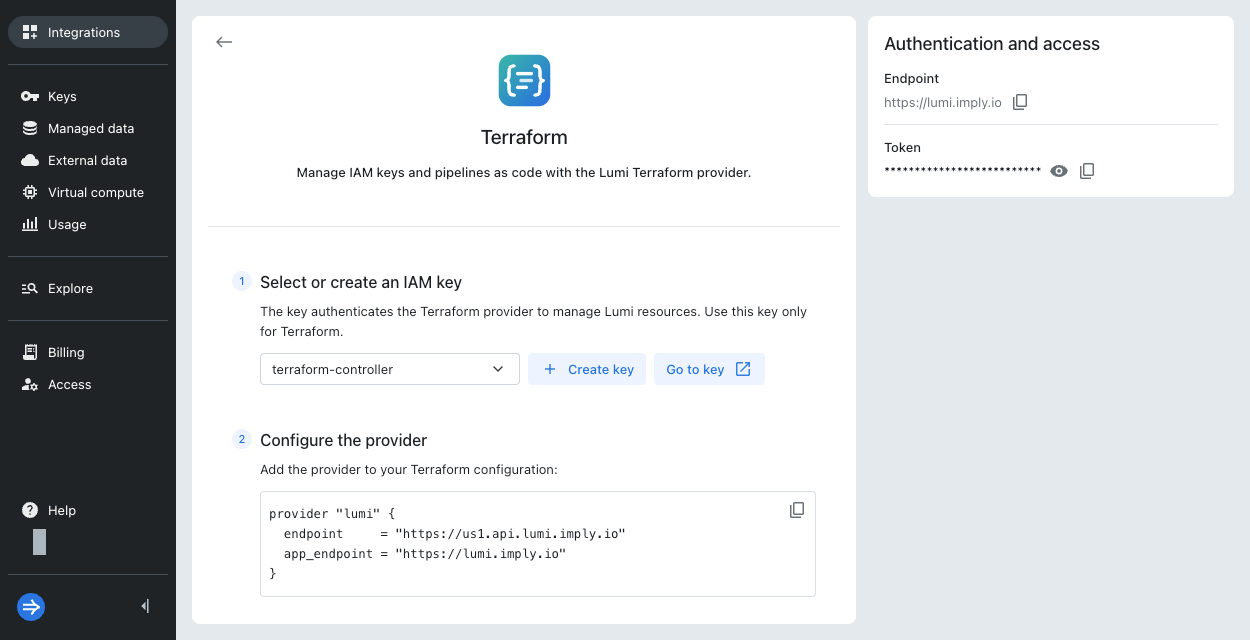
-
You can also assign the endpoints as environment variables. For example:
export LUMI_APP_ENDPOINT=https://lumi.imply.ioexport LUMI_ENDPOINT=https://us1.api.lumi.imply.ioThe provider configuration takes precedence over any environment variables.
Install the provider
To install the Lumi Terraform provider:
-
Download the binary provided by Imply, typically a file named
terraform-provider-lumi_<version>_<os_arch>.zip, whereversionis the semantic version, andos_archis the OS architecture.To identify your platform, run
terraform version. You should get a result likeTerraform v1.16.5 on darwin_arm64. In this example,os_archisdarwin_arm64. -
Place the provider binary into a directory that Terraform recognizes as a local filesystem mirror. Common filesystem mirrors include
%APPDATA%/terraform.d/pluginsfor Windows and$HOME/.terraform.d/pluginsfor macOS and Linux. You can also use a custom directory that you later specify in your user configuration file.For example, run the following command in your terminal, replacing
BINARY_FILE_NAMEwith the name of your.zipfile:mkdir -p ~/.terraform.d/plugins/registry.terraform.io/implydata/lumicp BINARY_FILE_NAME ~/.terraform.d/plugins/registry.terraform.io/implydata/lumi -
If you installed the provider in a custom directory rather than a filesystem mirror, create or update your Terraform user configuration to point to the location. The user configuration file is
terraform.rcon Windows and.terraformrcon macOS and Linux. You don't need to complete this step if you used a recognized local mirror directory in the previous step.For example, provide the following details in your user configuration. Update
filesystem_mirrorto refer to the same directory you used in the previous step.provider_installation {filesystem_mirror {path = "/custom/directory/.terraform.d/plugins"include = ["registry.terraform.io/implydata/lumi"]}# avoid searching the public registry for this providerdirect {exclude = ["registry.terraform.io/implydata/lumi"]}} -
Add the following
terraformblock tomain.tf, above the provider block you copied in the previous section:terraform {required_providers {lumi = {source = "implydata/lumi"}}} -
Initialize the Terraform backend and provider plugins:
terraform initYou should see that the plugin installed and the message:
Terraform has been successfully initialized!You might also see a note that the provider is unauthenticated. This is normal for providers installed from a local directory, because Terraform only verifies signatures for providers downloaded from a registry.
-
Confirm that you can use the provider. Perform a dry run:
terraform planYou should see the message:
No changes. Your infrastructure matches the configuration.This confirms that Terraform can load the provider. Terraform checks your credentials and endpoints when you create a Lumi resource and plan the configuration.
Troubleshoot installation
This section lists solutions for errors you might come across from the Terraform CLI when installing the provider.
Error message: Error: Failed to load plugin schemas (plan)
Complete all of the following:
- Ensure the Lumi provider was compiled for your architecture.
- Check that your system has read and execute permissions to the provider.
- Go to your privacy and security settings, and allow permissions for your system to access the provider.
Error message: Error: Incompatible provider version (init) or Error: Inconsistent dependency lock file (plan)
Apply one of the following solutions:
- Only store a single version of the Lumi provider.
- Ensure the latest version of the Lumi provider matches your architecture.
- Specify the version number in your Terraform configuration:
terraform {required_providers {lumi = {source = "implydata/lumi",version = "0.1.1"}}}
Error message: Error: Missing Lumi IAM key token
Complete the steps in Configure authentication, and ensure that Terraform can read your environment variable.
Error message: Error: Missing Lumi app endpoint or Error: Missing Lumi API endpoint
Set LUMI_APP_ENDPOINT to manage IAM keys, or LUMI_ENDPOINT to manage pipelines.
See Obtain Lumi endpoints.
Update the provider
To update the Lumi Terraform provider, install the binary as described above.
Then initialize Terraform:
terraform init -upgrade
Learn more
For more information, see Lumi Terraform provider overview.